Quick Facts
- Market Reality: With 85% of U.S. households owning a smart TV in 2025, the infrastructure for seamless cross-device sharing is now nearly universal.
- The Golden Rule: For zero-latency gaming and 4K resolution, a wired HDMI connection remains the gold standard; for casual viewing and multitasking, wireless casting is the most convenient.
- iPhone Connectivity: iPhone 15 and newer models utilize a standard USB-C port, whereas older models require a specific Lightning Digital AV Adapter limited to 1080p output.
- Android Requirements: To use a wired connection, your Android device must support DisplayPort Alternate Mode, a feature found in most mid-to-high-end smartphones.
- Resolution Support: To achieve 4K60 video, ensure you are using an HDMI 2.0 or higher cable rated for 18Gbps.
- Global Impact: The rapid integration of mobile and TV ecosystems has pushed the global smart TV market to an estimated $269.08 billion in 2025.
To stream phone to tv effectively, the most reliable method for high-quality, lag-free streaming is connecting via an HDMI adapter. Most modern Android devices and iPhone 15 or later models support a direct connection using a USB-C to HDMI cable, while wireless protocols like AirPlay and Chromecast offer flexible, cable-free alternatives for compatible smart displays.
As a mobile editor, I’ve seen the smartphone evolve from a simple communication tool into the primary hub of our digital lives. Recent data suggests that 64.8% of U.S. adults now watch video content on their smartphones, making it the most popular screen for media consumption. However, while the mobile screen is convenient, some experiences—like a cinematic blockbuster or a high-stakes mobile game—simply demand more real estate. Learning how to stream phone to tv is no longer just a "neat trick"; it is an essential skill for maximizing your 2025 device ecosystem.
Screen Mirroring vs. Casting: Choosing Your Method
Before you grab a cable or open your settings, it is vital to understand the difference between screen mirroring and casting. These terms are often used interchangeably, but they serve very different purposes.
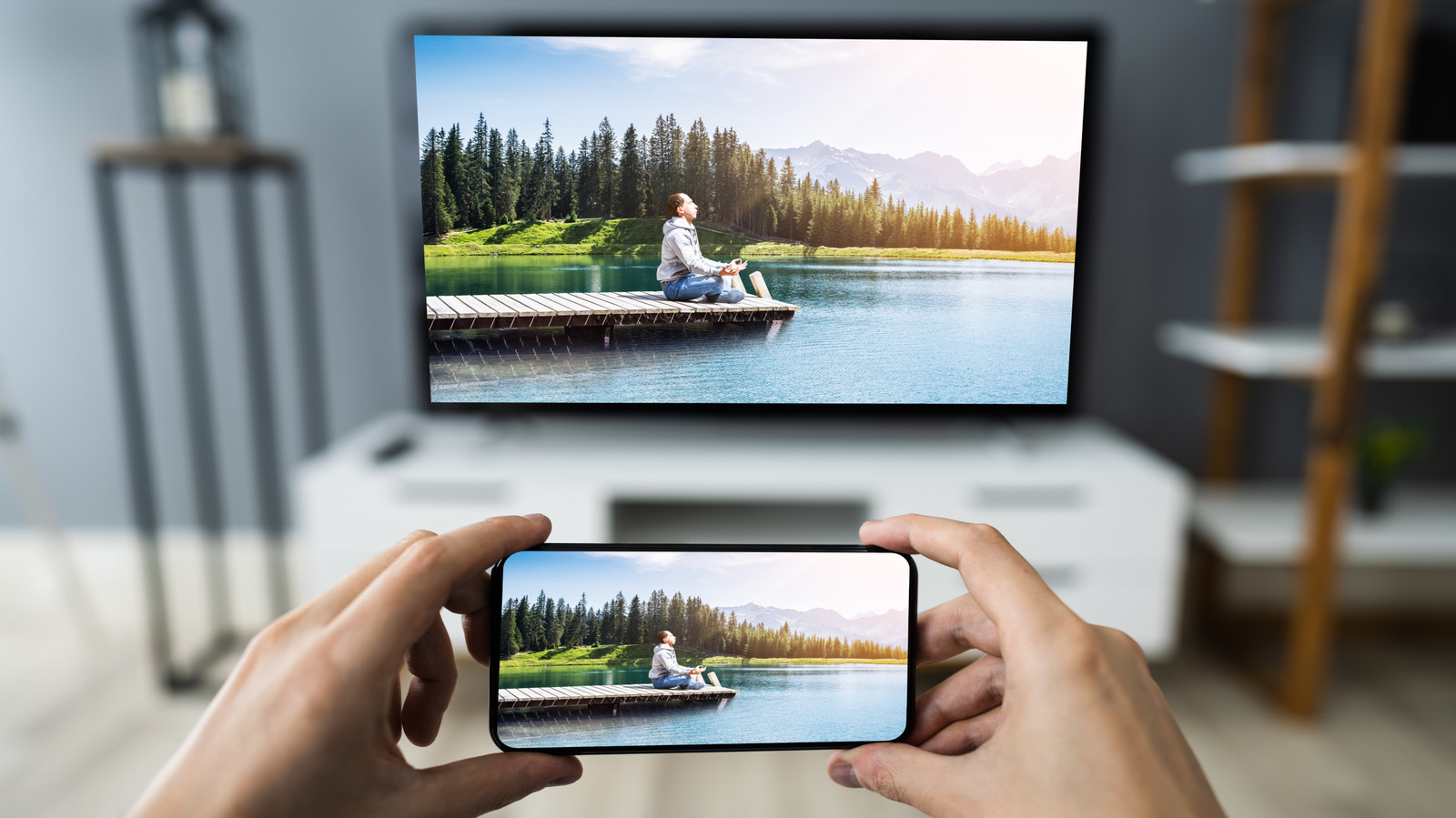
Screen mirroring phone to tv is an operating-system-level function. It creates an exact replica of your phone's screen on the television. If you rotate your phone, the TV image rotates. If you receive a text message notification, it pops up on the big screen for everyone to see. Because the phone is doing the heavy lifting of encoding the video signal in real-time, it typically results in higher battery drain and can occasionally suffer from input lag.
Wireless casting from phone to tv is an app-level protocol, such as Google Cast or AirPlay. When you cast a video from YouTube or Netflix, your phone essentially sends a digital instruction to the TV: "Hey, go to this URL and play this specific video file." The TV then takes over the streaming process using its own processor and Wi-Fi connection. This allows your phone to function as a remote control, letting you text, take calls, or even turn the screen off without interrupting the playback.
| Feature | Screen Mirroring | Wireless Casting |
|---|---|---|
| Best Use Case | Presentations, showing photos, non-supported apps | Netflix, YouTube, Spotify, Prime Video |
| Multitasking | Not possible (TV shows exactly what phone shows) | Yes (Phone can be used for other tasks) |
| Battery Impact | High | Low |
| Quality | Depends on Wi-Fi and phone processor | Depends on TV hardware and internet speed |
This distinction is the core of screen mirroring vs casting from phone to tv explained: use mirroring when you need to show the entire interface, and use casting when you want to sit back and enjoy a movie.
Wired Connections: The Lag-Free HDMI Solution
Even in 2025, cables still have their place. If you are a mobile gamer or someone who demands the highest possible video bitrate without stuttering, the best way to connect phone to tv with hdmi is via a physical adapter.
For the modern era, the transition to USB-C has simplified things immensely. If you have an iPhone 15, iPhone 16, or a flagship Android device like the Samsung Galaxy S24 series, you likely have access to DisplayPort Alternate Mode. This technology allows the USB-C port to output native video signals directly to a display.
When searching for the best usb-c to hdmi cable for android phone to tv, look for cables that specify 4K @ 60Hz support. Many cheap cables are capped at 30Hz, which can make motion look choppy and increase input lag. Additionally, ensure the cable or adapter is rated for HDCP compliance. Without HDCP 2.2 or higher, apps like Netflix or Disney+ may refuse to play high-definition content to prevent piracy, resulting in a black screen with audio only.
For those still using older Apple devices, the process is slightly different. You will need to learn how to connect iphone to tv with lightning to hdmi adapter. It is important to note that the official Apple Lightning Digital AV Adapter does not output a native HDMI signal; it actually uses a small internal chip to transcode the video, which caps the resolution at 1080p and can introduce minor compression artifacts.
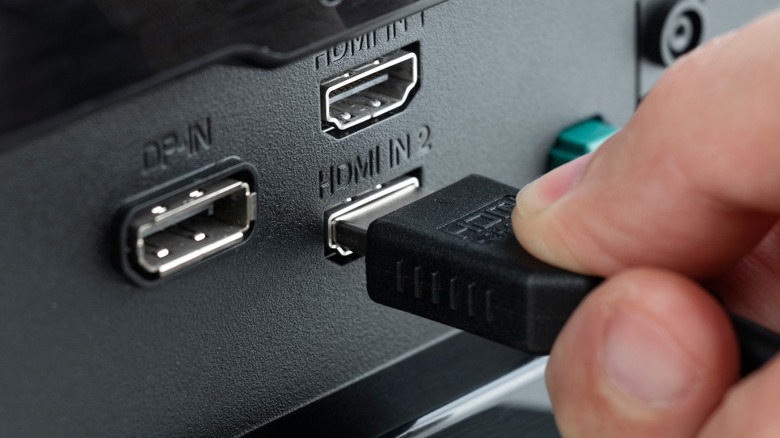
Hardware Checklist for Wired Streaming:
- Modern Devices: USB-C to HDMI cable (supporting 60Hz).
- Older iPhones: Lightning Digital AV Adapter + standard HDMI cable.
- Cable Length: A 10ft or 15ft cable is recommended if you want to control the phone from your couch.
- Power: Look for a USB-C hub with Power Delivery (PD) so you can charge your phone while streaming.
Wireless Freedom: AirPlay, Chromecast, and Miracast
If you prefer to keep your living room cable-free, wireless protocols are the way to go. Most smart TVs manufactured after 2022 come with built-in support for multiple streaming standards.
For iPhone users, AirPlay is the native solution. It is incredibly well-integrated into the iOS Control Center. To use it, simply ensure your phone and TV are on the same local area network. If your TV doesn’t natively support AirPlay, you can add this functionality by connecting an Apple TV 4K box.
Android users primarily rely on Google Cast (commonly known as Chromecast). While originally a physical dongle, Google Cast is now built into most Sony, Hisense, and TCL TVs running Google TV or Android TV. Beyond casting, Android also supports Miracast, a protocol that uses Wi-Fi Direct to create a peer-to-peer connection between the phone and the TV. This is particularly useful because it doesn't require a router or an active internet connection to work.
A common point of failure in wireless setups is home network stability. If you are experiencing stuttering, check if your router supports the 5GHz band. The 2.4GHz band is often crowded with signal interference from microwaves and neighboring Wi-Fi networks, which can severely throttle your streaming bandwidth.
Streaming to Non-Smart TVs without Wi-Fi
What if you are staying in a hotel with a "dumb" TV, or you are in a remote cabin without a home network? You can still stream content, but you will need a little extra hardware.
If the TV has an HDMI port but no "smarts," you can bridge the gap by connecting phone to tv using roku or fire stick 2025. These devices act as receivers. Even if there is no external Wi-Fi, many Roku and Fire TV models allow for Miracast or Screen Mirroring using a direct ad-hoc connection. You simply enable the "Screen Mirroring" mode in the stick's settings and find the device in your phone's "Cast" or "Smart View" menu.
For more professional setups or permanent home theaters where running long cables is impossible, a wireless hdmi video transmitter for phone to tv setup is an excellent choice. These kits consist of a transmitter that plugs into your phone (via an adapter) and a receiver that plugs into the TV. They operate on dedicated frequencies to provide a near-zero-lag experience without relying on the household Wi-Fi.
If you are wondering how to stream from phone to non smart tv without wifi, the most foolproof method is a direct HDMI cable. It bypasses the need for any networking handshake, making it the most reliable "off-grid" solution for travelers.
Performance Tuning: Fixing Lag and Resolution Issues
There is nothing more frustrating than a pixelated image or audio that doesn't match the actors' lips. If you find your setup isn't performing as expected, a few technical tweaks can usually solve the problem.
First, address the input lag. Most modern TVs have a lot of post-processing enabled by default to make movies look "smoother." While great for broadcast TV, this adds milliseconds of delay to your phone's signal. To reduce lag when screen mirroring phone to tv for gaming, always switch your TV's picture mode to Game Mode. This disables unnecessary processing and significantly improves responsiveness.
Pro-Tip: Refresh Rate Sync If your video looks jittery, check your phone's refresh rate settings. Some phones default to 120Hz, while most TVs are optimized for 60Hz. Manually setting your phone to a 60Hz refresh rate can sometimes synchronize the signal better and eliminate "judder" during high-speed action scenes.
Second, check for bandwidth bottlenecks. If you see "sparkles" or white dots on the screen when using a wired connection, your cable likely lacks the necessary shielding or bandwidth to handle the video resolution. Replacing a generic cable with one that has MHL adapter certification or is rated for 18Gbps can often clear up signal issues immediately.
FAQ
How do I connect my phone to my TV wirelessly?
To connect wirelessly, ensure both your phone and TV are on the same Wi-Fi network. For iPhones, open the Control Center and tap Screen Mirroring to select your AirPlay-compatible TV. For Android users, swipe down to the Quick Settings menu and look for Cast or Smart View. If your TV isn't smart, you will need a wireless receiver like a Chromecast or Roku plugged into the HDMI port.
Can I stream my phone to a TV without Wi-Fi?
Yes, you can stream without Wi-Fi by using a physical USB-C to HDMI cable or a Lightning Digital AV Adapter. Alternatively, some Android devices support Miracast, which uses Wi-Fi Direct to create a direct wireless link between the phone and the TV without needing a router or internet access.
Why is my phone not connecting to my TV?
The most common reasons include being on different Wi-Fi networks (SSID mismatch), your TV not supporting the specific wireless protocol (like trying to use AirPlay on a TV that only supports Miracast), or a hardware limitation such as an Android phone that lacks DisplayPort Alternate Mode for wired connections. Ensure all software is updated on both devices.
How do I stream video from my phone to a non-smart TV?
For a non-smart TV, you must use an external device to act as an interface. The easiest way is to plug a streaming stick like a Roku, Amazon Fire Stick, or Google Chromecast into the TV's HDMI port. These devices provide the wireless connectivity your TV lacks, allowing you to cast or mirror your phone screen to them.
Is screen mirroring the same as casting?
No, they are different technologies. Screen mirroring replicates your entire phone screen and everything you do on it onto the TV. Casting only sends the specific media file (like a movie or song) to the TV, allowing you to use your phone for other apps or turn the screen off while the content continues to play on the big screen.