Quick Facts
- Support Cutoff Date: May 20, 2026
- Affected Models: All Kindle and Fire tablet devices released in 2012 or earlier
- Primary Impact: Loss of on-device Kindle Store access, including browsing and purchasing
- Critical Warning: Do not factory reset or deregister legacy devices after the deadline
- Workaround: Sideloading via Micro-USB and Calibre library management
- Trade-in Benefit: 20% discount on new hardware available until June 20, 2026
- Affected User Base: Estimated 3% of active Kindle owners
Amazon is ending Kindle Store support for legacy devices on May 20, 2026. To identify your Kindle model, navigate to Settings > Device Options > Device Info on your e-reader to find the model name, generation, and serial number. You can also log into your Amazon account online, navigate to the Devices tab under Manage Your Content and Devices, and check the registration date and hardware specifications for every Kindle linked to your account.
Why Your Kindle Model Matters (The 2026 Deadline)
Technology often moves faster than our reading habits. For many of us, a Kindle isn't just a gadget; it is a library that has sat on our nightstands for over a decade. However, Amazon has officially set May 20, 2026 as the deadline to end Kindle Store support for all e-readers and Fire tablets released in 2012 or earlier. This means that if you own one of these legacy e-reader units, you will no longer be able to browse, borrow, or purchase new titles directly from the device's interface.
While the news might feel like a push toward technical obsolescence, the hardware itself remains remarkably durable. The E-ink display on a 15-year-old Kindle DX often looks as crisp today as it did at launch. According to reports, this discontinuation is estimated to impact approximately 3% of Amazon's active user base. While that seems like a small fraction, for those within that 3%, the change requires a shift in how they interact with the Amazon device ecosystem.
It is worth noting the longevity these devices have enjoyed. Kindle models released between 2007 and 2012, such as the original Kindle and the Kindle Keyboard, received between 14 and 18 years of support before the scheduled 2026 store cutoff. This is an outlier in the world of mobile electronics, where tablets and smartphones often lose software support within five to seven years. Identifying your Kindle model now is the first step in deciding whether to stick with your trusted hardware or take advantage of the upcoming upgrade offers.
Method 1: Finding Kindle Model Name in Device Settings
The most straightforward way to identify Kindle model details is through the software itself. If your device is still functional and has a working battery, the internal settings menu provides the most accurate information. For any device running modern Kindle firmware, usually version 5.14 or higher, the path is standardized.
To begin, wake your device and tap at the top of the screen to bring up the Quick Actions menu. Tap on All Settings, then navigate to Device Options. Within this sub-menu, tap on Device Info. A pop-up box will appear listing the model name, the generation, and the serial number. This method is the gold standard for finding kindle model name in device settings because it leaves no room for guesswork regarding the exact iteration of the hardware.
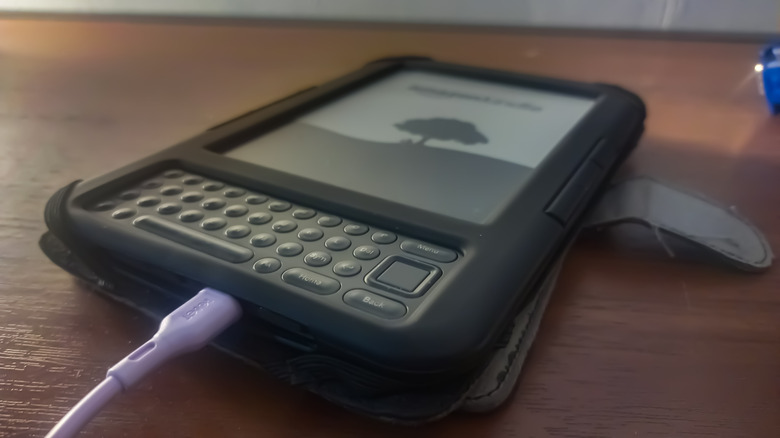
If you have an older device with a physical home button or a keyboard, the menu navigation might vary slightly. Usually, pressing the Menu button from the home screen and selecting Settings will eventually lead you to a "Device Info" or "About" section. Knowing your Kindle generation is crucial because while a 5th-generation basic Kindle will lose store access, a 6th-generation Paperwhite (released in late 2013) will remain supported for the foreseeable future.
Method 2: Using Amazon Account to Identify Kindle Model Online
If your Kindle has a broken screen, a dead battery, or if you simply don't have it near you, you can still find the information via the cloud. Amazon maintains a detailed log of every piece of hardware linked to your digital library. This is a highly effective way of using amazon account to identify kindle model online without needing to touch the device.
Start by logging into your Amazon account on a desktop browser. Navigate to the Account & Lists menu and select Manage Your Content and Devices. Once there, click on the Devices tab. This page displays a list of all Kindle e-readers, Fire tablets, and Kindle apps registered to your name.
Each device entry usually features an image of the model and its official name. More importantly, it lists the date the device was first registered. If you see a registration date between 2007 and 2012, there is a high probability that your device is on the list of kindle devices losing amazon store support 2026. This cloud-based hardware identification is also useful for deregistering old devices you no longer own, helping to clean up your account before the support transition.
Method 3: Kindle Serial Number Lookup (The Foolproof Way)
Sometimes the settings menu is inaccessible and the online account doesn't provide enough detail. In these cases, a Kindle serial number lookup is the most forensic method available. Every Kindle generation has a unique set of character prefixes at the start of its serial number that identifies exactly what hardware is inside the shell.
You can find the serial number printed in tiny text on the back of the device, usually near the bottom. If the text has worn off over years of use, you can also find it on the original packaging if you still have it. Once you have the first four to six characters, you can match them against a database. This is the definitive way of identifying kindle generation using serial number prefixes.
| Serial Prefix | Kindle Model & Generation | Support Status |
|---|---|---|
| B001 | Kindle 1st Generation | Ends May 2026 |
| B002, B003 | Kindle 2nd Generation | Ends May 2026 |
| B004, B005, B009 | Kindle DX | Ends May 2026 |
| B006, B008, B00A | Kindle Keyboard (3rd Gen) | Ends May 2026 |
| B00E, B023, 9023 | Kindle 4th & 5th Gen (Non-touch) | Ends May 2026 |
| B011, B012, B010 | Kindle Touch (4th Gen) | Ends May 2026 |
| B024, B01B, B01D | Kindle Paperwhite (1st Gen) | Ends May 2026 |
| B0D4, 90D4 | Kindle Paperwhite (2nd Gen) | Supported |
If you are identifying kindle model by model number on back, look for codes like "D00901" (Kindle Keyboard) or "EY21" (Paperwhite 1). While these model numbers are helpful, the serial number prefix is much more specific for determining the exact hardware revision and its subsequent firmware compatibility.
Warning: Risk of Factory Resetting Old Kindle After Support Ends
There is a critical technical trap that owners of legacy Kindles must avoid. After the May 20, 2026, deadline, Amazon will not only stop new purchases on these devices but will also stop allowing these specific hardware IDs to register with their servers. This creates a significant risk of factory resetting old kindle after support ends.
If you perform a factory reset or deregister your device after the cutoff date, you will effectively lose the ability to sign back into your Amazon account on that device. While the hardware will still turn on, you won't be able to sync your cloud library or download your previously purchased books from Amazon's servers directly. To the device, it will look like a permanent "registration error."
To maintain the best reading functionality, ensure your device is registered and your favorite books are downloaded locally before May 2026. Once they are on the device, they are yours to keep reading as long as the battery holds a charge. The Digital Rights Management (DRM) keys are stored locally, so as long as you don't reset the device, your library remains accessible.
How to Keep Reading on Unsupported Devices
The end of store support does not mean the end of your e-reader's life. If you have a legacy device that you love for its tactile buttons or its specific weight, there are several ways to bypass the store limitations. Understanding how to read books on kindle without store access involves moving away from the "Buy Now" button on the device and toward a wired connection.
The most effective method is sideloading. You can purchase books on the Amazon website using a smartphone or computer, then select the "Download and Transfer via USB" option. By connecting your Kindle to your computer via a Micro-USB cable, you can manually drop the book files into the "Documents" folder of the Kindle drive.
For a more sophisticated experience, I highly recommend using Calibre library management software. Calibre is an open-source tool that acts like iTunes but for e-books. It can convert file formats, organize your metadata, and send books to your legacy Kindle with a single click. This ensures your device remains useful regardless of whether the on-device store is functional.
If you decide that the lack of store access is a dealbreaker, Amazon is offering a sustainability-focused incentive. Owners of affected legacy devices can receive a 20% trade-in discount toward a new Kindle, along with a small amount of Amazon Gift Card credit based on the device's condition. This offer is valid until June 20, 2026, providing a one-month grace period after the store support officially ends. When considering what to do with unsupported kindle devices in 2026, remember that recycling them through the trade-in program is far better for the environment than letting them sit in a drawer.
FAQ
How do I know which Kindle model I have?
The fastest way is to go to Settings > Device Options > Device Info on the device itself. This screen will explicitly state the model name and which generation it belongs to. If the screen is unresponsive, you can check the "Devices" section of your Amazon account online under the Manage Your Content and Devices menu.
Where is the serial number located on a Kindle?
The serial number is typically located on the back of the Kindle, printed in small text near the bottom or side. It can also be found digitally within the Device Info section of the Settings menu. If you still have the original box, the serial number is also printed on the barcode sticker on the packaging.
How do I identify my Kindle using the serial number?
You can identify the model by looking at the first four to six characters of the serial number. For example, a prefix of B006 indicates a Kindle Keyboard, while B011 indicates a Kindle Touch. You can match your specific prefix against a Kindle serial number lookup table to determine the exact generation and support status.
Which generation is my Kindle device?
The generation is usually listed in the Device Info menu. However, if your device was released between 2007 and 2012 (1st through 5th generation), it is considered a legacy device and will lose store support in 2026. Common legacy generations include the original Kindle (1st Gen), Kindle Keyboard (3rd Gen), and the initial Kindle Paperwhite (1st Gen).
How can I tell the difference between a Kindle Paperwhite and a standard Kindle?
A Kindle Paperwhite typically has a higher-resolution screen with a built-in front light for reading in the dark. Early standard Kindles lacked a built-in light and often had physical buttons for turning pages. If your device has a flush-front screen design (no raised bezel) and a light, it is almost certainly a Paperwhite or an Oasis.