Quick Facts
- Best Battery Tip: Enable Airplane Mode and the hidden Power Saver toggle to maximize longevity.
- Library Organization: Use the Group Series feature to clean up a cluttered home screen.
- Eye Comfort: Set a Warmth Schedule to transition the display to amber tones after sunset.
- Hidden Stat: You can track your personal reading streaks and insights at amazon.com/kindle/reading/insights.
- Market Insight: The Kindle Paperwhite continues to be the most popular choice, accounting for over 40% of global Kindle device sales as of 2024.
- Reading Personalization: Side-load custom fonts like Bookerly or Literata to enhance your specific typography preferences.
To optimize Kindle settings, focus on battery life via Airplane Mode and Power Saver, organize your library using Group Series and Collections, and enhance eye comfort through Dark Mode and Warmth schedules. These changes maximize reading immersion and device efficiency.
Amazon Kindles are built for immersion, but default configurations often lead to battery drain and cluttered screens. By adjusting a few key Kindle settings, you can transform your device into a focused reading powerhouse. Whether you have the new 2024 Paperwhite or an older model, these changes are non-negotiable. As an editor who spends hours every week testing mobile devices, I have found that while the hardware is excellent out of the box, the software requires a bit of fine-tuning to reach its full potential.
1. Master Kindle Battery Optimization: Beyond Airplane Mode
Most users know that turning off Wi-Fi helps with energy efficiency, but there is a deeper layer of Kindle battery optimization that often goes overlooked. In the newer firmware updates for the 11th and 12th generation models, Amazon has included a deeper sleep state that can significantly extend the time between charges.
The most important toggle is the Power Saver mode. When this is active, your Kindle enters a low-power state during long periods of inactivity. While it takes an extra second or two to wake up when you open your cover, the trade-off is worth it—especially for the 2024 models which can last up to three months on a single charge.
To find these settings:
- Go to Settings > Device Options > Advanced Options > Power Saver.
Additionally, consider the Page Refresh setting. E-ink technology works by physically moving micro-capsules of ink. To prevent ghosting—where faint traces of previous pages remain visible—the Kindle can refresh the screen on every page turn. However, this consumes more power. If you find the ghosting isn't bothersome, disabling this can provide a slight boost to your best kindle settings for battery life.
Another pro-tip: lower your screen brightness when reading in well-lit environments. Unlike a tablet, an e-reader display looks better with less artificial light when ambient light is available. This simple habit is a cornerstone of effective Kindle settings management.
2. Declutter with Kindle Library Organization
If you are a prolific reader, your home screen can quickly become a chaotic mess of individual titles, sequels, and random samples. This is where Kindle library organization becomes essential. The goal is to spend less time scrolling and more time reading.
Start by enabling the Group Series feature. This is a game-changer for series lovers because it stacks all books from the same series into a single thumbnail. It instantly reduces the number of items you have to swipe through.
To clean up your view:
- Navigate to Settings > Home & Library > Library Tab > Group Series in Library.
For even better declutter kindle home screen settings, I recommend using Collections. Think of these as folders. You can create a collection for "To Read," "Finished," or specific genres. The best way to manage this is through "Batch Adding." Instead of moving books one by one, long-press a book in your library, select Add to Collection, and then check off multiple titles at once. This improves storage management and keeps your most relevant content at your fingertips.
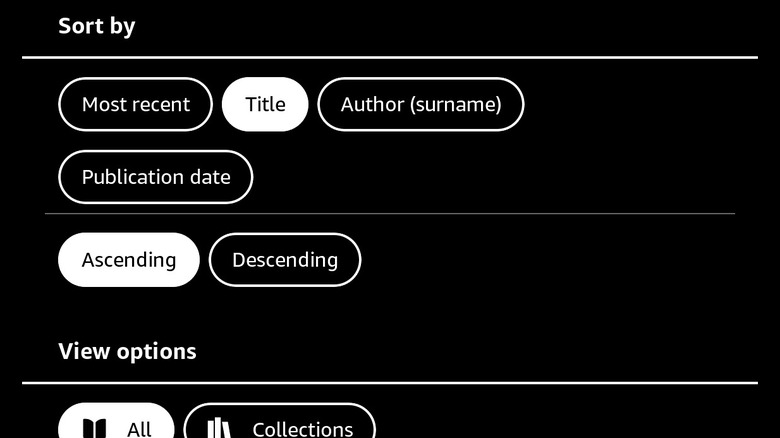
Finally, use the filter menu (the three lines with circles) to hide samples or books you have already finished. This keeps your active reading list front and center, ensuring that how to organize kindle library into collections remains a simple, automated process.
3. Reclaim Your Reading Immersion: Remove Distractions
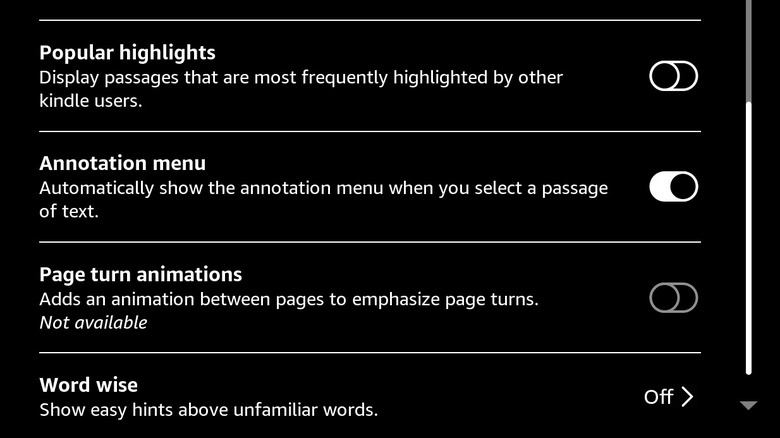
The beauty of a Kindle is that it isn't a phone; there are no Slack notifications or Instagram alerts. However, Amazon still includes some "social" features that can break your flow. To achieve true reading immersion, you should consider disabling Popular Highlights. These are the dashed underlines that show you what other readers have highlighted. While sometimes interesting, they often act as spoilers or distractions.
To disable them:
- While in a book, tap the top of the screen > Aa > More > Popular Highlights.
Another common distraction is the presence of ads on the lock screen, known as "Special Offers." While these devices are cheaper at purchase, seeing a random romance novel or thriller ad every time you pick up your device can be jarring. For a one-time fee of roughly $15, you can remove these ads through your Amazon account settings on the web. Once removed, you can enable the Show Cover feature, which displays the beautiful artwork of the book you are currently reading on the lock screen.
This shift in Kindle reading customization makes the device feel more like a physical book. It reminds you of the world you are currently inhabiting every time you glance at your nightstand. Small changes like how to disable popular highlights on kindle might seem minor, but they collectively create a much more personal and focused environment.
4. Visual Comfort: Kindle Dark Mode and Warmth Schedule Guide
One of the biggest advantages of the newer Kindle Paperwhite and Oasis models is the ability to adjust the color temperature of the screen. This is a vital part of my kindle dark mode and warmth schedule guide because it directly impacts your sleep hygiene.
The blue light emitted by standard screens can suppress melatonin. By shifting the display to a warmer amber hue, you reduce eye strain during late-night reading sessions. The best way to handle this is to set a schedule so the device transitions automatically.
How to set it up:
- Swipe down from the top > Warmth > Schedule.
- Choose Sunset to Sunrise or set a Custom time.
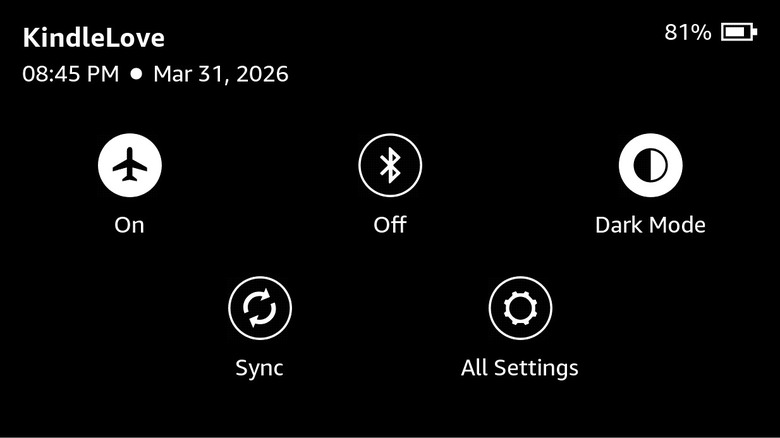
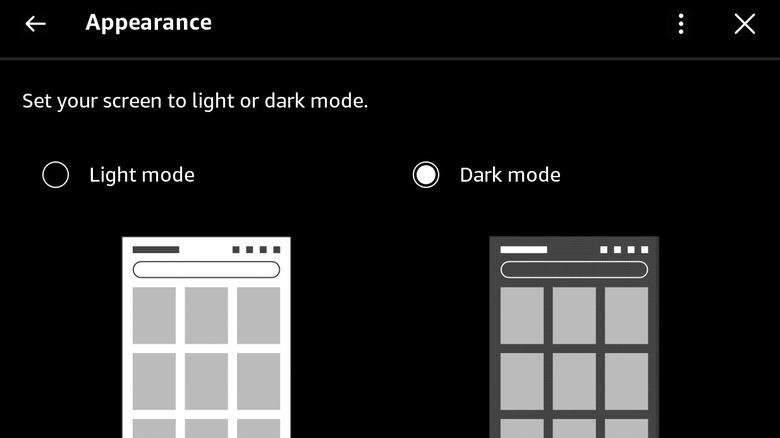
For those who prefer white text on a black background, Dark Mode is easily accessible from the Quick Actions panel. This is particularly useful for reading in a pitch-black room without disturbing a partner. If you are using a 12th Gen Paperwhite or the Signature Edition, you also have access to an auto-brightness sensor that adjusts to your surroundings, though I often prefer manual control to keep the brightness at the lowest comfortable level to save battery.
Below is a quick comparison of visual features across the most recent generations:
| Feature | Kindle (11th Gen) | Paperwhite (11th/12th Gen) | Paperwhite Signature |
|---|---|---|---|
| Dark Mode | Yes | Yes | Yes |
| Adjustable Warmth | No | Yes | Yes |
| Warmth Schedule | No | Yes | Yes |
| Auto-Brightness | No | No | Yes |
5. Advanced Typography: Installing Custom Fonts on Kindle Paperwhite
The default fonts like Bookerly and Ember are great, but for a truly tailored experience, you should try side-loading your own. Typography can actually impact your reading speed and comprehension. Whether you want a font that mimics an old typewriter or one specifically designed for dyslexia (like OpenDyslexic), the process of installing custom fonts on kindle paperwhite is surprisingly straightforward.
You will need a computer and a USB cable for this:
- Connect your Kindle to your PC or Mac.
- Open the Kindle drive and locate the folder named fonts.
- Drag and drop any
.ttfor.otffont files into that folder. - Eject the Kindle safely.
Once the device is disconnected, open any book and tap the top of the screen. Select Aa > Font > Font Family. Your new fonts will appear in the list alongside the system defaults.
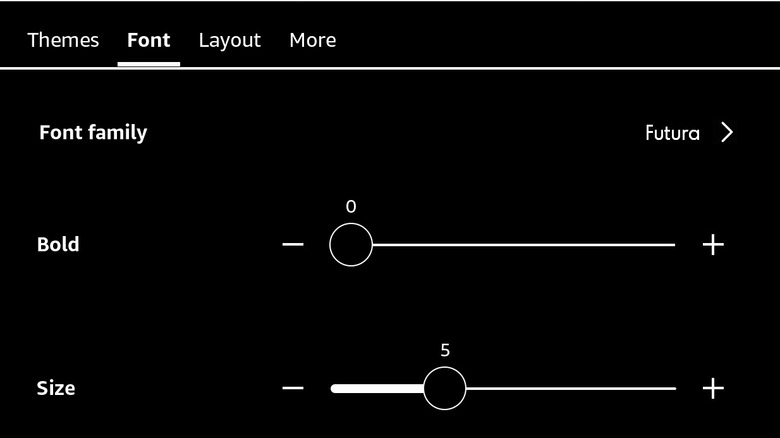
While you are in the Aa menu, don't forget to adjust your margins and line spacing. Narrower margins allow for more text on the screen, reducing the frequency of page turns, while wider line spacing can help those who find themselves losing their place. This level of Kindle reading customization ensures the device adapts to your eyes, not the other way around.
FAQ
How do I access settings on a Kindle?
To access the main settings menu, swipe down from the top of the screen to open the Quick Actions panel, then tap the gear icon labeled All Settings. If you are currently inside a book, you can also tap the top of the screen to reveal the reading menu, where the Aa icon allows you to adjust text and layout settings specifically for that book.
How can I turn off lock screen advertisements on my Kindle?
To remove advertisements, you must visit the Manage Your Content and Devices page on the Amazon website. Locate your Kindle under the Devices tab and look for the Special Offers section. You will typically need to pay a one-time fee to unsubscribe. Once the fee is processed, restart your Kindle, and you can then enable the option to show the current book cover on your lock screen.
Which settings help improve Kindle battery life?
The most effective way to save battery is to turn on Airplane Mode to disable wireless connections. Additionally, navigate to Device Options and ensure Power Saver is enabled. Reducing the screen brightness and turning off the Page Refresh setting in the Reading Options menu will also help extend the time between charges significantly.
How do I turn on Dark Mode on a Kindle?
Dark Mode can be quickly toggled by swiping down from the top of the screen to open the Quick Actions panel. Tap the Dark Mode icon to instantly switch the interface to white text on a black background. This setting is global and will apply to both your library and the books you are reading.
How can I change the font size and style on my Kindle?
While reading a book, tap the top of the screen and select the Aa icon. Under the Font tab, you can choose from various Font Families and use the plus and minus buttons to adjust the size. You can also change the font boldness to make the text easier to see in different lighting conditions.