Quick Facts
- Recommended Limit: 3 hours per day as a healthy digital benchmark for most age groups (AAP).
- Core Prerequisite: Active Apple Family Sharing with a designated Parent/Guardian role.
- Smart Filtering: New iOS 27 gore blockers in Communication Safety protect against violent realistic imagery.
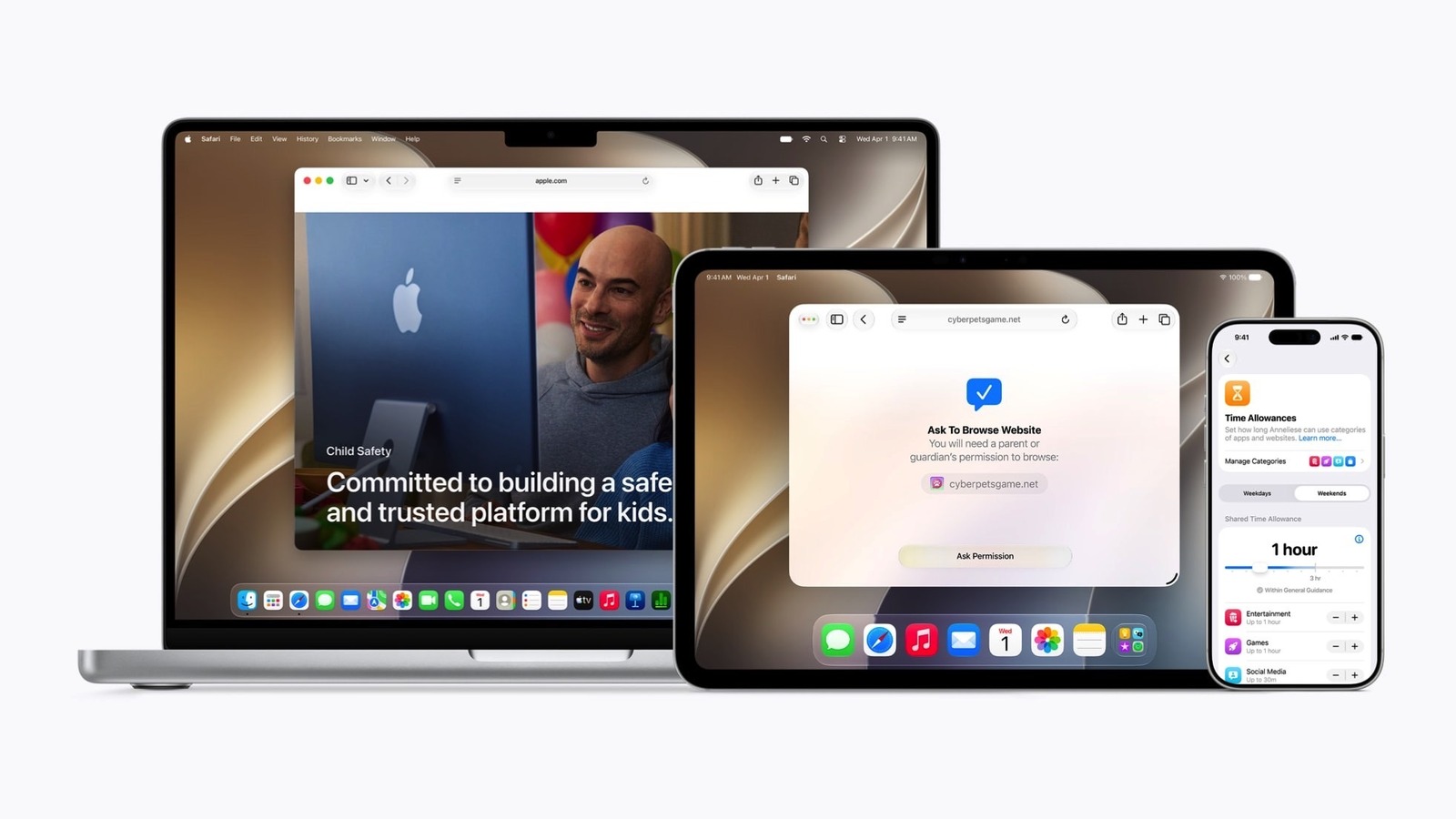
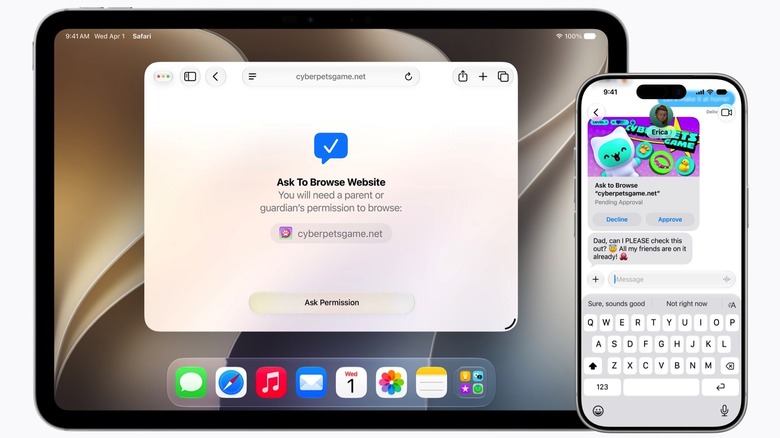
- Web Oversight: The Ask to Browse feature allows real-time website approval via the parents device.
- Account Management: Seamlessly converting apple account to child account ios 27 applies stricter default filters.
- Tracking Reality: Approximately 86% of parents now use location tracking via services like Find My.
Setting up your child's first device is a digital milestone. With iOS 27, Apple has streamlined the process, making ios parental controls more intuitive through automated setup and enhanced safety features. To set up ios parental controls, create a child account through Family Sharing in the Settings app, then use the Setup Assistant to establish limits for apps and web content.
The Essential Foundation of Family Sharing
Before diving into time limits or content filters, the cornerstone of any remote management strategy is a robust Family Sharing group. In previous years, parents often bypassed this by simply handing down an old phone still logged into an adult ID. However, research highlights that while 68% of families establish household rules, only 49% actually implement technical controls. Starting with a dedicated child ID is the only way to bridge that gap.
The ios 27 apple family sharing tutorial begins in the Settings app on your own device. Tap your Name at the top, select Family Sharing, and then tap the Add Member icon. From here, you can invite an existing user or select Create Child Account. The upgraded Setup Assistant will guide you through verifying your own identity (usually via FaceID or a credit card on file) and then configuring the child's Apple ID username and password.
A significant update this year involves converting apple account to child account ios 27. If your child has been using a "standard" account that you created by fudging their birth year, you can now adjust their birthday in their account settings. This triggers a request to the Family Organizer to verify the change, effectively "locking" the account into a child status that prevents them from turning off restrictions without your permission. This remote synchronization ensures that every safety toggle you flip on your device reaches theirs instantly over iCloud.
Configuring the Three Pillars of Digital Safety
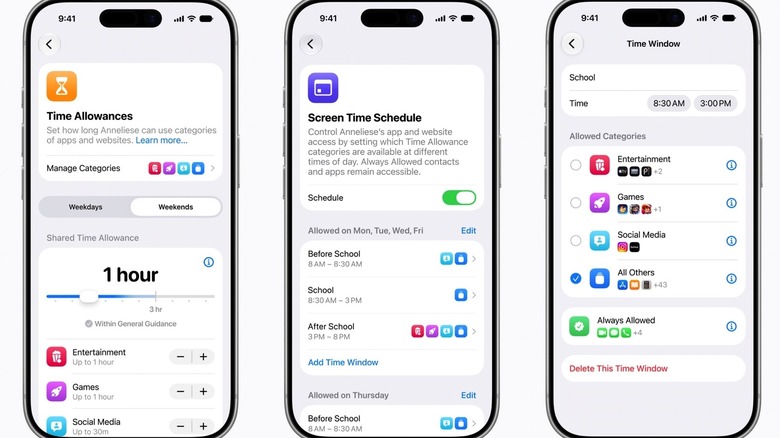
Once the account is live, the focus shifts to the three pillars of ios parental controls: Time, Content, and Privacy. iOS 27 introduces more granular controls that move beyond simple on/off switches. In my time testing the new beta, the most impactful change is how we manage daily time limits through the ios 27 screen time time allowances guide.
To access these features, navigate to Settings > Screen Time on your child’s device or remotely via your own device under Settings > [Child's Name] > Screen Time.
- Downtime and Scheduling: Establish "School Hours" where only educational apps and communication tools (like Messages or Find My) are active. You can set different schedules for weekdays and weekends to align with your family media plan.
- App Limits and Categories: Instead of a blanket restriction, use the refined ios 27 screen time time allowances guide to allot more time for creativity (Standard Photos and Video apps) while restricting social media and gaming categories.
- Content & Privacy: This is where you manage the ios 27 content and privacy restrictions setup. Within this menu, you can disable in-app purchases, restrict explicit music, and filter out adult-oriented web results.
Age-Appropriate Setting Matrix
To simplify the setup, I've developed this matrix based on typical developmental stages.
| Feature Category | Toddler (Ages 3-5) | Pre-Teen (Ages 6-12) | Teen (Ages 13-17) |
|---|---|---|---|
| App Store Permissions | Always Ask (Ask to Buy) | Always Ask (Ask to Buy) | Notify Only |
| Web Filtering | "Allowed Websites Only" list | "Limit Adult Content" | Unrestricted (with History) |
| Communication Safety | On (Nudity & Gore) | On (Nudity & Gore) | Off / Optional (Nudity only) |
| Daily Time Limits | 30 - 60 Minutes | 1.5 - 2 Hours | 3 Hours + Flex Time |
| Location Sharing | Permanent | Permanent | Permanent |
Advanced Protections in iOS 27: Communication Safety and Gore Blockers
Digital safety isn't just about how long a child is on a device, but what they see while they are there. For years, Communication Safety focused primarily on blocking sexually explicit imagery. With the WWDC 2026 updates, Apple expanded this to include ios 27 communication safety gore blockers. This feature uses on-device machine learning to blur images and videos containing realistic violence, blood, or gore before they are viewed in Messages, FaceTime, or Contact Posters.
The setup is proactive. When a child receives a potentially harmful image, the device blurs it out and provides an alert with options to "Help" or "Call a Parent." This doesn't just block the content; it provides a teachable moment for digital wellbeing. Furthermore, the ios 27 ask to browse feature acts as a real-time gatekeeper for browser usage. If a child attempts to visit a URL that doesn't fit within their age-appropriate restrictions, they can trigger a notification that pops up on your iPhone, allowing you to approve or deny the request with a single tap.
Editor's Note: While these on-device filters are powerful, they are not a replacement for open dialogue. A study by Kaspersky found that approximately 50% of American parents use parental control applications to manage their children's behavior, yet the most successful digital outcomes always combine technology with conversation.
Choosing Your Defense: Native Screen Time vs. Third-Party Apps
One of the most frequent questions I receive is whether Apple's native tools are enough, or if one should invest in the best parental control app for iphone 2026 has to offer. The answer depends on your specific needs for content moderation and cross-platform visibility.
Apple's native ios parental controls are deeply integrated into the OS. They are stable, offer the best remote synchronization through iCloud, and are completely free. However, Apple prioritizes privacy, meaning their system won't allow you to read your child's texts or see every keyword they type. If you require deep scanning of social media messages for signs of cyberbullying or depression, you may need to look at third-party solutions.
Comparison: Apple Native vs. Third-Party Apps
| Feature | Apple Screen Time (iOS 27) | Third-Party (e.g., Bark, Qustodio) |
|---|---|---|
| Ease of Setup | High (Built into settings) | Moderate (Requires app & profiles) |
| Category Blocking | System-level (Hard to bypass) | App-level (Can be glitchy) |
| Social Media Monitoring | Limited (Time limits only) | High (Keyword scanning/AI alerts) |
| Price | Free | Monthly Subscription |
| Cross-Platform Support | iOS/macOS Only | iOS, Android, Windows, Chrome |
For most families, the best parental control app for iphone is the one already built into the device. It provides a seamless user experience that doesn't battery-drain the child's phone. However, if your family uses a mix of Android and Apple devices, a third-party app becomes more attractive for centralized management.
Maintaining Control: Remote Management and Troubleshooting
Knowing how to set up ios 27 child account is only half the battle; maintenance is where the real work happens. Parents often ask me how to change parental controls on iphone remotely when things aren't syncing. It is essential to remember that all changes should be made from Settings > [Your Name] > Family. Changes made on the child's physical device can sometimes be overridden by the iCloud master settings if they haven't synced properly.
If you find that your child is using their phone past Downtime, they may have found a bypass. Tech-savvy kids often try to change the device time or use "Message links" to browse the web within a restricted app. Here is how to prevent common bypasses:
- Lock the System Time: Go to Content & Privacy Restrictions > Location Services > System Services and ensure Setting Time Zone is toggled off, then lock the menu with your Screen Time passcode.
- Disable Account Changes: In the content restrictions menu, set Account Changes to Don't Allow. This prevents the child from signing out of their Apple ID to escape the Family Sharing umbrella.
- Keep the Passcode Secret: It sounds obvious, but many kids watch their parents enter the Screen Time passcode. Change it frequently if you suspect they've seen it.
If you ever need to know how to turn off parental controls on iphone for a temporary period (like a long flight), simply go to the Screen Time menu and select Turn Off App Limits or Turn Off Screen Time. This will require your unique parent passcode, ensuring the child cannot do it themselves.
FAQ
How can I monitor my child's iPhone from my iPhone?
To monitor your child's phone remotely, ensure you have enabled Family Sharing. Once set up, go to Settings on your own iPhone, tap your name, select Family, and choose your child’s account. From this menu, you can see their activity reports and change app limits or downtime schedules in real time without needing their device.
Can I set parental controls on my child's iPhone?
Yes, you can set comprehensive controls using either the initial Setup Assistant during the device's first boot or via the Screen Time menu later. iOS 27 allows you to create a formal child account which automatically enables age-appropriate restrictions for the App Store, web content, and communication privacy.
How to do parental control on iOS?
The most effective way to manage a child's device is through the Screen Time and Family Sharing features. By creating a Child Account, you can establish Downtime for sleep, set App Limits for social media and games, and use Content & Privacy Restrictions to filter adult content and limit in-app purchases.
Why am I not getting Screen Time requests from my child?
This is typically caused by a synchronization error in iCloud or a mismatch in the "Organizer" settings of Family Sharing. Ensure both your device and your child's device are logged into the correct Apple IDs and are running the latest software version. Sometimes, toggling Screen Time off and on again in the Family Sharing menu on the parent's device resolves the communication lag.