Quick Facts
- WHO Warning: Approximately 1.1 billion young people aged 12 to 35 are at risk of hearing loss due to prolonged and excessive exposure to loud sounds.
- Safe Threshold: Experts recommend an exposure threshold below 80 decibels for a maximum of 40 hours per week.
- The 3dB Rule: Audio energy is logarithmic; every 3dB increase doubles the sound pressure level hitting your eardrums.
- The 60/60 Rule: A simple mnemonic suggesting no more than 60% volume for no more than 60 minutes at a time.
- iOS Feature: The Reduce Loud Sounds toggle allows users to set a specific decibel cap, such as 85 dB, to ensure headphone safety settings are enforced.
- Samsung Perk: One of the few platforms that offers a PIN-protected media volume limit for robust parental controls.
To set a volume limit on your smartphone, navigate to the Sound settings (Sounds & Haptics on iOS; Sounds and Vibration on Android) and enable features like Reduce Loud Sounds or Media Volume Limit to cap audio output at a safe decibel threshold, typically 85 dB. Setting a volume limit is a vital step in modern auditory health, preventing the long-term consequences of excessive sound pressure level exposure.
Why Your Hearing Health Depends on a Volume Limit
As someone who reviews the latest flagship smartphones and high-fidelity earbuds for a living, I spend a significant portion of my day with something in or over my ears. While we often obsess over bitrates and soundstages, we rarely discuss the biological cost of high-volume listening. Hearing damage is cumulative, painless, and often permanent. Inside your inner ear, tiny hair cells called stereocilia convert sound waves into electrical signals for your brain. When you blast music at peak levels, you aren't just listening; you are physically battering these delicate cells. Once they are damaged or destroyed, they do not grow back.
The risk isn't just about a single loud concert. It is about the "slow burn" of daily commutes where you crank the volume to drown out the subway noise. This consistent exposure leads to noise-induced hearing loss and potentially chronic tinnitus prevention issues, where a permanent ringing or buzzing occupies your silence. Understanding the physics of sound helps illustrate the danger. Sound is measured on a logarithmic scale. This means that a small 3dB increase in volume actually results in a doubling of the sound energy. If you are listening at 85 dB, your ears can safely handle that for about eight hours. Move that to just 88 dB, and your safe listening time is cut in half to four hours.
This is why WHO safe listening standards are so critical. By establishing a hard decibel threshold on your device, you remove the temptation to "just turn it up one more notch." A software-level volume limit acts as a digital safety net, ensuring that even if you accidentally slide the volume bar to the max, the actual output remains within a range that respects your auditory health.
| Sound Level (dB) | Maximum Safe Exposure Time | Common Reference |
|---|---|---|
| 70 dB | Indefinite / Safe | Vacuum cleaner, standard office |
| 80 dB | 40 hours per week | Garbage disposal, shouting |
| 85 dB | 8 hours per day | Heavy city traffic |
| 90 dB | 2.5 hours per day | Hair dryer, lawnmower |
| 100 dB | 15 minutes per day | Hand drill, motorcycle engine |
| 110 dB | 1 minute per day | Rock concert, shouting into ear |
Step-by-Step: Setting a Volume Limit on iPhone (iOS)
Apple has integrated some of the most sophisticated auditory health tools directly into the iOS ecosystem. Unlike older systems that just limited the slider, modern iPhones use real-time analysis to prevent peak sound limiting issues while protecting the user.
To configure a volume limit iphone users should follow these steps:
- Open the Settings app on your iPhone or iPad.
- Scroll down and tap on Sounds & Haptics.
- Select Headphone Safety.
- Toggle on the switch for Reduce Loud Sounds.
- You will see a slider appearing below. Drag this slider to your desired maximum decibel level. I personally recommend setting this to 85 decibels for a balance of safety and clarity, though 80 decibels is even better for long sessions.
One technical detail many users miss is the "Classify Bluetooth Device" feature. Not all Bluetooth devices tell the iPhone what they are. If your car stereo is classified as "Headphones," the iPhone might limit the volume too much. Conversely, if your high-power headphones are classified as "Other," the volume limit might not apply correctly. To fix this, go to Settings > Bluetooth, tap the "i" icon next to your device, and select Device Type to ensure it is accurately labeled.
For those using AirPods, the integration is even deeper. You can enable headphone safety settings that provide audio exposure tracking over a seven-day period. If you go over the recommended WHO safe listening standards, your iPhone will send a notification and automatically turn the volume down the next time you plug in. This set maximum volume limit on airpods is one of the best ways to stay mindful of your habits without constantly checking the screen.
How to Configure Volume Limits on Android & Samsung Devices
The Android ecosystem is diverse, so the path to a volume limit android setup can vary slightly by manufacturer. However, Samsung—the world's most popular Android brand—offers an excellent proprietary solution called Media Volume Limit.
On a Samsung Galaxy device:
- Navigate to Settings and tap on Sounds and vibration.
- Tap on Volume.
- In the upper-right corner, tap the three-dot menu (vertical ellipses) and select Media volume limit.
- Switch the toggle to On.
- Use the slider to set your custom decibel threshold.
A standout feature here is the Set volume limit PIN. This is incredibly useful for parental controls, ensuring that a child cannot simply go back into the settings and override the cap you have set for their hearing safety.
For users on Google Pixel devices or other stock Android builds, the "Hearing Wellness" features are becoming more prominent. If you use Pixel Buds, you can find specific listening habit monitors within the Connected Devices menu. While some generic Android versions lack a hard "decibel slider," they often feature a "volume warning" that triggers a pop-up and prevents volume increases beyond 60% or 70% without manual confirmation. This media volume limit samsung uses is more precise, but the system warnings on other phones still serve as a vital psychological barrier against unsafe volume levels.
Protecting the Vulnerable: How to Set Volume Limits for Kids
Children are significantly more susceptible to noise-induced hearing loss than adults. Their ear canals are smaller, which can actually increase the sound pressure level reaching the eardrum compared to an adult listening at the same volume. Furthermore, children often lack the situational awareness to realize when audio is uncomfortably loud.
When researching how to set volume limit for kids, don't rely solely on "kid-safe" headphones. Many third-party hardware tests have shown that these headphones can still exceed 85 or 90 dB despite their marketing claims. The most reliable method is a "belt and suspenders" approach:
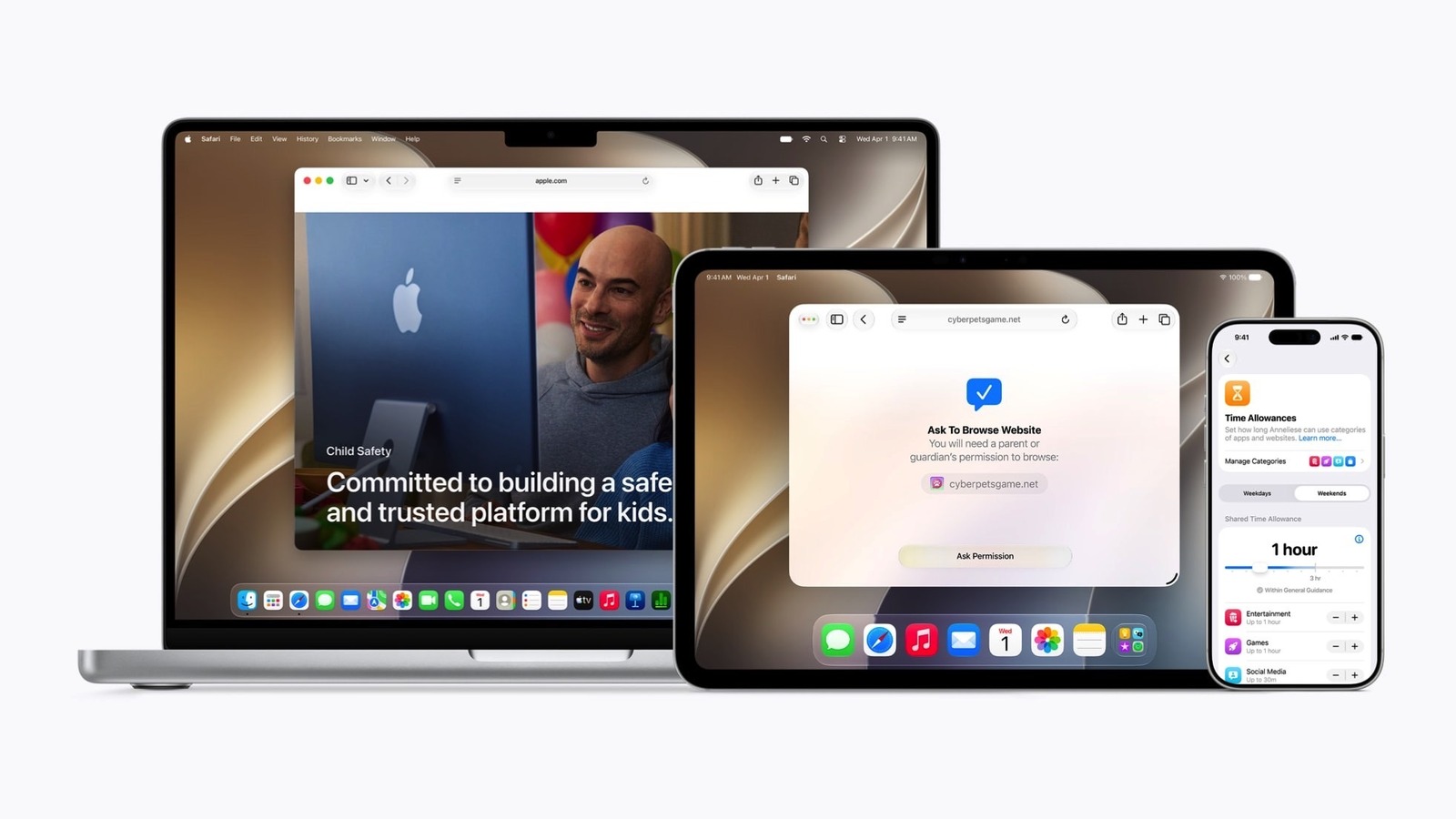
- Software Lock: Use the PIN-protected volume limit on Samsung or Screen Time restrictions on iPhone (Settings > Screen Time > Content & Privacy Restrictions > Reduce Loud Sounds > Don't Allow) to lock the volume limit on smartphone devices used by children.
- Classify Devices: If your child uses a shared iPad with various speakers, ensure each speaker is correctly classified so the OS knows when to apply the cap.
- Stricter Thresholds: For younger children, I recommend a limit of 75 dB rather than 85 dB.
By setting these boundaries early, you are teaching them that auditory health is a standard part of using technology, much like wearing a seatbelt in a car.
Active Monitoring: Using Real-Time Decibel Widgets
Setting a static volume limit is only half the battle. The other half is awareness. One of my favorite "pro tips" for iPhone users is the Hearing widget in the Control Center. This tool provides real-time feedback on the decibel level currently hitting your ears.
To enable it, go to Settings > Control Center and tap the green plus icon next to Hearing. Now, when you are listening to music, swipe down to your Control Center and tap the ear icon. You will see a live meter showing the sound pressure level. If it's in the green, you're safe. If it hits yellow, you are entering the zone where long-term damage occurs.
Android users can find similar functionality through third-party sound meter apps or by checking the "Health" or "Digital Wellbeing" dashboards on many modern handsets. Reviewing your weekly audio exposure tracking reports can be eye-opening. You might realize that while you only listen at high volumes for 20 minutes a day, that 20 minutes is at a dangerous 100 dB, which is enough to trigger tinnitus or permanent sensitivity loss over time.
FAQ
How to set volume limit on phone?
To set a limit, go to your phone's sound settings. On iPhone, it is under Settings > Sounds & Haptics > Headphone Safety > Reduce Loud Sounds. On Samsung, it is under Settings > Sounds and vibration > Volume > Three-dot menu > Media volume limit.
What does volume limit?
A volume limit acts as a software ceiling that prevents the audio output of your device from exceeding a specific decibel level. This ensures that even if you push the volume buttons to the maximum, the actual sound pressure level remains within a safe range for your ears.
Is there a volume limit on iPhone?
Yes, iPhones feature a built-in tool called Reduce Loud Sounds. It allows you to choose a maximum decibel level (from 75 dB to 100 dB). Once set, the phone will actively compress and lower any audio that exceeds that threshold.
How do I change the volume limit on my iPhone?
Navigate to Settings > Sounds & Haptics > Headphone Safety. From there, you can toggle the Reduce Loud Sounds feature off entirely or adjust the slider to a different decibel level that better suits your environment.
How to set volume limit for kids?
The best way is to use the phone's parental control settings. On iPhone, use Screen Time > Content & Privacy Restrictions to "Don't Allow" changes to the Reduce Loud Sounds setting. On Android, use the Media Volume Limit feature with a PIN lock to prevent them from bypassing the restriction.
Modern smartphones are incredible tools for entertainment, but they shouldn't come at the cost of your senses. By taking five minutes today to dive into your settings and cap your volume limit, you are making an investment in your hearing that will pay dividends for decades to come. Stay safe, listen responsibly, and remember that sometimes, less truly is more.