Quick Facts
- Best for Gaming: Wired HDMI connection provides the lowest display latency at roughly 38ms.
- Best for Movies: Chromecast screen mirroring via native apps ensures the highest quality stream.
- Best for Samsung Users: Smart View and Samsung DeX mode offer a seamless ecosystem experience.
- Compatibility: Native video output is supported on Pixel 8+, Galaxy S20+, and most flagship Android 12+ devices.
- Prerequisite: A shared Wi-Fi network is required for all wireless connectivity methods to function.
- Privacy Tip: Always enable Focus Mode to block incoming notifications from appearing on the big screen.
To mirror your Android phone to a TV wirelessly, ensure both devices are on the same Wi-Fi network, open your phone's Quick Settings panel, and select the Cast or Smart View option. For a wired connection, use a USB-C to HDMI adapter to plug your phone directly into the TV's HDMI port for instant screen mirroring and sharing.
In my time as an editor, I have seen the technology behind mobile displays evolve at a breakneck pace. We have moved from small, grainy screens to stunning OLED panels that travel in our pockets. However, there are moments when even the best mobile display feels cramped. Whether you are presenting a slide deck, showing off vacation photos, or trying to beat a difficult level in a mobile game, a television provides the canvas your content deserves.
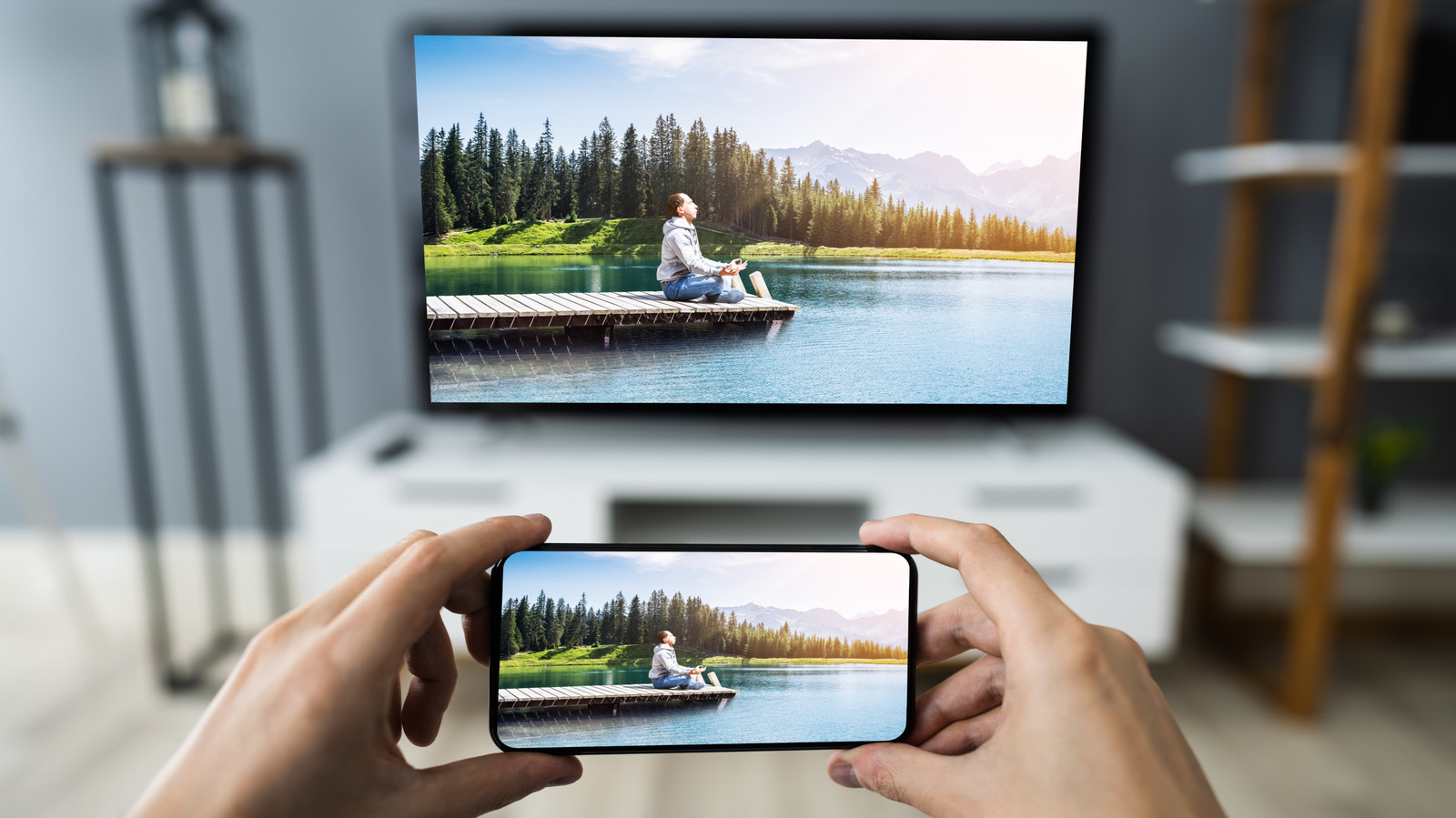
Connecting your device to a larger screen is not just about size; it is about the experience. But as any tech enthusiast knows, the "how-to" can vary wildly depending on whether you own a Samsung Galaxy, a Google Pixel, or a Motorola Razr. Understanding the difference between screen mirroring and casting is the first step. While screen mirroring replicates every swipe and notification on your TV in real-time, casting sends specific media like a YouTube video to the TV, freeing up your phone for other tasks.
In this guide, I will walk you through the four most reliable methods to get your Android content onto any television, regardless of its age or brand.
Method 1: The Wired Advantage (HDMI Adapters)
For users who demand the highest possible performance, nothing beats a physical cable. While wireless technology has improved, it still struggles with display latency—the slight delay between what happens on your phone and what appears on the TV. If you are a mobile gamer or a professional doing a live demo, that half-second lag can be a deal-breaker.
A wired connection relies on a technology called DisplayPort Alt Mode. This allows the USB-C port on your phone to send a raw video signal directly to an HDMI input. Historically, Google restricted this on their Pixel line, but starting with the Pixel 8 and newer, and continuing with the Samsung Galaxy S20 and later models, this feature has become a standard for flagship devices. By using a screen mirroring hdmi cable or a high-quality USB-C to HDMI adapter, you can bypass the complexities of Wi-Fi networks and enjoy a 4K resolution at 60Hz.
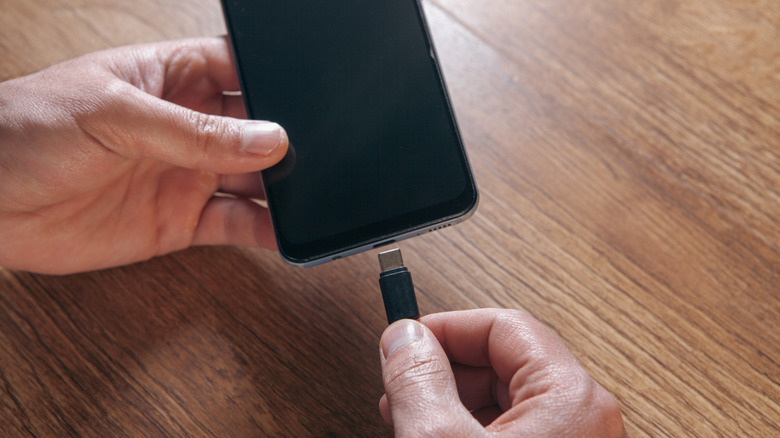
The setup for how to connect phone to tv with hdmi adapter is remarkably simple. You plug the USB-C end into your smartphone and the HDMI end into an open port on your TV. You then use your TV remote for input source selection to find the correct HDMI channel. Within seconds, your screen is replicated. This method is also the most power-efficient for your home network, as it doesn't utilize any bandwidth.
Method 2: Native Wireless Streaming (Chromecast & Miracast)
If you prefer a cable-free living room, native wireless connectivity is your best friend. Most modern Android phones come with built-in protocols designed to talk to smart TVs and streaming sticks. However, the industry uses a confusing "naming dictionary" for these features. If you are looking for screen mirroring samsung devices call it Smart View, while Google Pixels simply call it Cast.
Here is a quick brand breakdown of what to look for in your Quick Settings panel (swipe down from the top of your screen):
- Samsung: Smart View
- Google Pixel: Cast
- Motorola: Smart Connect (formerly Ready For)
- OnePlus/Oppo/Realme: Screencast
- Xiaomi: Wireless Display
Most modern TVs, including those with built-in Roku or Android TV, support one of two major standards: Google Cast or Miracast. As of late 2024, the Wi-Fi Alliance reported that more than 13,200 device models were Miracast-certified, a standard that allows Android phones to mirror screens directly to compatible displays without the need for a router. This is particularly useful for roku screen mirroring, as most Roku devices are Miracast-compatible by default.
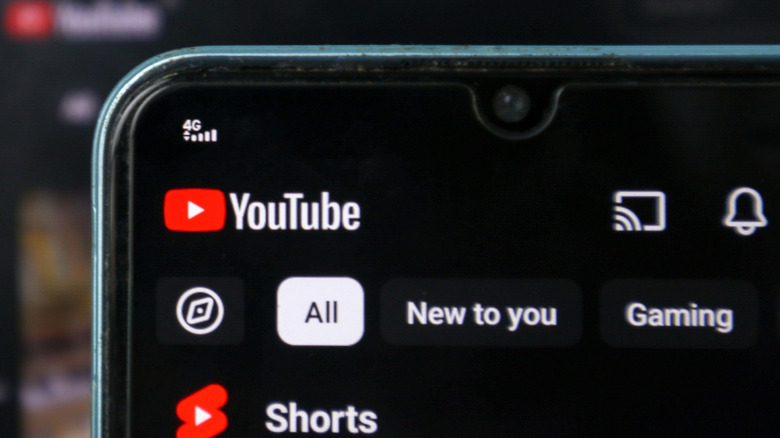
When you use chromecast screen mirroring, the process is slightly different. Instead of mirroring the whole screen, you are often "throwing" a stream from an app like Netflix to the TV. This allows your phone to act as a remote while the TV handles the heavy lifting of playback. This is excellent for multimedia sharing because it preserves your phone’s battery life and prevents private text messages from popping up in front of your houseguests.
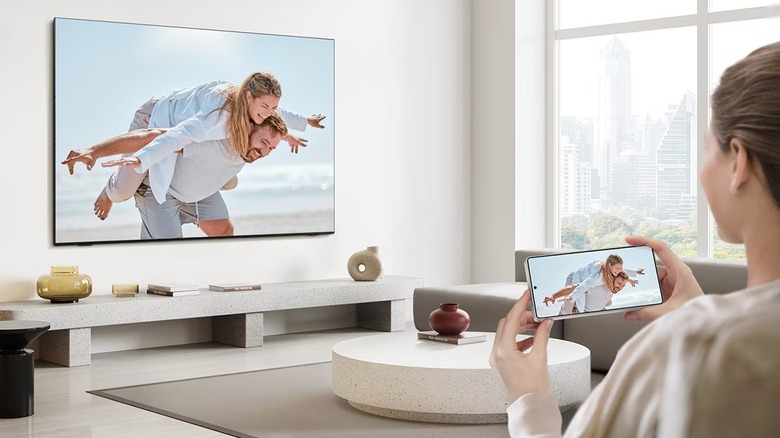
Comparison: Wired vs. Wireless Performance
Before deciding on a method, consider your specific needs. The following table highlights the trade-offs between a physical connection and wireless protocols.
| Feature | Wired (HDMI Adapter) | Wireless (Mirroring/Casting) |
|---|---|---|
| Display Latency | Lowest (~38ms) | Moderate to High |
| Video Quality | Up to 4K / 60fps | Usually capped at 1080p |
| Setup Ease | Plug and Play | Menu navigation required |
| Phone Usage | Locked to HDMI cable | Full mobility within Wi-Fi range |
| Power Drain | Moderate | High (battery intensive) |
Method 3: Using a Third-Party Screen Mirroring App
There are times when native solutions fail—perhaps you are trying to connect to an older LG webOS TV or a FireStick that isn't playing nice with your specific phone model. In these cases, a third-party screen mirroring app can bridge the gap.
Apps like AirBeamTV, LetsView, or even the Google Home app act as a middleman. These apps often use a proprietary screen mirroring and sharing protocol to compress your phone's screen and send it over the local network. While effective, there is a technical cost. During active use, an android screen mirroring app can increase a device's CPU usage by 15% to 25% and consume between 200 MB and 400 MB of RAM.
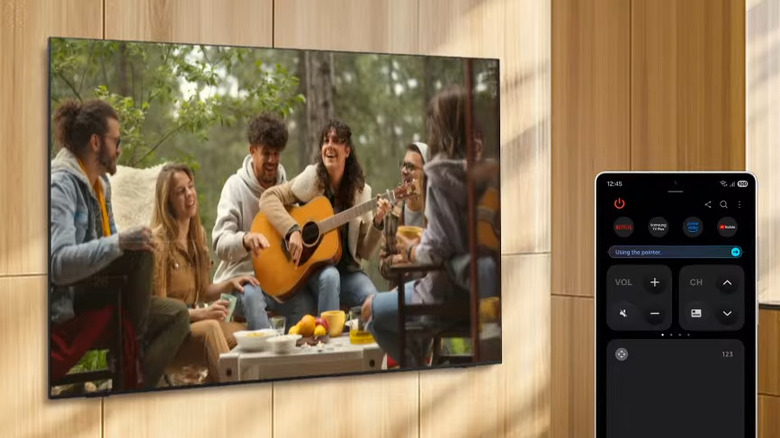
If you choose this route, I recommend sticking with reputable developers. Many free apps on the Play Store are riddled with ads that can interrupt your viewing experience. Once installed, these apps typically require you to grant "Screen Recording" permissions. After that, they will search your network for compatible receivers. Some even offer digital playback controls directly in the notification shade, allowing you to pause or skip content from the lock screen.
Method 4: Samsung DeX and Advanced Productivity
For Samsung enthusiasts, screen mirroring samsung galaxy to tv opens up a capability called Samsung DeX mode. This isn't just basic mirroring; it transforms your TV into a mobile desktop experience. When you activate DeX, the TV doesn't just show your phone screen—it shows a Windows-like interface with a taskbar, desktop icons, and the ability to run multiple apps in resizable windows.
You can use Samsung DeX mode wirelessly on any Miracast-compatible TV, but for the best experience, a wired connection is superior. In this setup, your phone can even act as a touchpad and keyboard, or you can pair a Bluetooth mouse and keyboard to the phone. This is a game-changer for business travelers who want to leave the laptop behind and work directly from their smartphone on a hotel room TV.
Motorola offers a similar feature called Smart Connect (formerly Ready For), which also provides a tailored desktop UI, a dedicated media center for streaming apps, and a "Mobile Desktop" mode. These advanced features illustrate how screen mirroring has moved beyond just sharing photos to becoming a legitimate tool for productivity and remote companion apps.
Privacy & Optimization: The Screen Mirroring Checklist
Nothing ruins a movie night faster than a private text notification appearing on a 65-inch screen for everyone to see. Before you start your session, I always recommend a quick optimization check.
First, enable Focus Mode or Do Not Disturb. This prevents notifications from interrupting your stream and protects your privacy. Second, check your aspect ratio settings. Your phone screen is likely 19.5:9 or 21:9, while your TV is a standard 16:9. Many phones allow you to tap a small blue icon (often labeled Change Aspect Ratio) to stretch the content to fill the TV screen entirely.
You should also be aware of the impact on your resources. Active screen mirroring from an Android device typically consumes between 1 GB and 3 GB of data per hour, though high-definition streaming or gaming can increase usage to over 4 GB per hour. While this is fine on home Wi-Fi, it can quickly drain a limited mobile hotspot. Keep your phone plugged into a charger if possible, as the simultaneous processing of screen capture and wireless transmission creates significant heat and battery drain.
FAQ
How do I screen mirror to my TV?
To mirror your screen, ensure your phone and TV are on the same Wi-Fi. Swipe down to open the Quick Settings panel on your Android phone and tap the mirroring icon (labeled as Smart View, Cast, or Screencast). Select your TV from the list that appears. If your TV doesn't support wireless mirroring, you can use a USB-C to HDMI adapter for a direct wired connection.
How to activate screen mirroring on phone?
On most Android devices, the feature is located in the Quick Settings menu. Swipe down from the top of the screen twice to see all icons. Look for terms like Cast, Smart View, or Wireless Display. If you don't see it, go to Settings > Connected devices > Connection preferences to find the mirroring options for your specific model.
Can I mirror my phone to my television?
Yes, almost any Android phone running version 5.0 or later can mirror to a television. You simply need a TV that supports Miracast, a streaming device like a Chromecast or Roku, or a compatible HDMI cable adapter if your phone supports video output over USB-C.
Can TCL TVs screen mirror?
Yes, TCL TVs typically run on either Roku TV or Google TV platforms, both of which support screen mirroring. For TCL Roku TVs, use the Miracast or "Screencast" feature on your phone. For TCL Google TVs, you can use the built-in Chromecast feature. Ensure the TV's network settings allow for local network synchronization.
How do I connect my phone to my TV?
You can connect wirelessly via the Cast or Smart View feature in your phone's settings menu, provided both devices share a Wi-Fi network. For a more stable, lag-free connection, use an HDMI-to-USB-C cable to connect the two devices physically. If neither of those works, you can install a third-party screen mirroring app to bridge the connection.
Whether you choose the stability of a wire or the convenience of the cloud, getting your Android phone on the big screen has never been easier. As a mobile editor, I always keep a USB-C to HDMI adapter in my bag for work, but at home, Smart View and Google Cast are my daily go-to solutions for a relaxed viewing experience. Choose the method that fits your environment, and enjoy the view!