Quick Facts
- Release Date: Apple released iOS 27 Beta 3 on July 6, 2026, introducing critical fixes for automation stability.
- Build Number: The latest update carries build 24A5380h, which specifically addresses library integrity issues.
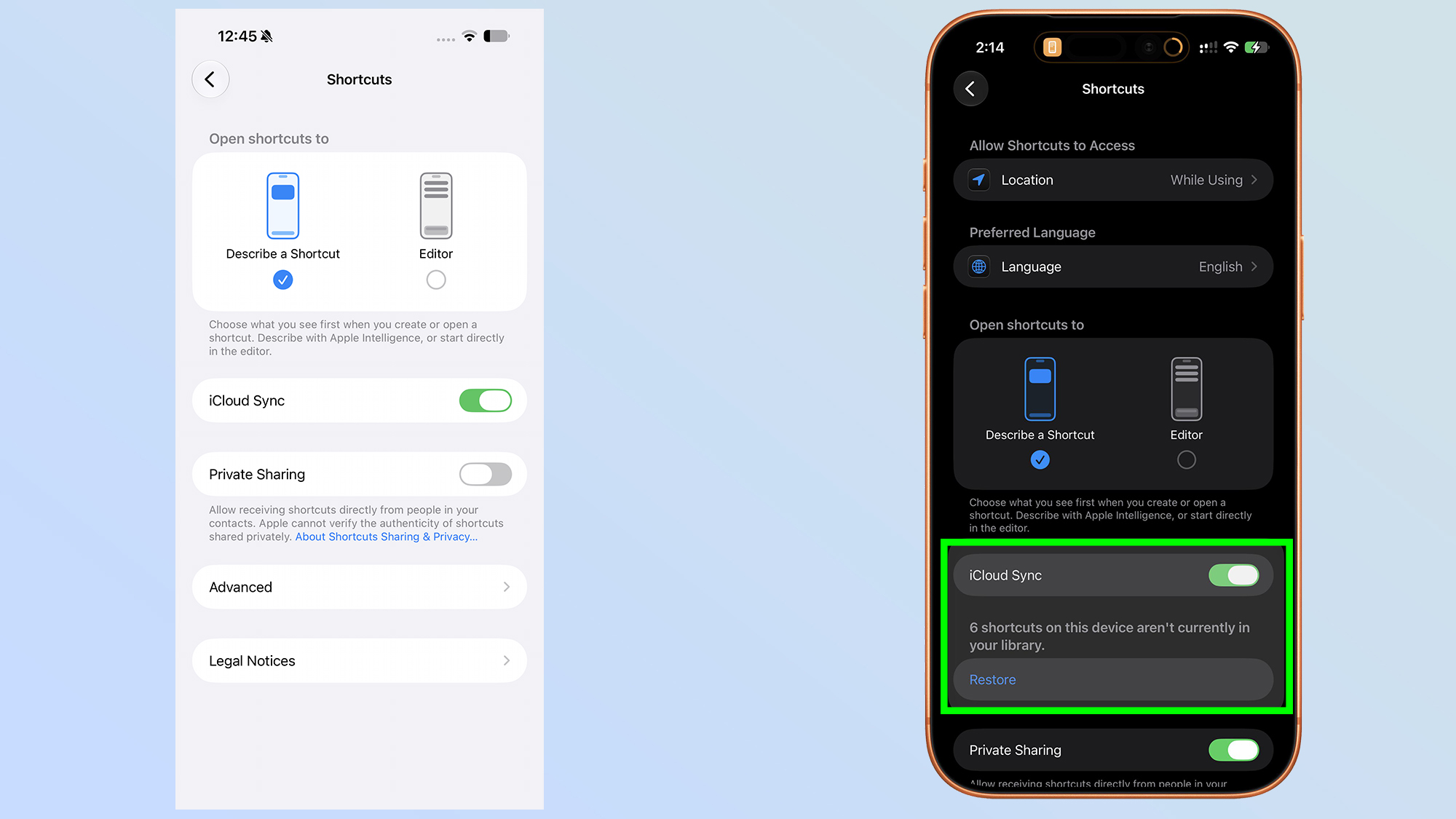
- New Feature: A manual Restore button has been added to the Shortcuts section within the Settings app to combat the iOS 27 shortcuts sync bug.
- Hardware Method: A new Recovery Assistant can be triggered via physical buttons, provided the device is completely unplugged.
- Success Rate: Initial reports indicate power users have successfully used this tool to recover over 200 missing automations that previously vanished.
- Primary Cause: The disappearing scripts are generally attributed to a software glitch during the iCloud synchronization phase of the developer preview.
The release of iOS 27 Beta 3 introduces long-awaited tools to restore shortcuts that frequently disappear due to iCloud synchronization bugs. If your automation library looks empty, don't panic—the workflows are likely still in the cloud. To restore shortcuts, navigate to the Shortcuts section within the Settings app and utilize the new native restore button or the hardware-level Recovery Assistant to resync your data and fix the iOS 27 beta 3 shortcuts restore feature issues.
Understanding the iOS 27 Shortcuts Sync Bug
Testing beta software always comes with a standard set of risks, but for those of us who rely heavily on automation workflows to manage our smart homes or streamline our mobile workflows, the recent issues in iOS 27 have been particularly frustrating. Since the first developer preview, a persistent software glitch has caused the Shortcuts app to "forget" dozens or even hundreds of scripts. While the data remains safe on Apple's servers, the local device library integrity fails, leading to a blank interface that suggests all your hard work has been erased.
The problem stems from a sync conflict within the Apple ecosystem. When the device attempts to index the automation library after an update, the iCloud communication handshake fails. This results in the system marking the local library as empty instead of pulling the remote backup. For power users, this isn't just a minor annoyance; it is a total breakdown of their mobile productivity suite. Fortunately, build 24A5380h addresses this by giving users a manual trigger to force the system to re-examine the cloud data and resolve these conflicts without a full device wipe.
| Feature Update | iOS 27 Beta 1/2 | iOS 27 Beta 3 (Build 24A5380h) |
|---|---|---|
| Shortcuts Stability | Low (Frequent disappearances) | Medium-High (Improved indexing) |
| Restore Mechanism | Manual iCloud Toggle only | Dedicated 'Restore' Button in Settings |
| Sync Conflict Alerts | None (Silent failure) | Recovery Assistant notification |
| Library Integrity | Often corrupted on update | Self-healing with manual trigger |
Using the New Native Shortcuts Restore Button
The most significant addition in this beta cycle is the shortcuts app restore button. Apple has finally acknowledged that the silent disappearing of scripts is a widespread issue, and they have provided a non-destructive way to retrieve them. Unlike previous methods that required you to sign out of iCloud entirely—which often messed up Apple Pay and iMessage—this new toggle lives right in the system settings.
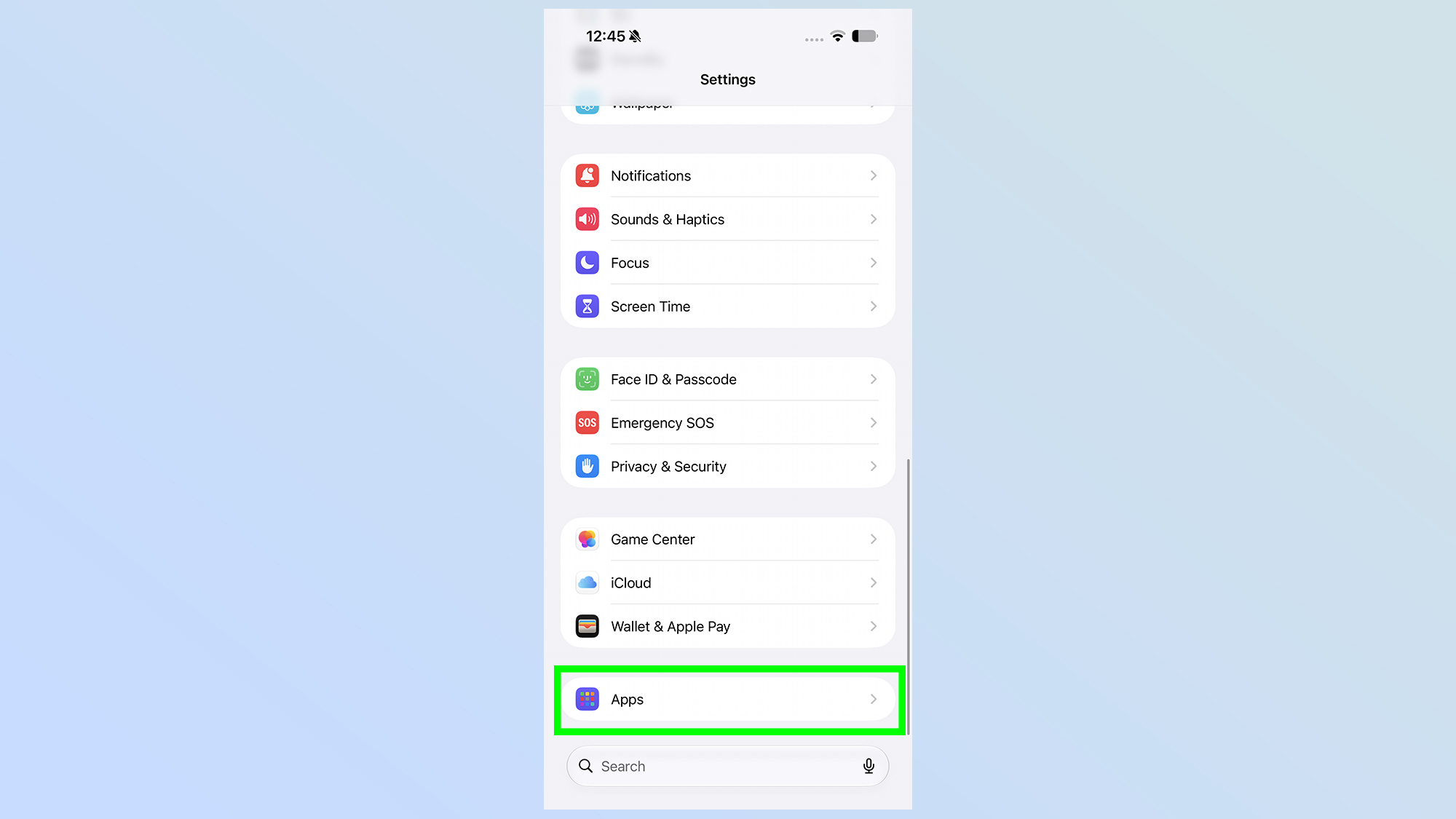
To find where is the shortcuts app restore button in iOS 27, follow these precise steps:
- Open the Settings app on your iPhone or iPad.
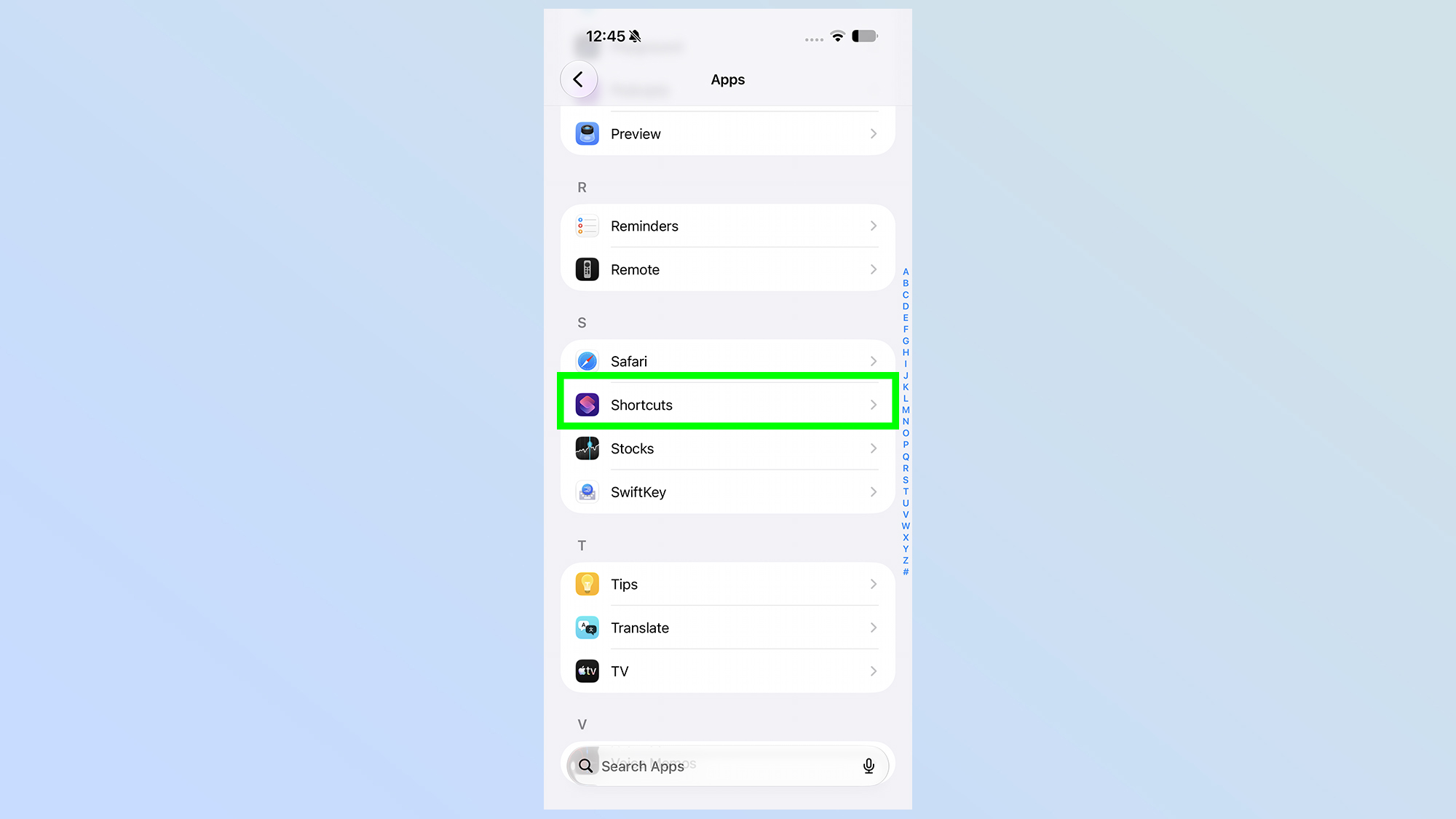
- Scroll down to the app list and tap on Shortcuts.
- Locate the new Advanced Recovery section.
- Tap the Restore button.
- You will see a notification counter indicating exactly how many automation workflows are detected in iCloud but missing from your device.
- Confirm the action to begin the sync.
This method is the most effective iOS 27 shortcuts sync bug fix because it specifically targets the library database without forcing the rest of the OS to re-index. It essentially tells the Shortcuts app: "I know there is more data in the cloud; go get it now."
Accessing the iOS 27 Recovery Assistant (Hardware Method)
Sometimes, the software interface itself can become unresponsive, or the Settings app might crash when you try to access the recovery menu. In these rare cases, Apple has implemented a hardware-level sequence to trigger the Recovery Assistant. This is a deeper form of technical troubleshooting designed to ensure system stability when the UI fails.
This hardware method is particularly useful if you are trying to figure out how to restore shortcuts on iphone when the app itself refuses to open. However, it requires precise timing.
Warning: Disconnect All Cables The Recovery Assistant will not trigger if the iPhone is connected to a Mac, PC, or even a wall charger. You must unplug the USB-C or Lightning cable and remove the device from any MagSafe pucks before proceeding.
How to trigger the hardware Recovery Assistant:
- Power down your device completely.
- Press and release the Volume Up button.
- Press and release the Volume Down button.
- Press and hold the Side button. Do not let go when the Apple logo appears.
- Continue holding the Side button until the screen displays Loading recovery options.
- On a nearby trusted device (like an iPad or Mac logged into the same iCloud account), a prompt will appear asking if you want to assist in a library repair.
If you are using an iPhone 15 Pro or later, the system uses the high-speed internal bus to verify the data persistence of your automation workflows much faster than older models. Once the link is established, the missing scripts will begin to populate back into your main gallery.
Fixing iCloud Sync Conflicts and Data Persistence
Even after using the manual restore shortcuts tools, you might find that certain items still won't stay put. This is often due to a breakdown in data persistence. The system thinks it has the latest version, but a sync conflict between your Mac, iPad, and iPhone is causing the "latest" version to be an empty file.
To ensure long-term iCloud shortcuts recovery, you need to validate your account settings. Go to Settings > [Your Name] > iCloud > Show All and ensure the toggle for Shortcuts is turned on. More importantly, scroll to the bottom of that menu and ensure iCloud Drive is also active, as the individual files for automation workflows are technically stored within a hidden container in the Drive architecture.
Be aware of sync lag. In my testing, even after hitting the restore button, it can take anywhere from 10 minutes to several hours for the icons and actions to fully populate. This is due to the background indexing of the new iOS 27 file system. If you see placeholders instead of your custom icons, leave the phone on a charger and connected to Wi-Fi; the system is simply downloading the assets in the background.
To force a "server handshake" and speed up the process to restore missing shortcuts from iCloud iOS 27, you can perform a Settings Refresh:
- Go to Settings > General > Keyboard > Text Replacement.
- Add a temporary dummy shortcut, then delete it.
- This often triggers an immediate iCloud sync across all related system services, including the Shortcuts library.
Troubleshooting the 'Liquid Glass' UI Overhaul
One reason some users think they need to restore shortcuts is simply that the UI has changed so drastically. iOS 27 introduces the Liquid Glass UI, which removes many of the traditional buttons we've used for years. The classic bottom tab bar in the Shortcuts app has been replaced by a single, contextual AI-prompt button.
If you are looking for your folders and they seem "missing," try swiping from the left edge of the screen to reveal the new sidebar. Many users have reported this as a bug, but it is actually an intended design change. However, if the sidebar itself is empty, then you are definitely dealing with the sync bug and should proceed with the recovery steps mentioned earlier.
Knowing how to fix shortcuts disappearing on iOS 27 also involves understanding the difference between a deleted script and a hidden one. The Beta 3 update includes a new "Archive" feature. If you use Siri to run an automation tool frequently, the system might move it to an Archive to declutter your main view. Check the Archived folder in the sidebar before assuming the data is gone forever.
FAQ
How to restore shortcut files?
If you have exported your shortcuts as .shortcut files previously, you can simply open them in the Files app and tap the Share icon, then select the Shortcuts app to re-import them. If you haven't made manual backups, use the new Restore button in Settings > Shortcuts to pull the files directly from your hidden iCloud Drive container.
How do I restore my shortcuts?
The most reliable way in the current beta build is to navigate to Settings > Shortcuts and tap the Restore button introduced in build 24A5380h. This will cross-reference your local library with the cloud and download any missing automation workflows.
How to restore default shortcuts?
If you have deleted the "Starter" shortcuts that come with every iPhone, you can get them back by going to the Gallery tab within the Shortcuts app. Apple maintains a "Basics" section where you can re-add common scripts like "Heading Home" or "Text Last Image" with a single tap.
What is the shortcut key for restore?
On a Mac running the latest beta, the shortcut key to trigger a sync refresh is Command + R while the Shortcuts app is in focus. On iPhone and iPad, there is no physical key combination for this; you must use the native restore button found in the system settings menu or the hardware-level Recovery Assistant sequence if the UI is frozen.
Reporting Continued Issues
While iOS 27 Beta 3 is a massive step forward in resolving these library integrity issues, it is still a developer preview. If you find that your scripts continue to vanish even after using the Restore button, it is vital to provide feedback. Use the built-in Feedback Assistant app to submit a report. Be sure to include your build number (24A5380h) and mention whether the issue persists across multiple devices in your Apple ecosystem.
By taking these steps, you aren't just fixing your own device; you're helping ensure the final public release of iOS 27 is stable for everyone. For now, keep a manual backup of your most critical scripts by exporting them to the Files app—it’s the best way to ensure your automation workflows remain safe regardless of beta glitches.