Quick Facts
- Wattage Caps: Standard monitor ports are often hardware-limited to 2.5W or 4.5W, which is insufficient for fast-charging or high-draw hardware.
- Data Throttling: Many integrated hubs default to USB 2.0 speeds (480 Mbps) regardless of the drive's theoretical max, creating severe throughput bottlenecks.
- Protocol Failure: Video-over-USB adapters typically require DisplayPort Alternate Mode, a feature rarely supported by a monitor's downstream peripheral ports.
- Daisy-Chain Risks: Connecting a secondary hub to a monitor can trigger overcurrent protection, leading to "USB Accessories Disabled" errors or system instability.
- Compatibility Check: High-performance setups require an upstream connection via USB-C PD 3.1 or USB-B 3.0 to unlock full bandwidth and power delivery.
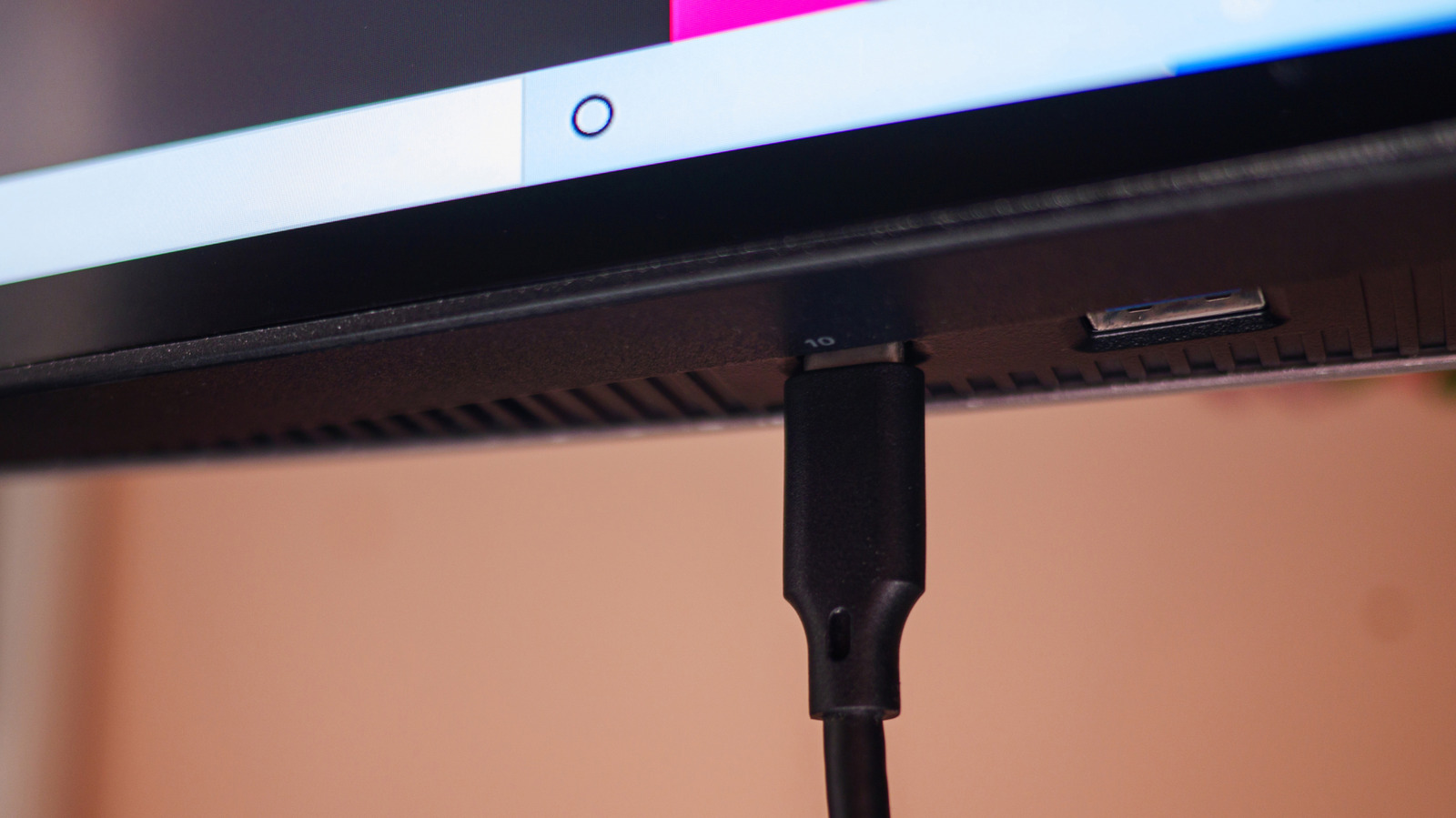
Monitor USB port limitations are a frequent source of hardware frustration, primarily because these ports are designed for low-power peripherals like mice and keyboards rather than high-performance gear. Most built-in ports function as downstream connections with significant data transfer bottlenecks, often limited to a meager 2.5W of power, which makes them unsuitable for devices like external SSDs, secondary hubs, or visual adapters.
As someone who spends most of my week benchmarking the latest silicon and cable-managing complex workstation setups, I have seen far too many people treat their monitor’s USB hub like a premium docking station. It is a logical assumption: you have paid a premium for a high-end display, so why shouldn’t those ports on the back handle your gear? However, the architecture of a monitor’s internal hub is vastly different from the primary ports on your PC motherboard. If you are noticing sluggish file transfers, flickering screens, or devices that simply refuse to wake up, the culprit is likely your screen.
High-Speed External SSDs: The Bandwidth Bottleneck
If you have just dropped $200 on a high-end NVMe external SSD capable of 2,000MB/s, the last thing you should do is plug it into your monitor. The primary issue here is the discrepancy in usb data transfer speed monitor vs pc ports. Most monitors utilize an internal controller that shares bandwidth across multiple ports. Unless your monitor is specifically marketed as having a USB 4 or Thunderbolt 4 upstream connection, you are likely working with a controller that treats every connection as a secondary priority to the video signal.
When you connect a drive to the screen, the data must travel from the drive, through the monitor’s internal hub, up the upstream cable, and finally into your PC. In many cases, if you are using a standard HDMI or DisplayPort cable without a separate USB-B upstream cable, the monitor may not even pass data at all. Even when configured correctly, many monitor hubs are limited to the USB 2.0 standard for their peripheral ports to save on manufacturing costs and internal power consumption. This means your lightning-fast SSD will be throttled to a pathetic 480 Mbps, effectively turning your professional storage solution into a glorified thumb drive from 2005.
Furthermore, internal PC PCIe speeds are direct and shielded, whereas monitor throughput is subject to the electrical noise of the display panel itself. For professionals working with large 4K video files or high-resolution RAW photos, the monitor usb port data transfer speed vs pc ports gap can mean the difference between a five-minute transfer and a forty-minute ordeal.
Secondary USB Hubs: The Power Scarcity Risk
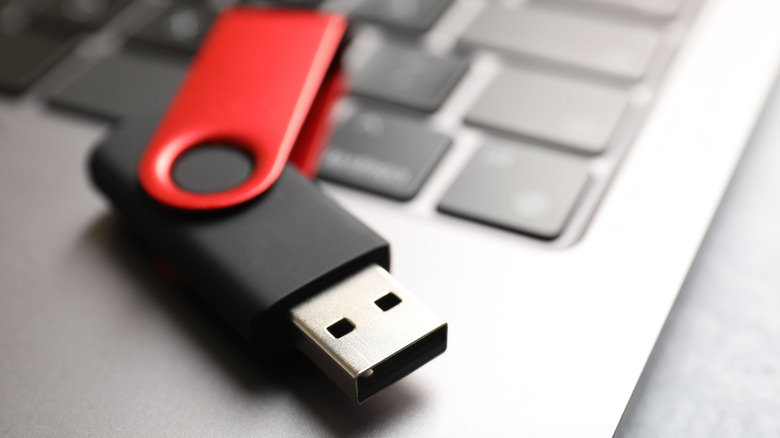
One of the most common mistakes I see in "clean desk" setups is the daisy-chaining of a secondary USB hub into one of the monitor’s ports. This is a recipe for technical instability. According to technical specifications from plugable.com, standard USB 2.0 and 3.0 ports found on many monitors are typically limited to power outputs of 2.5 watts and 4.5 watts respectively.
When you plug a secondary, non-powered hub into a 2.5W port, you are asking that single port to provide enough electricity for every device connected to the second hub. If you have a webcam, a headset, and a keyboard all drawing from that one monitor port, you will quickly exceed the monitor usb power delivery limits. This often results in the dreaded "USB Accessories Disabled" warning on macOS or intermittent device disconnects on Windows. In some cases, as noted by users on reddit.com, overdrawing power can even cause the monitor’s own firmware to crash or reset.
The risk isn't just about software errors. Experts at electronics.stackexchange.com have pointed out that potential hardware damage can occur if a monitor lacks robust overcurrent protection. While most modern displays will simply shut down the port, older or budget-friendly models might suffer permanent damage to the internal USB controller if pushed too hard. If you must use a hub, ensure it has its own external power supply rather than relying on the screen’s bus-powered ports.
Visual Adapters & Gaming Laptops: The Protocol Gap
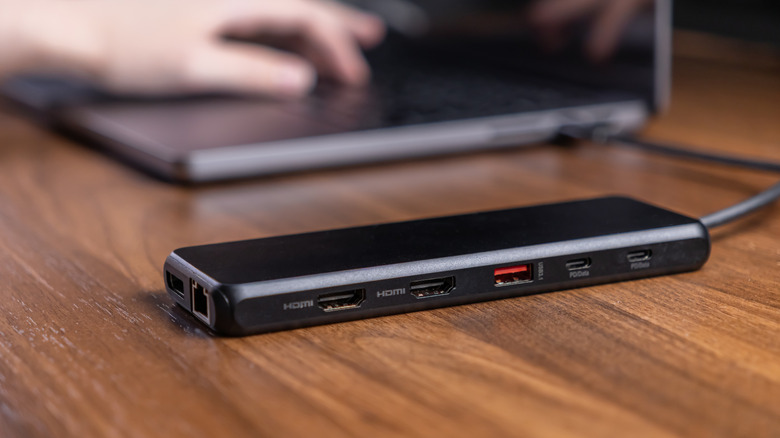
This is where the technical nuance of USB-C becomes a trap for many users. You might see a USB-C port on the side of your monitor and assume it is a universal gateway for all things video and power. However, why usb to hdmi adapters fail on monitors is almost always due to a lack of DisplayPort Alternate Mode (Alt Mode) on the downstream side.
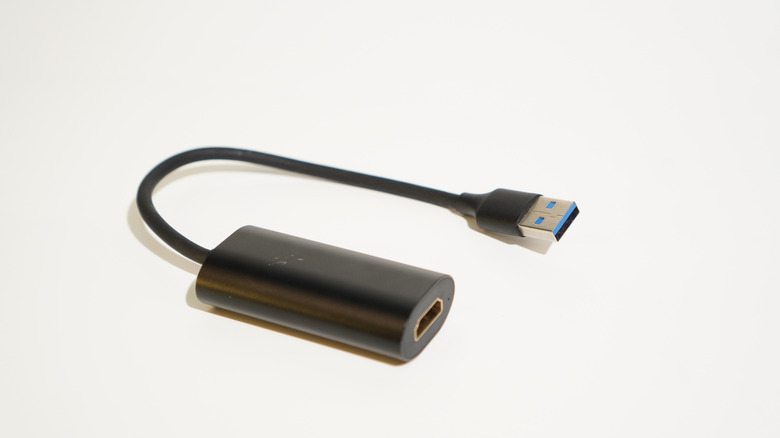
Most monitors are designed to receive a video signal through their primary USB-C or DisplayPort inputs. The additional USB-A or USB-C ports on the hub are almost exclusively for data (downstream ports). They do not have the internal wiring to pass a video signal back out. So, if you are trying to use your monitor as a bridge to connect a second display via a USB-to-HDMI adapter, it simply won't work. The monitor's hub doesn't speak the right language to negotiate that visual handshake.
The same problem applies when connecting high power usb devices to gaming monitors, particularly laptops. Many modern displays feature USB-C Power Delivery (PD), but the wattage output variance is massive. A standard monitor might offer 15W or 65W, which is fine for an Ultrabook. However, if you are charging gaming laptops with monitor usb-c pd 3.1, you need to verify if the monitor can actually hit the 140W+ required for high-performance hardware. Without a proper Power negotiation protocol and a certified E-Mark chip in the cable, your gaming laptop will either drain its battery while plugged in or, worse, throttle its CPU and GPU performance to a crawl because it isn't receiving enough juice.
Technical Deep Dive: The 5-Step Handshake & Upstream Reality
Understanding why these failures happen requires a quick look at the logic behind the USB-IF certification process. When you plug a device into a port, a 5-step power negotiation protocol takes place. The device asks the port: "How much power can you give me?" The port looks at its internal power budget (determined by its own power supply) and responds.
Most monitors have an Integrated KVM switch or a simple internal hub that is "budget-aware." If the monitor panel itself is drawing 40W and the power brick is only rated for 60W, the internal controller will hard-limit the USB ports to 2.5W to ensure the screen doesn't flicker or die. This is why you cannot simply find monitor usb port wattage specs on the box; the available power often fluctuates based on the monitor's brightness settings and active features.
Another critical component is the Upstream connection. For a monitor's USB ports to function at high speed, you must use a high-bandwidth cable (usually USB-B to USB-A or a full-featured USB-C cable) connected directly from the monitor's "Upstream" port to the PC. If this connection is bottlenecked at the source, every port on the monitor becomes equally slow.
USB Speed Comparison: Theory vs. Monitor Reality
| Connection Type | Theoretical Max Speed | Realistic Monitor Hub Speed | Common Bottleneck |
|---|---|---|---|
| USB 2.0 (High Speed) | 480 Mbps | 320 - 400 Mbps | Port architecture |
| USB 3.2 Gen 1 | 5 Gbps | 2 - 3 Gbps | Upstream cable quality |
| USB 3.2 Gen 2 | 10 Gbps | Rare on monitors | Controller overhead |
| USB4 / Thunderbolt 4 | 40 Gbps | Up to 32 Gbps | Thermal throttling |
Summary Checklist: Is Your Device Safe for the Screen?
Before you plug another device into your display, run through this quick diagnostic to ensure you aren't about to experience a performance drop or a system crash.
- Check the Wattage: Is the device a high-draw item like a mechanical keyboard with RGB, a bus-powered hard drive, or a heating accessory? If it needs more than 4.5W, move it to the PC.
- Identify the Upstream: Are you using the specialized USB-B or USB-C cable that came with the monitor? Without it, you are likely limited to the lowest common denominator of data speed.
- Verify the Protocol: If you are using an adapter for video or ethernet, does the monitor's manual explicitly state support for "DisplayPort Alt Mode" on its peripheral ports? (Spoiler: It probably doesn't).
- Assess the Data Needs: Are you moving gigabytes of data? If so, the usb data transfer speed monitor vs pc difference is too great to ignore. Use the motherboard ports for storage.
- Look for the E-Mark: If you are trying to charge a laptop via the monitor, ensure you are using an active cable with an E-Mark chip to allow for power delivery over 60W.
FAQ
Why are the USB ports on my monitor not working?
The most common reason monitor USB ports fail to respond is the absence of an upstream connection. Unlike a PC, a monitor’s USB ports are not automatically connected to your computer through the HDMI or DisplayPort cable. You must connect a separate USB upstream cable (usually USB-B to USB-A or a data-enabled USB-C cable) from the monitor to your PC to activate the integrated hub.
Can a monitor USB port charge a phone or laptop?
Yes, but the speed will vary wildly. Most standard monitor ports provide only 2.5W to 4.5W, which will result in "slow charging" for a modern smartphone. To charge a laptop, the monitor must support USB-C Power Delivery (PD). Check your monitor’s manual for the specific wattage; you typically need at least 65W for an Ultrabook and 100W+ for high-performance laptops.
What is the difference between USB upstream and downstream ports on a monitor?
The upstream port is the "input" that connects the monitor's internal hub to your computer. Downstream ports are the "outputs" where you plug in your peripherals like mice, keyboards, or flash drives. If the upstream port is not connected to a computer, the downstream ports will only provide power (if any) and will not transfer data.
Do monitor USB ports support fast data transfer?
While some premium monitors offer USB 3.0 or 3.2 speeds (5-10 Gbps), many budget and mid-range displays are internally limited to USB 2.0 (480 Mbps) for their peripheral ports. Even on high-speed monitors, the overhead of the internal hub often makes them slower than the primary ports found directly on your PC’s motherboard or laptop chassis.
Are monitor USB ports as fast as computer USB ports?
Generally, no. Monitor USB ports are shared across an internal hub, meaning the total bandwidth is split between all devices you plug into the screen. Computer USB ports, especially those on the rear I/O of a motherboard, usually have more direct lanes to the chipset or CPU, providing more consistent and higher peak speeds for demanding tasks.
Can you use a monitor USB port for an external hard drive?
You can, but it is not recommended for high-performance drives. While monitor usb ports for mouse vs high power gadgets are fine for low-draw items, an external hard drive (especially a mechanical one) may draw more power than the port can steadily provide, leading to disk errors or data corruption. For SSDs, you will likely face significant speed throttling.