Quick Facts
- Compatibility: Samsung Smart TV models and monitors from 2020 through 2025.
- Subscription: Xbox Game Pass Ultimate is required for the full library ($16.99/mo), though Fortnite is free.
- Network Speed: A minimum of 20 Mbps is required for stable 1080p streaming at 60 frames per second.
- Controller Support: Compatible with Xbox Wireless, Elite Series 2, DualSense (PS5), and various USB-wired controllers.
- Key Software: Samsung Gaming Hub (2022+ models) or the standalone Xbox app for Samsung TV (2020-2021 models).
- Launch Date: The official service launched on June 30, 2022, expanding cloud gaming access to millions of screens.
To play Xbox games on a Samsung TV, you need a compatible Smart TV model from 2020 or newer, an Xbox Game Pass Ultimate subscription, and a high-speed internet connection. You must also pair a compatible Bluetooth controller, such as an Xbox Wireless Controller or Elite Series 2, to navigate the Xbox app or Samsung Gaming Hub and stream titles without a console.
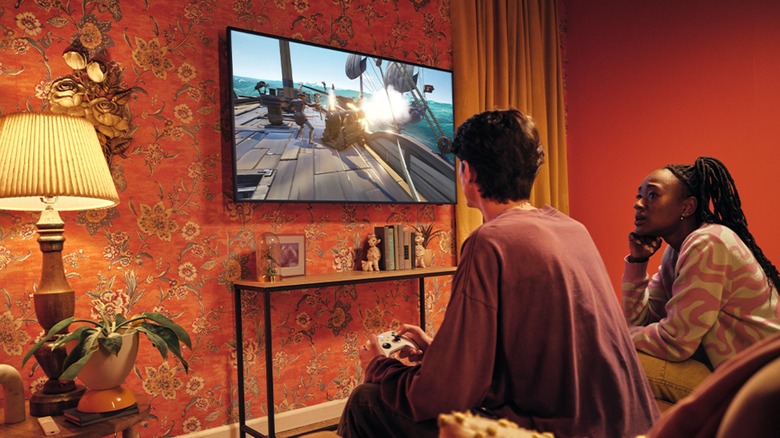
Xbox Cloud Gaming has changed the way we play, allowing you to stream AAA titles directly to your Samsung TV without needing a console. Whether you have a brand-new Neo QLED or a 2020 Smart TV, accessing the Xbox app is simple. This guide covers the exact hardware requirements and setup steps to get you gaming in minutes. As someone who has spent years testing the limits of gaming hardware, I find the shift toward cloud-based gaming on Tizen Operating System one of the most significant jumps in accessibility we have seen in the last decade.
Hardware Compatibility: Can Your TV Run It?
Before you clear a space on your media console for a new Xbox, you need to verify if your current screen is up to the task. The Xbox app for Samsung Smart TVs officially launched on June 30, 2022, and while it was initially exclusive to 2022 models, Samsung has since expanded support significantly.
Samsung Gaming Hub vs. Standalone Xbox App
If you own a Samsung TV manufactured between 2022 and 2025, you likely have the Samsung Gaming Hub already integrated into your interface. This hub acts as a centralized dashboard for all things gaming, housing Xbox Cloud Gaming alongside other services like NVIDIA GeForce NOW and Amazon Luna. It is featured prominently on Neo QLED models and the high-end OLED series, providing a low latency streaming environment designed specifically for gaming.
For owners of select 2020 and 2021 models, the experience is slightly different. Instead of a dedicated hub, you will need to find the standalone Xbox app for Samsung TV within the Samsung App Store. While the interface is slightly less integrated than the Gaming Hub, the performance remains high as long as your Tizen Operating System is updated to at least firmware version 1302.5. If you cannot see the app, a manual firmware update is often the first step to unlocking compatibility.
Specific Samsung TV Models Compatible with Xbox Cloud Gaming
Determining exactly which samsung tv models compatible with xbox cloud gaming is relatively straightforward. Most QLED, Neo QLED, and Crystal UHD models from the 2022 lineup and beyond are fully supported. For older models, the rollout includes the BU8000 series and higher from 2022, as well as the Q60A and higher from the 2021 lineup. If you are using a 2020 model, look for the Q-series or higher to ensure the processor can handle the decoding required for a smooth stream.
Controller Pairing: Getting Connected
The biggest hurdle for many users is realizing that the TV remote is not a viable game controller. To dive into Halo or Forza, you need a Bluetooth controller pairing to your television. The TV handles the connection via its internal Bluetooth module, much like it would with a soundbar or headphones.
Identifying Your Controller
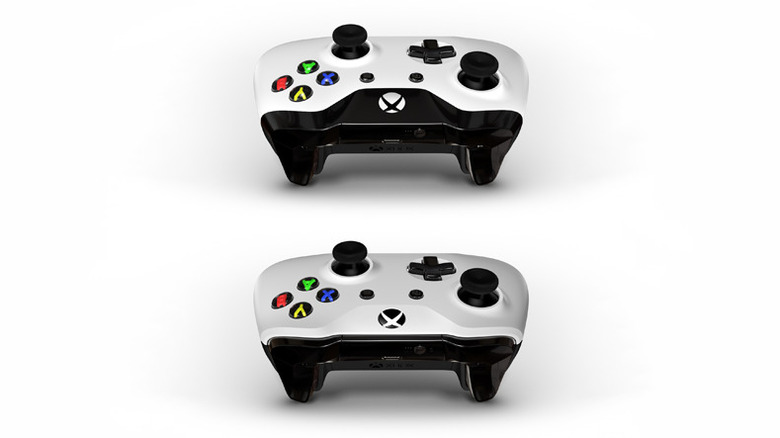
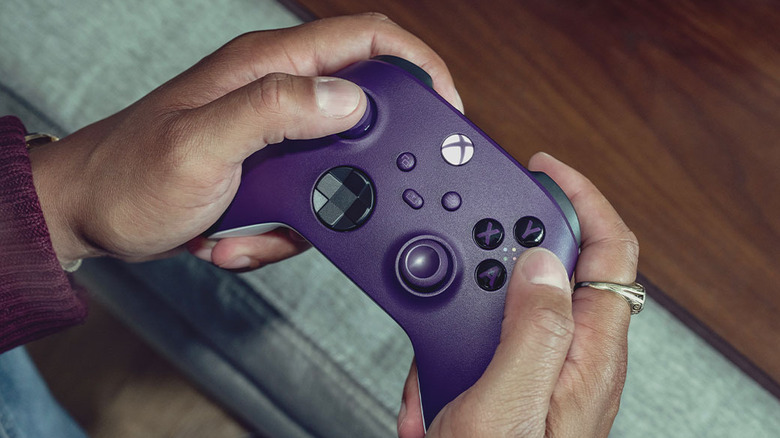
Not all Xbox controllers are created equal. If you are using an older Xbox One controller, check the plastic surrounding the Xbox button. If the plastic is part of the same faceplate as the buttons, it is Bluetooth-ready. If it is part of the "bumpers" plastic on top, it lacks Bluetooth and will not work wirelessly. Modern controllers, including the Xbox Wireless Controller that ships with Series X|S and the Elite Series 2, are fully compatible. Interestingly, Samsung also provides DualSense controller support, meaning you can use a PlayStation 5 controller to play Xbox games on your TV.
Steps for Bluetooth Controller Pairing
Connecting a controller to your Samsung TV involves navigating to the Gaming Hub or Xbox app and selecting the controller icon. Put your wireless controller into pairing mode by holding the sync button until the logo flashes, then select the device from the TV's Bluetooth list. For a more direct setup, you can connect a compatible Xbox controller to the TV's USB port using a wired connection. This is often the best way to troubleshoot xbox controller connection on samsung tv issues, as a physical cable eliminates wireless interference immediately.
How to Access and Set Up the Xbox App
Once the hardware is verified and the controller is ready, the setup is purely software-based. The Xbox app is your gateway to the cloud. If you are on a 2022 or newer model, simply press the Home button and navigate to the Gaming Hub on the left-hand sidebar.
- Locate the App: Open the Samsung Gaming Hub or search for "Xbox" in the App Store for 2020/2021 models.
- Sign In: You will need your Microsoft account credentials. A QR code usually appears on the screen, allowing you to sign in quickly using your smartphone.
- Subscription Check: While select free-to-play titles like Fortnite can be played with only a free Microsoft account, the vast majority of the library requires an Xbox Game Pass Ultimate subscription.
Meeting the xbox game pass requirements for samsung gaming hub is essential for accessing the hundreds of titles available. If you are a new subscriber, Microsoft often offers a trial period, making it easy to test the service before committing to the monthly fee.
Performance Tuning for Lag-Free Play
In cloud gaming, the "console" is a server rack miles away. This means your internet connection is the most critical component of the experience. To ensure low latency streaming, you need to optimize how your TV talks to your router.
Wired vs. Wireless Connections
While the TV supports Wi-Fi, I always recommend an Ethernet cable connection for the best results. A hardwired connection provides much more stability than wireless, which can be prone to "jitter"—small variations in timing that cause stuttering in your gameplay. If you must go wireless, ensure you are using a 5GHz wireless frequency. The older 2.4GHz band is too crowded with interference from microwaves and other smart home devices, which often leads to high input lag.
TV Settings for Gaming
Samsung TVs feature a dedicated Game Mode that should activate automatically when you launch the Xbox app. This mode disables certain post-processing effects to prioritize speed, which is vital for input lag optimization. If the game feels "heavy" or delayed, double-check that Game Mode is active in your TV's external device manager settings. Additionally, check that your internet speed for lag free xbox cloud gaming on tv meets the recommended high-speed internet connection of at least 20 Mbps. Even if your plan is faster, the actual speed at the TV might be lower if your router is several rooms away.
Troubleshooting: Common Fixes
Even the best technology has hiccups. If you encounter issues, there are a few "field-tested" tricks that I use during hardware reviews that aren't always in the manual.
- The Hard Reboot: If the Xbox app won't launch or freezes, perform a hard reboot on your TV. Unplug the power cable from the wall for at least 60 seconds, then plug it back in. This clears the system cache and often fixes UI glitches.
- Controller Firmware: If your controller connects but behaves erratically, you may need to update xbox controller firmware for samsung tv compatibility. This must be done via an Xbox console or a Windows PC using the Xbox Accessories app.
- App Updates: Ensure both the Xbox app and the TV's system software are up to date. Samsung frequently releases patches to improve the stability of the Gaming Hub.
FAQ
Do I need a console to use Xbox Cloud Gaming?
No, you do not need a physical Xbox console. The processing is handled on Microsoft's remote servers, and the video is streamed directly to your Samsung TV, much like a movie on Netflix.
Which devices support Xbox Cloud Gaming?
In addition to Samsung Smart TVs (2020-2025), Xbox Cloud Gaming is supported on Android and iOS devices, Windows PCs, Mac, and various handheld gaming devices like the Steam Deck and ASUS ROG Ally.
Is Xbox Cloud Gaming included with Game Pass Ultimate?
Yes, cloud gaming is a core feature of the Xbox Game Pass Ultimate tier. It is not currently available with the standard PC or Console versions of Game Pass.
What internet speed do I need for cloud gaming?
Microsoft and Samsung recommend a minimum of 20 Mbps for a consistent 1080p experience. For the most stable connection, using an Ethernet cable or 5GHz Wi-Fi is highly recommended to minimize latency.
Can I use a PlayStation controller for Xbox Cloud Gaming?
Yes, modern Samsung TVs support various Bluetooth controllers, including the PlayStation DualSense and DualShock 4. You can pair them through the Bluetooth devices menu in the TV settings or the Gaming Hub.
With the right setup, your Samsung TV becomes a powerful gaming station that requires no extra wires or bulky boxes. By focusing on a stable network and a compatible controller, you can enjoy a library of hundreds of games with the same ease as launching a streaming app. The era of the console-less living room has officially arrived.