Quick Facts
- Primary Requirement: Your laptop must be equipped with Precision Touchpad compatible hardware to access the full suite of Windows 11 features.
- Best Workflow Hack: Increase productivity by mapping three-finger swipes to window snapping or specific virtual desktop transitions.
- Key 2026 Update: Windows 11 Build 29576 introduces adjustable right-click zone sizes, allowing users to define exactly where the secondary click area begins.
- Sensitivity Fix: To eliminate ghost inputs while typing, set the touchpad sensitivity to a lower level to improve palm rejection.
- Efficiency Metric: While users are approximately 50% more productive when using an external mouse, advanced gesture mapping can significantly narrow this gap for mobile professionals.
- Safety Note: There is no global reset button for the Advanced Gestures menu; always document your custom keyboard string mappings before modifying them.
To optimize your Windows touchpad settings, navigate to Settings > Bluetooth & devices > Touchpad. For maximum efficiency, utilize the Advanced Gestures menu to map multi-finger swipes to custom keyboard shortcuts and adjust the cursor speed to match your display size. By refining these Windows touchpad settings, you can transform a standard pointing device into a powerful automation tool that handles complex window management and media control with simple finger movements.
The Foundation — Verifying Precision Touchpad Support
Before we dive into the granular tweaks that make a professional workstation feel responsive, we need to address the hardware layer. Not all trackpads are created equal. In the earlier days of Windows, manufacturers used a variety of proprietary drivers that often led to a laggy, inconsistent experience. Microsoft solved this by introducing the Precision Touchpad standard. This standard moves the gesture processing from the third-party driver directly into the Windows interaction shell, resulting in much higher input responsiveness.
If you are using a modern machine, you are likely in the clear. Microsoft requires all new laptops shipping with Windows 11 to be equipped with Precision Touchpads, ensuring a standardized set of drivers across the ecosystem. However, it is always worth verifying your specific hardware capabilities before you try to find menus that might not exist on older legacy devices.
To check your status, open the Settings app and head to Bluetooth & devices > Touchpad. At the very top of this page, you should see a note stating, "Your PC has a precision touchpad." If you see this, you have full access to the multi-finger gesture engine and the low-latency tracking required for high-level productivity. If this text is missing, your laptop is likely using an older Synaptics or Elan driver, which may limit you to basic scrolling and clicking.
Reducing Friction: Taps and Sensitivity Calibration
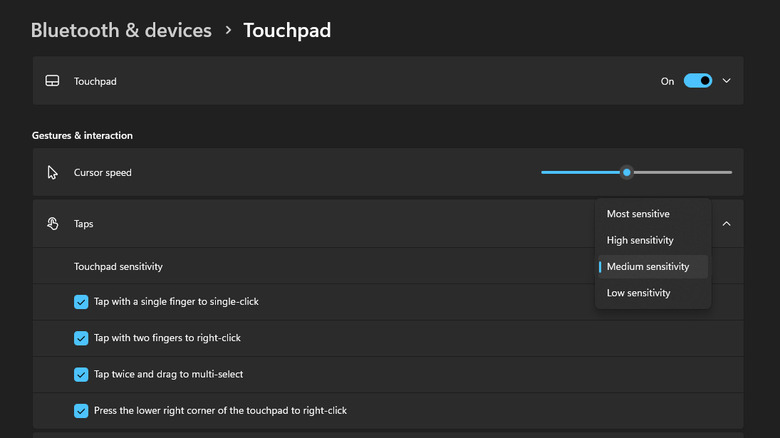
One of the most common complaints I hear from PC builders and mobile professionals is the "jumping cursor" phenomenon. This usually happens when your palm brushes the trackpad while typing, triggering an accidental click that moves your cursor to a different paragraph. Solving this requires a fine-tuning of your trackpad sensitivity settings.
Within the Touchpad menu, locate the Taps section. Here, you will find a dropdown for Touchpad sensitivity. If you have heavy hands or type with a flat-palm style, I recommend changing this from "Medium" or "Most Sensitive" to "Low sensitivity." This adjustment increases the threshold of force and surface area required to register a touch, effectively improving palm rejection.
The May 2026 update (Build 29576) has added a highly requested feature for those who prefer physical clicking over tapping. Under the Taps submenu, you can now find a slider for adjusting trackpad right click zone size Windows 11. Previously, the right-click zone was a fixed area in the bottom-right corner. Now, you can expand or shrink this zone. If you find yourself accidentally right-clicking when you meant to left-click, shrinking the zone to "Small" ensures that only a deliberate press in the far corner triggers the context menu.
Mastering Navigation: 3 and 4-Finger Gestures
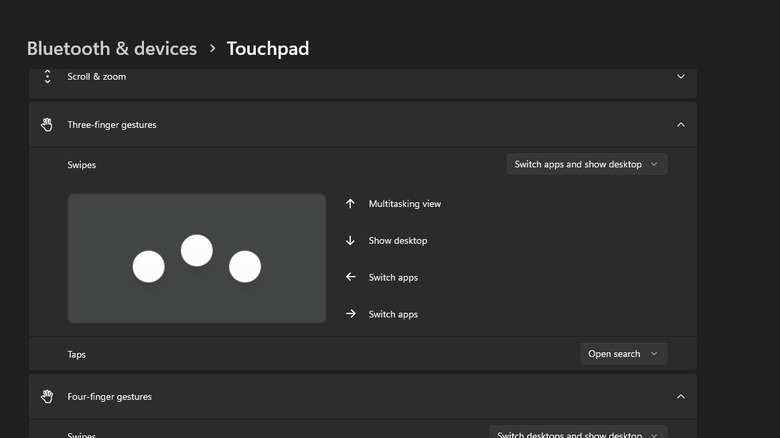
Once the basic tracking is comfortable, the real efficiency gains come from multi-finger input. Windows 11 includes native support for customizable multi-finger gestures that allow you to navigate the OS without ever touching your keyboard.
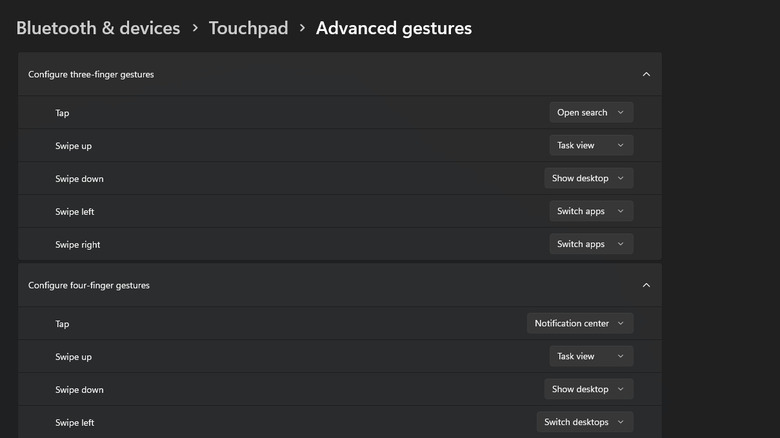
I categorize these into two tiers: Three-finger gestures for active window management and four-finger gestures for environmental management. For most users, the default "Switch apps and show desktop" profile is a good start, but power users should look toward customizing Windows 11 three finger gestures for productivity.
| Gesture | Standard Setting | Pro Workflow Optimization |
|---|---|---|
| 3-Finger Swipe Up | Task View | Task View (Keep as is) |
| 3-Finger Swipe Down | Show Desktop | Show Desktop (Keep as is) |
| 3-Finger Swipe Left/Right | Switch Apps | Switch Virtual Desktops |
| 4-Finger Swipe Left/Right | Switch Virtual Desktops | Snap Active Window Left/Right |
| 3-Finger Tap | Search / Cortana | Middle Mouse Click (Great for opening tabs) |
| 4-Finger Tap | Notification Center | Play/Pause Media |
By changing the horizontal swipes to switch virtual desktops, you can separate your work into "Zones." I keep my email and Slack on Desktop 1 and my primary IDE or creative software on Desktop 2. A quick three-finger flick allows me to check messages and return to my deep-work environment in less than a second.
Advanced Efficiency: Custom Shortcuts and Media Controls
For those who want to push their Windows 11 touchpad gestures even further, we need to leave the preset menus behind. Scroll to the bottom of the touchpad settings and click on Advanced gestures. This is where you can define specific actions for every direction of movement.
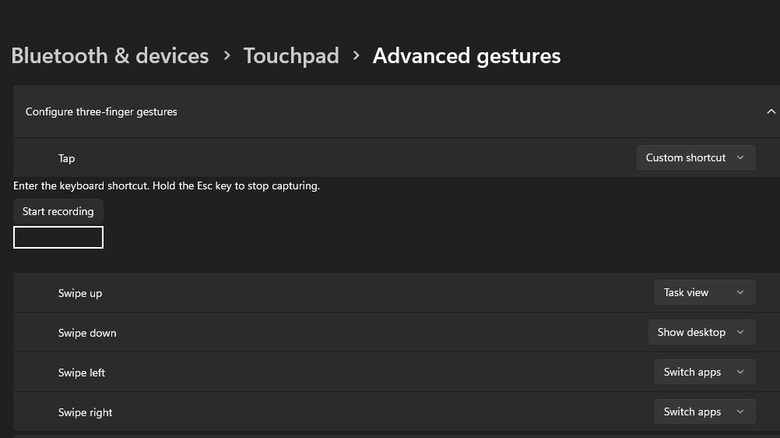
The "Custom shortcut" option is the holy grail of workflow automation. Instead of choosing from a list of Windows presets, you can record a keyboard combination. If you are a coder, you might consider mapping keyboard shortcuts to Windows 11 touchpad swipes like Ctrl + C and Ctrl + V. Imagine swiping right to copy a block of text and swiping left to paste it. It feels futuristic and eliminates the repetitive claw-hand motion required for keyboard shortcuts.
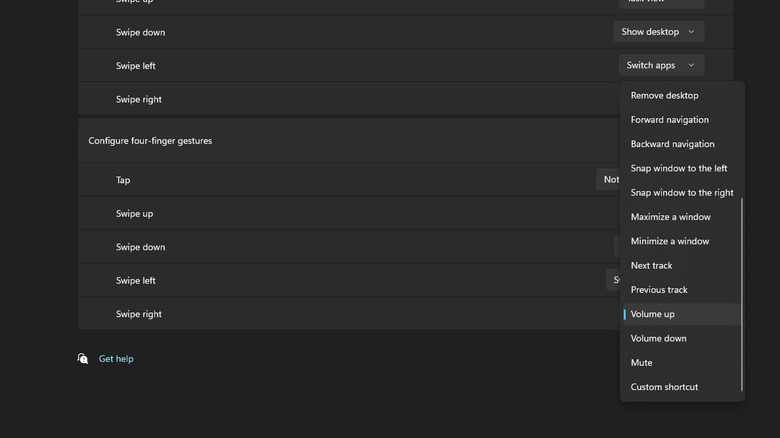
Another often-overlooked utility is using Windows 11 touchpad gestures to control volume and music. In the Advanced gestures menu, you can set the four-finger swipes to "Change audio and volume." In this configuration, swiping up and down acts as a physical volume knob, while swiping left and right skips tracks. This is particularly useful for professionals who work with music in the background and need to quickly mute or skip a track during an incoming call without hunting for the media keys on the function row.
The 2026 Update: Accelerated Scrolling and Haptics
As we move into mid-2026, the hardware side of the equation is evolving alongside the software. Many premium laptops now feature haptic trackpads, which use small vibrating motors (actuators) rather than a mechanical hinge. This allows for a uniform click feel across the entire surface.
The best Windows 11 touchpad settings for haptic trackpads involve finding the right balance of tactile feedback. Under the Touchpad settings, look for a Haptic feedback toggle. You can adjust the "Intensity" slider here. I find that a lower intensity (around 20-30%) provides a more sophisticated feel that mimics a high-end mechanical switch without the loud acoustic click.
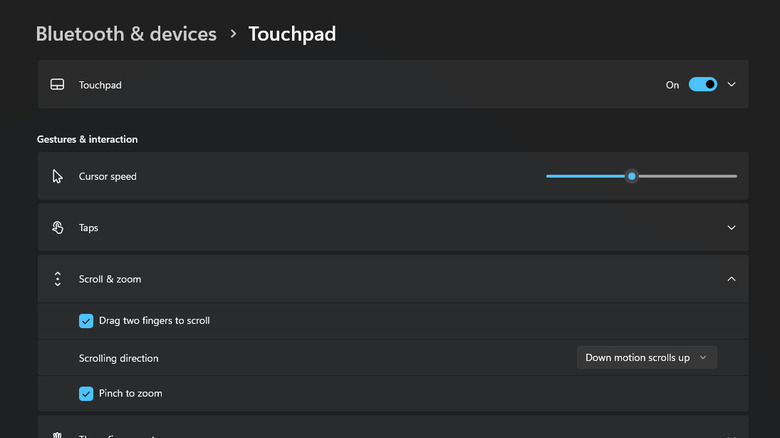
Additionally, the latest builds have introduced "Accelerated Scrolling." If you spend your day scrolling through thousands of lines of code or massive Excel spreadsheets, ensure this is enabled. Accelerated scrolling detects the velocity of your two-finger swipe; a fast flick will send the page flying, while a slow drag remains precise. This is further supplemented by the "Automatic Scrolling" feature, which allows you to perform a middle-click (via a three-finger tap, if configured) and move the cursor to scroll hands-free.
Mastery and Maintenance: Muscle Memory and the Reset Issue
Optimizing your Windows touchpad settings is only half the battle. The other half is training your hands to use them. I recommend a simple "Practice Routine": spend the first ten minutes of your workday consciously using your new gestures. Within three to four days, the three-finger swipe for virtual desktops will become second nature, and you will find yourself feeling restricted when using a guest's laptop that hasn't been optimized.
One critical warning for those experimenting in the Advanced gestures menu: as of the current build, there is no "Reset to Default" button specifically for the custom shortcut section. If you map a complex series of swipes and find they are clashing with your apps, you have to manually re-assign them to "Nothing" or a different preset. Before you start creating a custom touchpad shortcuts library, take a screenshot of your working configuration. This small bit of maintenance saves a significant headache if you decide to revert to a standard setup later.
By taking the time to calibrate your input responsiveness and mapping your most frequent commands to gestures, you reclaim seconds of every minute. In a professional environment, those seconds compound into hours of saved time over a year.
FAQ
How do I access touchpad settings in Windows?
To find these controls, click on the Start menu and select the gear icon for Settings. From there, navigate to Bluetooth & devices in the left-hand sidebar, and then select Touchpad from the list of available devices.
How can I adjust the sensitivity of my touchpad?
Open your Touchpad settings and look for the Taps dropdown menu. Inside, you will find a setting for Touchpad sensitivity. Choose "Low sensitivity" if you want to prevent accidental clicks while typing, or "Most sensitive" if you prefer a very light touch for cursor movement.
What are the best touchpad gestures for Windows?
For maximum efficiency, I recommend using three-finger swipes for switching virtual desktops and four-finger swipes for volume control. Mapping a three-finger tap to middle-click is also a massive time-saver for web browsing, as it allows you to open links in new tabs instantly.
How do I reset my touchpad settings to default?
In the main Touchpad settings page, there is a Reset button located at the bottom of the menu. Note that this typically resets the standard toggles and sensitivity; however, specific mappings in the Advanced gestures menu may need to be cleared manually if the global reset does not catch them.
How can I customize multi-finger gestures on my touchpad?
Scroll to the bottom of the Touchpad settings page and select Advanced gestures. This menu allows you to pick specific actions for three and four-finger swipes in four directions, as well as customize what happens when you tap with multiple fingers.