Quick Facts
- Lifespan Benchmark: Modern panels are typically rated for a half-life of 30,000 to 100,000 hours, depending on usage and panel generation.
- Brightness Impact: Pushing a panel to 300 nits can reduce its expected lifespan to 15,000 hours, compared to 50,000 hours at 100 nits.
- Burn-In Risk: Continuous display of static UI elements can increase the risk of permanent image burn-in by as much as 50%.
- Warranty Standard: Most major manufacturers now offer a 3-year limited warranty specifically covering burn-in for gaming monitors.
- Core Protection: The most effective passive defense is utilizing dark mode and auto-hiding the taskbar to ensure pixels remain off or change state frequently.
- Automatic Maintenance: Integrated features like pixel shifting and automated refresh cycles are mandatory for long-term health.
To achieve optimal OLED monitor care, you must minimize static elements by auto-hiding the taskbar, utilizing dark mode, and maintaining brightness levels below 50% to reduce thermal stress on pixels. Selecting dynamic wallpapers and ensuring your monitor completes its automated pixel refresh cycles during standby are the most effective ways to prevent OLED burn-in and ensure long-term panel health.
The Science of OLED Aging: Why Burn-In Happens
As someone who spends all day looking at screens, I can tell you that the jump to an organic light-emitting diode display is the single biggest upgrade you can make for your PC setup. However, unlike traditional LCDs that use a persistent backlight, every pixel in an OLED panel is its own light source. This independence is what gives us those perfect blacks and infinite contrast, but it also introduces a unique challenge: organic compounds degradation.
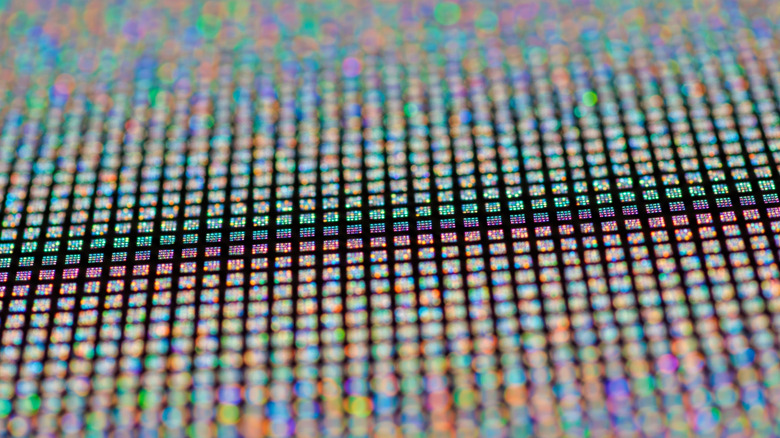
Each pixel is composed of sub-pixel structures—usually red, green, and blue (RGB). These organic materials wear down as they are used. The phenomenon we call burn-in is actually differential aging. If one group of pixels stays lit at a higher intensity than the rest—like a static taskbar or a news ticker—those pixels will lose their luminous efficiency faster than their neighbors. Over time, this creates a ghost image because those worn pixels can no longer reach the same peak brightness as the less-used areas of the screen.
In the 2026 hardware landscape, we are seeing significant improvements in thermal management. Manufacturers are now utilizing integrated heatsinks and more efficient materials to pull heat away from the organic layer. This is crucial because heat accelerates chemical breakdown. We are also seeing a divergence in how different technologies handle this; WOLED (White OLED) uses a color filter, while QD-OLED (Quantum Dot OLED) uses a blue emitter layer with quantum dots to convert color. The blue sub-pixel has historically been the weak link, as blue light requires higher energy and thus triggers faster wear. By understanding that reducing blue emitter wear on OLED displays is a game of heat and intensity management, we can take proactive steps to double the life of our hardware.
Software Habits: Protecting Your Screen via OS Settings
The battle against permanent image retention starts with your operating system settings. If you are using your monitor for productivity or general web browsing, your software habits are the primary factor in determining OLED monitor lifespan 2026 real world usage. The goal is to keep pixels in motion or turned off as much as possible.
The first and most important step is to enable dark mode globally. Since an OLED pixel consumes nearly zero power and experiences zero wear when displaying true black, a dark interface is essentially a "rest period" for your panel. This is followed closely by the need to auto-hide taskbar and icons for OLED care. A static Windows taskbar is the number one cause of burn-in for office workers because it sits in the exact same spot for eight hours a day.
For gamers, the challenge is different. Modern titles often have static HUDs (Heads-Up Displays) that show health bars or mini-maps. If you are playing the same RPG for hundreds of hours, you should investigate if the game offers an "Immersive HUD" or "Dynamic HUD" setting that hides these elements when they aren't needed. Managing static HUDs in games on OLED screens is vital because these elements are often saturated with high-energy colors like bright red or white, which accelerate wear. Finally, consider using a rotation of high-quality dynamic wallpapers. This ensures that no single part of the screen is stuck with the same color value for too long, promoting even aging across the entire matrix.
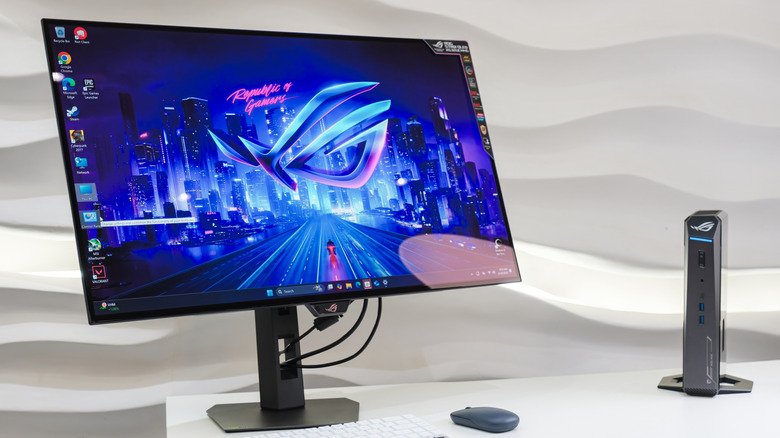
Monitor Settings: Navigating the OSD for Longevity
While software helps, the hardware-level controls in your On-Screen Display (OSD) provide the "active" defense. The most impactful setting you can change is brightness. Many users treat their monitors like a stadium floodlight, but the best brightness settings for OLED monitor longevity usually involve capping the output at around 150 to 200 nits for indoor use. High brightness levels create more heat, and heat is the enemy of organic light-emitting diode stability.
Most modern monitors come with a suite of OLED-specific features that you should never disable. One of the most common is pixel orbital shifting (sometimes called Pixel Shift or Screen Shift). This feature subtly moves the entire image by a few pixels every few minutes. It is often imperceptible to the user, but it helps ensure that static edges (like the borders of a window) are distributed across multiple pixels rather than hammering just one row.
Another critical feature is the automatic brightness limiter (ABL). You might notice the screen dimming slightly when a large white window is opened; this is the monitor protecting itself from excessive current and heat. Additionally, look for logo dimming algorithms in your settings. These smart features detect static logos or UI elements and selectively dim just those areas. It is a highly effective way to prevent OLED burn-in without ruining the visual impact of the rest of the scene.
Pixel Refresh Cycles: Maintenance vs. Overuse
Every OLED owner needs to understand the maintenance cycles that keep the panel uniform. These are not "repairs" but rather voltage compensation processes that balance the output of the pixels to ensure a consistent image. There are two primary types of cycles, and knowing the difference is key to proper OLED monitor care.
| Feature | Frequency | Purpose | User Action |
|---|---|---|---|
| Short Pixel Refresh | Every 4-16 hours | Corrects minor voltage drifts and temporary retention | Runs automatically in standby; leave power connected |
| Long Panel Refresh | Every 500-2,000 hours | Deep compensation for cumulative wear across the panel | Automatic or manual; takes 10-60 minutes |
| Pixel Shifting | Constant | Distributes static edge wear | Keep enabled in OSD |
The most important rule for an OLED monitor pixel refresh frequency guide is to let the monitor do its job. Most displays will prompt you or run a short cycle once they have reached four hours of cumulative use, but only after you turn the screen off or it enters standby. This is why you should never unplug your monitor from the wall after a session. It needs that standby power to perform its cleaning.
Conversely, you should avoid manually triggering the "Long" or "Deep" panel refresh cycles unless you actually see persistent ghosting that doesn't go away. These deep cycles involve more aggressive voltage adjustments and, if run too frequently, can actually contribute to the overall aging of the panel. Trust the built-in panel maintenance cycles unless there is a visible problem.
FAQ
How do I prevent burn-in on an OLED monitor?
Preventing burn-in requires a combination of software and hardware adjustments. You should auto-hide the taskbar, use dark mode for all applications, and set your display to turn off after a few minutes of inactivity. On the hardware side, keep your brightness at a moderate level (50% or lower) and ensure all built-in protection features like pixel shifting are enabled.
Is it safe to use an OLED monitor for office work?
Yes, it is safe, but it requires more diligence than a standard LCD. Office work typically involves static windows and toolbars, which are the primary drivers of burn-in. If you use your OLED for work, you must be disciplined about hiding UI elements and using dark themes. If your work involves 10 hours a day of static spreadsheets, a high-end IPS monitor might still be a more practical choice.
How often should you run a pixel cleaning cycle?
You should not need to run a pixel cleaning cycle manually. Modern monitors are programmed to run a short pixel refresh automatically after every 4 to 8 hours of cumulative use when the monitor enters standby mode. Only run a manual "deep" refresh if you notice temporary image retention that persists through several automatic short cycles.
Does dark mode help preserve OLED screens?
Dark mode is extremely effective for OLED preservation. Because OLED pixels produce their own light, displaying black means the pixel is completely turned off. This prevents wear and reduces the overall heat generated by the panel. The more black space you have on your screen, the longer your organic compounds will last.
What is the typical lifespan of a modern OLED monitor?
The typical lifespan, or "half-life," of a modern OLED monitor in 2026 is between 30,000 and 100,000 hours. This is the time it takes for the display to reach 50% of its original maximum brightness. For the average user, this translates to roughly 7 to 10 years of use before significant degradation is noticed, provided proper care is taken.
Are screensavers still necessary for OLED monitors?
While traditional screensavers were designed for CRTs, they have found a new purpose with OLEDs. A screensaver that uses moving, colorful images or—better yet—a completely black screen is a great way to prevent static images from sitting on the display when you step away. However, setting the monitor to simply "Turn off display" in your power settings is even more effective.
Final Thoughts on Longevity
The shift toward OLED technology has redefined our expectations for visual fidelity, but it comes with a responsibility to understand the hardware. By being proactive with your settings and allowing the monitor's internal safety systems to run their course, you can enjoy the best image quality available today without the constant fear of degradation. Always check your manufacturer's specific warranty terms, as many now offer comprehensive coverage for the first few years of ownership, giving you peace of mind while you enjoy those perfect blacks.