Quick Facts
- Repair vs. Replacement: A certified USB-C cable costs about $19, while a motherboard repair due to power surges can exceed $500.
- Safe Brands: Stick to Apple or USB-IF certified manufacturers like Anker, Belkin, and Mophie for all power accessories.
- Thermal Limits: Avoid charging your iPad in environments exceeding 35°C (95°F) to prevent long-term battery degradation and circuitry stress.
- The USB Killer Risk: Never plug in a found flash drive; some are designed to deliver high-voltage surges that instantly brick your device.
- Fast Charging Data: A 20-watt charger reaches 0% to 50% in approximately 24 minutes, significantly faster than older 5-watt blocks.
- Mechanical Care: Using your iPad while it is plugged in can exert pressure on the internal pins, leading to physical iPad charging port protection issues.
Using low-quality, no-name USB-C chargers can cause permanent hardware damage to your iPad. To ensure iPad USB-C safety, you must understand the risks of third-party accessories and how improper power management can lead to catastrophic failure.
The Hidden Dangers of Cheap Third-Party Chargers
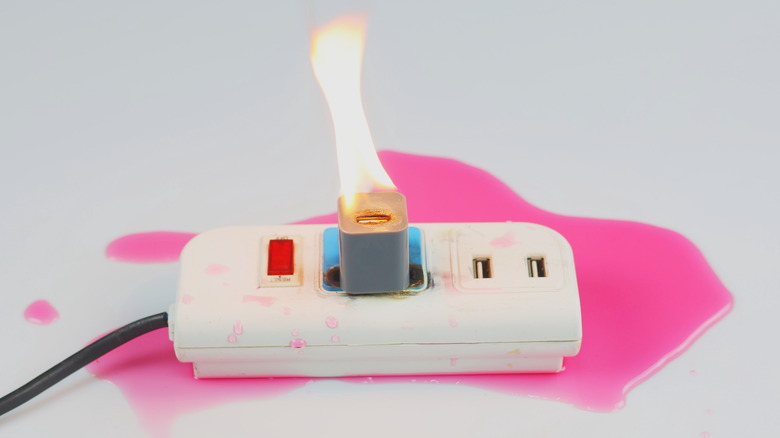
When you browse online marketplaces, it is tempting to grab a three-pack of USB-C cables for the price of a single coffee. However, as an editor who has seen dozens of fried logic boards, I can tell you that the internal components of these budget accessories are often a disaster waiting to happen. The primary issue lies in the lack of sophisticated voltage regulation.
A high-quality power brick acts as a gatekeeper. It communicates with your iPad to determine exactly how much power the device needs. Cheap alternatives often skip the essential communication chips. Without proper overcurrent protection, a minor fluctuation in your home’s electrical grid can send a massive surge directly into your device. This often results in irreparable damage to an iPad's motherboard and sensitive internal chips like the Tristar or Hydra IC. These chips are responsible for managing the handshake between the charger and the battery; once they are fried, your iPad may never turn on again.
Furthermore, counterfeit cables often utilize thin, low-grade copper wiring that generates excessive heat. This heat dissipation issue is not just a performance problem—it is a fire hazard. Official Apple 20W adapters and certified alternatives contain high-grade capacitors and heat sinks designed to keep temperatures within safe operating limits. If you feel your charger getting uncomfortably hot to the touch, it is a clear sign that the internal circuitry is inadequate.
Checklist: How to Verify USB-IF Certification
To prevent third party iPad charger risks, look for these specific indicators before you buy:
- The USB-IF Logo: Look for the official "Certified USB" logo on the packaging, which indicates the product has passed rigorous interoperability testing.
- MFi Program: While originally for Lightning, many reputable manufacturers still list MFi (Made for iPhone/iPad) compliance for their USB-C accessories to signal Apple-specific testing.
- Retailer Authenticity: Only purchase from authorized retailers. Scammers often use high-quality packaging to hide low-quality internal hardware.
- Physical Build Quality: Check for smooth, single-piece metal connectors. Counterfeit cables often have visible seams or rough edges on the USB-C tip.
Why You Should Never Plug in Unknown USB-C Flash Drives
We have all seen it: a stray flash drive sitting on a coffee shop table or a library desk. While your curiosity might urge you to see what is on it, the risks to your device are immense. This is not just about malware or data theft; it is about the physical survival of your tablet.
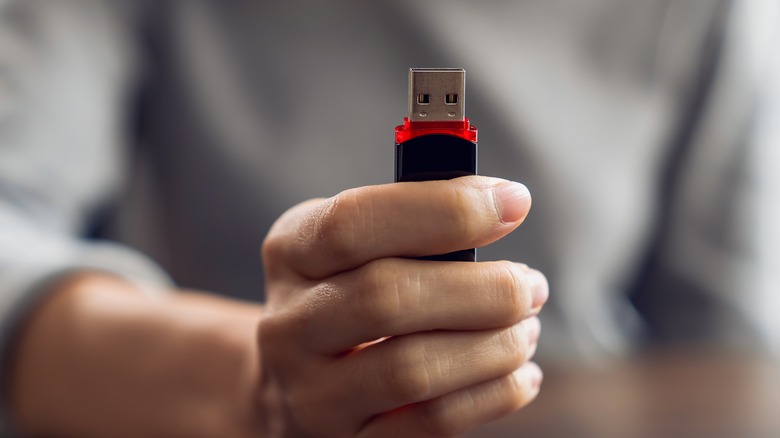
The most terrifying threat is the USB Killer. These devices look exactly like a standard thumb drive but are packed with capacitors. When plugged into your iPad, they rapidly draw power from the device, store it, and then discharge a high-voltage surge back into the data pins. This cycle repeats several times per second until the internal circuitry is literally melted. Because this is a physical electrical surge, iPadOS security protocols cannot block it.
Warning: A 2016 study found that nearly 48% of people who find a "lost" USB drive will plug it into their personal device. In a professional environment, this rate can be even higher. Never be part of this statistic.
Even if the drive isn't a "killer," it could be a BadUSB device. These are programmed to trick your iPad into thinking a keyboard has been plugged in. Once recognized, the drive can "type" commands at lightning speed, potentially bypassing security settings or exfiltrating private data before you even realize what is happening. To maintain USB-C flash drive safety, only use storage media that you have purchased new from a trusted source.
Clearing the Air: Is the MacBook Charger Safe for iPad?
One of the most common questions I receive is whether using a 61W or 96W MacBook Pro power brick will "explode" an iPad. The short answer is no. This is thanks to a protocol called USB Power Delivery.
When you connect a high-wattage charger to your iPad, a digital "handshake" occurs. The iPad tells the charger exactly how much power it can handle, and the charger adjusts its output accordingly. For example, if you plug an iPad Pro into a 140W MacBook charger, the iPad will likely only pull between 30W and 45W.
However, there is a caveat: heat. While the charger won't fry the device through wattage alone, charging at maximum speed generates significant thermal energy. If you are using your iPad for heavy video editing or gaming while fast-charging, you might hit the 35°C (95°F) thermal threshold. At this point, the iPad will intelligently slow down or stop charging to protect the battery.
iPad Wattage Compatibility Guide
| iPad Model | Recommended Minimum | Optimal Fast Charge | Peak Supported |
|---|---|---|---|
| iPad Pro (M4 / M2) | 20W | 30W - 45W | ~45W |
| iPad Air (M2 / M1) | 20W | 30W | ~30W |
| iPad Mini (6th Gen) | 20W | 20W | ~25W |
| iPad (10th Gen) | 20W | 20W | ~25W |
Maintenance Tips to Prevent Port Damage
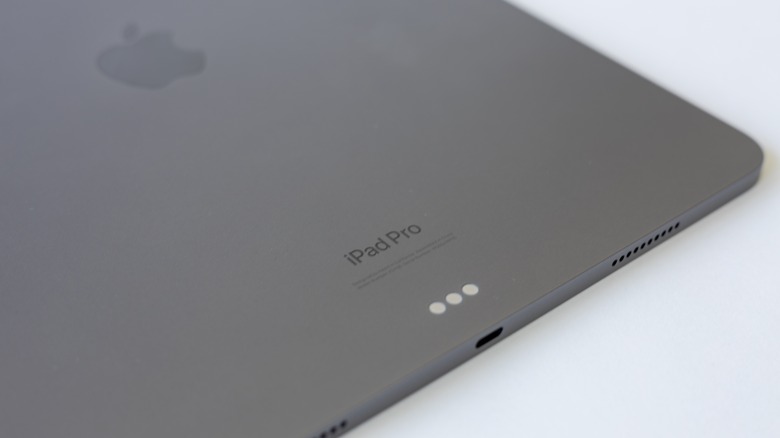
Sometimes the danger isn't electrical—it’s mechanical. The USB-C port on your iPad is a masterpiece of engineering, but it is also a collection of very thin, very fragile pins. The most common cause of port failure I see is physical wear and tear from improper use.
A major culprit is using the iPad while it is plugged in. When you rest the iPad on your lap or chest while lying down, the cable often bends at a sharp angle where it meets the port. This can exert excessive mechanical pressure and bend the delicate internal power delivery pins. Over time, this leads to a loose connection, where the iPad only charges when the cable is held at a specific angle.
Environmental factors also play a huge role. Lint, dust, and pocket debris can migrate into the port. When you plug in a cable, you compress this debris against the pins. Eventually, the connection becomes obstructed, leading to arcing—tiny electrical sparks that can carbonize the pins and ruin the port.
How to Safely Clean Your USB-C Port
If you notice a loose connection or slow charging, follow these steps for proper way to clean iPad USB-C port pins:
- Use Non-Conductive Tools: Never use a metal paperclip or needle. A thin plastic toothpick or a specialized anti-static brush is the only safe option.
- Good Lighting: Use a desk lamp or a second phone's flashlight to look deep into the port. You are looking for a ring of compressed lint around the center tongue.
- Gentle Extraction: Lightly tease the debris out. Do not scrub or apply heavy pressure to the center assembly.
- Compressed Air: Use short bursts of canned air to blow out loose particles. Avoid blowing into the port with your mouth, as moisture can cause corrosion.
Another critical safety tip: be wary of public charging stations. While "juice jacking" (where data is stolen via a charging port) is rare on modern iPadOS due to "Trust This Computer" prompts, the electrical risk is real. Public ports are often poorly maintained and can suffer from power surges. If you must charge in public, use your own power brick in a standard wall outlet rather than a public USB-A or USB-C socket.
FAQ
Is it safe to charge an iPad with any USB-C cable?
Not necessarily. While most cables will fit, many lack the necessary voltage regulation and safety certifications to protect your device from electrical surges. Using a low-quality cable can lead to motherboard failure or damage to the charge controller chip.
Can a cheap USB-C cable ruin an iPad?
Yes. Cheap cables often lack the internal protection circuitry required to manage power safely. They can cause overheating, short circuits, and permanent damage to the sensitive internal components of your iPad.
Is it safe to use a MacBook charger for an iPad?
Yes, it is perfectly safe. The iPad and the MacBook charger use the USB Power Delivery protocol to negotiate the correct wattage. The iPad will only draw the amount of power it is designed to handle, regardless of the charger's maximum capacity.
How do I know if a USB-C charger is safe for my device?
Check for USB-IF certification logos on the packaging and ensure the brand is reputable. Avoid chargers that are unbranded or significantly cheaper than established market prices, as they often cut corners on safety components.
Is it safe to charge an iPad with a phone charger?
Yes, as long as the phone charger is from a reputable brand and provides enough wattage. A standard 5W phone charger will be extremely slow, but a 20W or higher smartphone fast-charger is perfectly suitable for an iPad.
Conclusion: Protecting Your Investment
Your iPad is a powerful tool, but it is only as reliable as the power you feed it. By selecting safe third party chargers for iPad Pro and other models, you are not just buying a cable—you are buying insurance against a catastrophic hardware failure.
Preventing iPad motherboard failure from power surges starts with a simple audit of your accessories. If you have cables with frayed shielding, bent connectors, or unidentifiable branding, discard them immediately. The cost of a new, certified cable is a tiny fraction of what you would pay for a professional repair. Treat your USB-C port with respect, keep it clean, and never compromise on power quality. Your device’s longevity depends on it.