Quick Facts
- The 7-Second Rule: Hold both touchpads for 7+ seconds to sync mismatched buds.
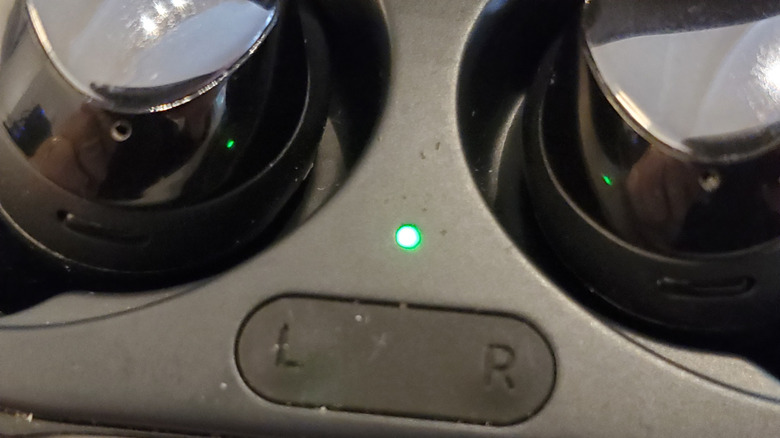
- Indicator Signal: A blinking green light confirms a successful earbud coupling mode.
- Auto-Switching: Galaxy Buds automatically transition from stereo to mono when one bud is removed.
- Buds3 Difference: Newer models use a physical Connect button on the case instead of touchpads.
- App Barrier: Ensure Block Touches is disabled in the Galaxy Wearable app before manual syncing.
- Direct Answer: To sync Galaxy Buds from different sets, place both earbuds into the charging case and ensure they are the same model. Simultaneously touch and hold the touch sensors on both earbuds for at least seven seconds. The battery indicator light will flash green, signaling that the earbuds are successfully coupled and ready to connect to your device as a pair.
To sync Galaxy Buds from different sets, place both earbuds in the charging case and hold the touch sensors (or the case button on Buds3) for at least seven seconds until the indicator flashes green. This manual coupling method allows separate earbuds to function as a single pair for Bluetooth connectivity. You can also use a single Galaxy Bud for mono listening by pairing it with your device via the Galaxy Wearable app. While many features remain functional, software updates usually require both earbuds to be connected. If you lose one earbud, some regions allow purchasing a single replacement, which can then be synced with your existing one using the manual coupling method.
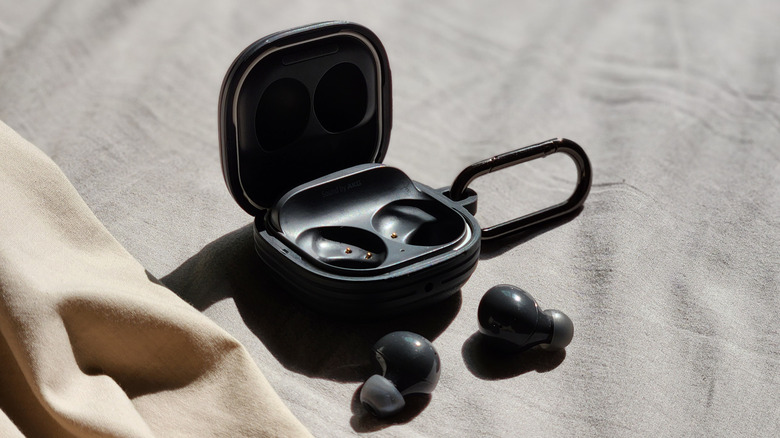
Manual Pairing: How to Sync Two Separate Galaxy Buds
We have all been there. You are rushing through the airport or commuting on a crowded train, and one of your earbuds decides to go on a solo adventure, never to be seen again. Replacing a single earbud is a cost-effective alternative to buying a whole new set, but it introduces a technical hurdle: your phone sees them as two strangers rather than a pair. To fix this, you need to trigger the Samsung earbud sync manual method to force the two components into a unified marriage.
The process of manual pairing, often referred to as Galaxy Buds coupling mode, is essentially a handshake between the left and right units. Before you start, ensure both buds are the same model; you cannot pair a Galaxy Buds2 Pro with a standard Buds2. Place both units into the charging case. If you see a flashing red light on the charging case immediately, don't panic. This usually indicates that the earbuds are not coupled properly. To resolve this, ensure the software is updated via the Galaxy Wearable app and that you have enough battery life.
For most models, including the Galaxy Buds+, Buds Live, Buds Pro, and Buds2 series, you will use the manual pairing Galaxy Buds with touchpad technique. With the lid open, place your fingers on the touch sensors of both earbuds simultaneously and hold them for at least seven seconds. You are looking for the internal indicator light to transition from a steady state to a blinking green light. This green flash is the signal that the earbuds have successfully entered coupling mode and are now recognized as a single pair by the system.
The hardware evolved significantly with the release of the Buds3 series. Samsung moved away from the touchpad-only interface for pairing, opting instead for a dedicated physical button. Knowing which method your specific model uses is key to a frustration-free setup.
Touchpad vs. Physical Button Comparison
| Model Series | Interaction Method | Action Required |
|---|---|---|
| Buds, Buds+, Buds Live | Touchpad | Hold both sensors for 7 seconds |
| Buds Pro, Buds2, Buds2 Pro | Touch sensor | Hold both sensors for 7 seconds |
| Buds3, Buds3 Pro | Physical Case Button | Press button on bottom of case |
| Galaxy Buds FE | Touch sensor | Hold both sensors for 7 seconds |
When you pair replacement Galaxy Bud units, the timing is everything. If you release the sensors too early, the buds might just enter standard Bluetooth pairing mode rather than the deeper coupling mode. Always wait for that specific green blink before letting go. If the light remains red or continues to flash red, remove the buds, clean the charging contacts with a dry cotton swab, and re-insert them to ensure they are making a solid connection with the case pins.
Using a Single Galaxy Bud: Mono Mode and Controls
Sometimes, you don't want the full immersive experience. Maybe you are walking the dog and need to stay aware of traffic, or perhaps you are in the office and need to keep one ear open for a colleague. One of the best features of the Samsung ecosystem is how it handles independent operation. Samsung Galaxy Buds automatically switch the audio output from stereo to mono when sensors detect that only a single earbud is being worn.
This seamless transition is handled by the proximity sensors located on the inner side of each bud. When you take one out and place it back in the case, the remaining bud adjusts the soundstage so you don't miss the left or right channels of your favorite track. This mono listening mode is incredibly helpful for accessibility and safety. However, keep in mind that one earbud in the Galaxy Buds pair operates as a master device, which often leads to uneven battery consumption as the main earbud depletes power faster than the other. This is perfectly normal and a result of the master bud handling the primary Bluetooth connectivity with your phone.
If you are wondering how to use single Galaxy Bud alone for a long duration, remember that touch sensor controls remain active on the earbud you are wearing. You can still tap to pause or long-press to activate ambient awareness, provided you have configured these settings in the Galaxy Wearable app earbud coupling steps beforehand. The only major limitation of using a single bud is during maintenance; software updates usually require both earbuds to be connected and inside the case to proceed.
Pro-Tip: The Block Touches Barrier If you are trying to sync Galaxy Buds from different sets and the touchpad hold isn't working, check your settings. If you previously enabled Block Touches in the Galaxy Wearable app to prevent accidental taps, the earbuds will ignore your 7-second hold. You must disable this feature before the manual coupling will work.
Troubleshooting: Fixing the Flashing Red Light
One of the most common complaints I hear from readers is about the Galaxy Buds flashing red light sync fix. When that light starts blinking red, it’s the hardware’s way of saying, "I'm confused." This usually happens when you try to sync Galaxy Buds that have significantly different firmware versions or when the case doesn't recognize one of the buds as part of the family.
The first step in any Galaxy Buds pairing mode discovery session should be checking the charging status. If one bud is completely dead, it cannot communicate with its partner to finalize the coupling. According to official technical specifications, a 15-minute quick charge can provide Galaxy Buds with up to 1.7 hours of additional music playback. Give the mismatched pair at least 30 minutes in the case before attempting the manual sync.
If the flashing red light persists, follow these steps:
- Remove both earbuds from the case and wait 10 seconds.
- Re-insert them, ensuring the L and R markers match the case slots.
- Check for debris on the golden charging pins inside the case.
- Once the light turns solid red (charging) or green (charged), attempt the 7-second hold again.
Understanding the Charging case LED language can save you a lot of time. Here is a quick breakdown of what the colors mean:
- Solid Green: Battery is 60% to 100% charged.
- Solid Yellow: Battery is between 30% and 59%.
- Solid Red: Battery is below 30% or currently charging.
- Flashing Red: A charging error has occurred, or the buds are not properly seated.
- Blinking Green (during sync): Successful entry into coupling mode.
By mastering these light codes and the physical reset steps, you can avoid a trip to the service center. Most connectivity issues are software-based and can be resolved with a simple resetting connection cycle.
FAQ
Why is only one of my Galaxy Buds connecting?
This usually happens because the earbuds have lost their internal coupling or are running different firmware versions. Place both in the case and perform the 7-second touchpad hold to resync them as a single pair. Also, check that both earbuds are sufficiently charged, as a dead battery in one side will prevent it from connecting.
How do I reset Galaxy Buds to fix pairing issues?
Open the Galaxy Wearable app on your smartphone, navigate to Earbud settings, and select the Reset option. This will clear the Bluetooth pairing history and restore the buds to factory defaults. If you cannot access the app, you can manually reset them by holding the touchpads while the buds are in your ears for about 10 seconds until you hear a series of beeps.
How do I put Galaxy Buds into pairing mode?
For a standard connection to a new phone, place the buds in the charging case, close the lid, and then open it. If they don't automatically appear in your Bluetooth menu, place the buds in your ears and hold both touchpads for several seconds until you hear a continuous beeping sound. For Buds3, use the physical button on the bottom of the case while the lid is open.
Can Galaxy Buds be paired with an iPhone?
Yes, Galaxy Buds can connect to an iPhone via standard Bluetooth settings. However, the Galaxy Wearable app is not available on iOS for newer models like the Buds2 or Buds3. This means you will lose access to granular features like custom EQ settings, firmware updates, and the find my earbuds feature.
What do I do if my Galaxy Buds case isn't syncing?
If the case LED is not responding or won't initiate the sync process, ensure the case itself is plugged into a power source. Sometimes a deeply discharged case loses the ability to manage the coupling process. If it still fails, try cleaning the internal pins and the buds' contacts with isopropyl alcohol to ensure a clean data connection during the sync attempt.