Quick Facts
- Primary Method: Use the Security Lockout feature directly on the device if running iOS 15.2 or newer.
- Secondary Method: Use Recovery Mode connected to a Mac or PC if the device is offline or on older software.
- Data Impact: All methods result in a 100% factory reset, meaning all personal data and settings will be erased.
- Security Requirement: You must have your Apple ID credentials to bypass Activation Lock after the reset is complete.
- Hardware Needed: A computer (Mac or PC) and a compatible USB-C or Lightning cable are required for Recovery and DFU modes.
- Time Constraint: Built-in time delays increase with every failed attempt, making brute-force entry mathematically impossible.
To reset a locked iPhone without a passcode, you can use the Erase iPhone option on the Security Lockout screen for devices running iOS 15.2 or later, or put the device into Recovery Mode and use a computer to restore it. Both methods will reset locked iPhone settings and wipe all content, but you will still need your Apple ID password to finalize the setup due to Apple's anti-theft security protocols.
We have all been there. You change your passcode for better security, get distracted, and suddenly find yourself staring at a glowing screen that refuses to let you in. In my years testing mobile devices, passcode lockout remains one of the most stressful experiences for users. However, Apple has significantly streamlined the recovery process in recent years, moving away from the "must-have-a-computer" era into a more user-friendly, on-device solution.
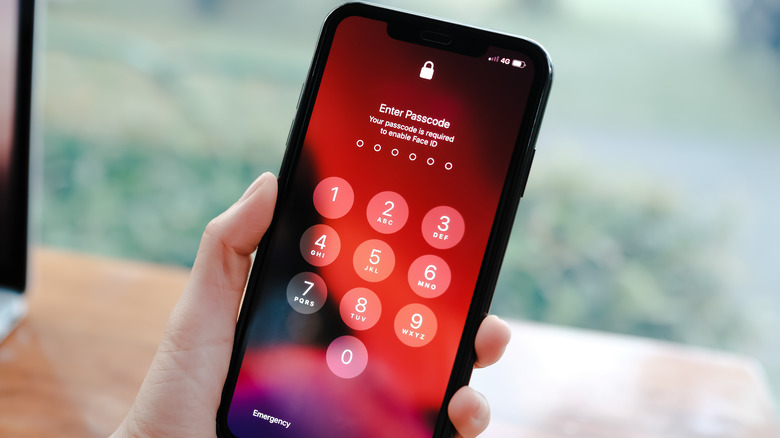
It is important to understand that these security measures are not arbitrary. Apple's security system is designed so that Apple's security system can be configured to automatically erase all device content and settings after 10 consecutive incorrect passcode attempts. Furthermore, due to advanced encryption, it is estimated to take more than five and one-half years to try all combinations of a six-character alphanumeric passcode. When you are locked out, a factory reset is usually your only path forward.
Method 1: Use Security Lockout (No Computer Required)
The most modern way to handle a forgotten passcode is a feature called Security Lockout. This was a game-changer when it debuted because it allows for a factory reset iPhone without passcode requirements directly from the lock screen. For iPhones running iOS 15.2 or later, users can reset a locked device directly from the Lock Screen without a computer if they have their Apple Account password and an active network connection.
To initiate this, you must keep entering the wrong passcode. After several attempts, the screen will read "iPhone Unavailable," and eventually "Security Lockout." At the bottom corner of the screen, you will see an option to Erase iPhone (on some iOS 17 versions, this might appear as "Forgot Passcode?").
Once you tap this, the device will warn you that all data will be erased. You will be prompted to enter your Apple ID password to sign out of your account and disable Find My. This is a critical step in the Apple ID authentication process. If your device is connected to Wi-Fi or cellular data, it will verify your credentials and immediately begin the remote wipe functionality.
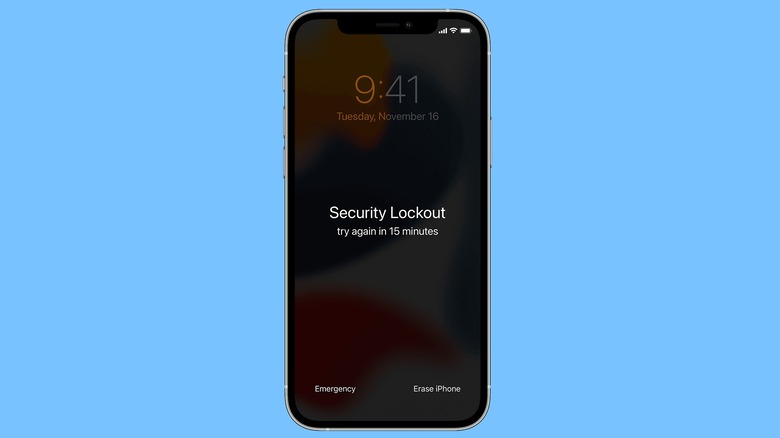
This method is the gold standard for how to reset locked iPhone without computer access. It preserves the Find My network connection until the very last moment, ensuring that your device remains protected while you perform the erase iPhone from security lockout screen procedure.
Method 2: Reset Using Recovery Mode (Mac & PC)
If your iPhone is not connected to the internet, or if you are running an older version of iOS, you will need to use a computer to perform an iPhone recovery mode restore. This process forces the device to communicate with a trusted external machine to wipe its internal storage.
First, you need to prepare your workstation. If you are on a Mac with macOS Catalina or newer, you will use Finder. If you are on a PC or an older Mac, you will need the Apple Devices app or the latest version of iTunes for Windows. Ensure you have the correct USB-C connectivity or Lightning cable ready.
Hardware Button Sequences
To get into Recovery Mode, you must perform a specific button dance. This varies by model:
- iPhone 8, iPhone X, and all newer models (including iPhone 15, 16, and 17): Press and quickly release the Volume Up button. Press and quickly release the Volume Down button. Then, press and hold the Side button until you see the Recovery Mode screen (a cable pointing toward a computer).
- iPhone 7 and iPhone 7 Plus: Press and hold the Side (or Top) button and the Volume Down button at the same time. Keep holding them until the Recovery Mode screen appears.
- iPhone 6s and earlier (Models with a physical Home button): Press and hold both the Home button and the Side (or Top) button at the same time. Hold until the computer icon appears on the screen.

)
Once your device is in this state, your computer will pop up a message stating there is a problem with the iPhone. You will be presented with two main options. It is vital to understand the difference between them.
| Option | What it does | Data Impact |
|---|---|---|
| Update | Reinstalls the iOS firmware without erasing your personal data. | Attempts to preserve data. |
| Restore | Wipes the device completely and installs a fresh copy of iOS. | Erases 100% of data. |
Since you have forgotten your passcode, choosing Update will not help; the phone will simply restart and ask for the passcode again. You must choose the Restore option to reset iPhone with recovery mode on Mac Finder or PC. The computer will download the software for your device. If the download takes longer than 15 minutes, your iPhone might exit Recovery Mode. Simply let the download finish, then perform the button sequence again to reset locked iPhone settings.
Security Warning: Resetting your iPhone erases everything—photos, messages, and app data. Unless you have a recent iCloud or computer backup, this data cannot be recovered after the reset.
Method 3: Deep Reset via DFU Mode
Sometimes, Recovery Mode isn't enough. If your iPhone is stuck in a boot loop or the Restore process keeps failing, you may need to use DFU Mode (Device Firmware Update). This is the deepest level of reset possible.
Unlike Recovery Mode, which uses the iBoot bootloader, DFU Mode bypasses the OS entirely. The main visual difference is that the screen remains completely black while in DFU Mode. If you see an icon, you are in Recovery Mode, not DFU.
Entering DFU Mode requires precise timing with the hardware button sequences. For an iPhone 15, for example, you would connect the device to a computer, quick-press Volume Up, quick-press Volume Down, and hold the Side button. As soon as the screen goes black, hold the Volume Down button while continuing to hold the Side button for five seconds. Release the Side button but keep holding Volume Down for another ten seconds.
If done correctly, the computer will report that it has detected an iPhone in recovery mode, but the phone screen will stay dark. This is the ultimate way to factory reset iPhone without passcode issues when the software is corrupted.
Post-Reset: Navigating Activation Lock
Once the reset is finished, your iPhone will reboot to the "Hello" screen. However, you aren't fully in the clear yet. Because of Apple’s commitment to data privacy protocols, the device will be protected by Activation Lock.
Activation Lock is a security feature that prevents anyone else from using your iPhone if it’s ever lost or stolen. Even after a full factory reset, the device remains linked to your Apple ID. To finish the steps to factory reset iPhone 15 without passcode successfully, you must enter the original Apple ID and password used on the device.
If you have forgotten your Apple ID password as well, the situation becomes more complex. You will need to visit the official account recovery process website at iforgot.apple.com. If you still have access to a trusted contact or another Apple device, you can reset your password there. If you can provide original proof of purchase (a receipt with the serial number), you can also request an Activation Lock support request from Apple to have the lock removed.
FAQ
How do I reset an iPhone if I forgot the passcode?
You must factory reset the device. You can do this by using the Erase iPhone option on the lockout screen (if you have iOS 15.2 or later) or by putting the device into Recovery Mode and connecting it to a computer. Both methods will erase your data but remove the passcode.
Can you factory reset a locked iPhone without a computer?
Yes, provided your device is running iOS 15.2 or later and is connected to a cellular or Wi-Fi network. When the Security Lockout or iPhone Unavailable message appears, you can tap Erase iPhone at the bottom of the screen and enter your Apple ID password to wipe the device.
Will resetting a locked iPhone erase all data?
Yes, every official method for bypassing a forgotten passcode involves a complete erasure of the device's content and settings. This is a security measure to protect your data from unauthorized access. You can restore your data later if you have a backup in iCloud or on a computer.
How to reset an iPhone when it says iPhone is unavailable?
The iPhone is unavailable message appears after too many failed passcode attempts. If you see an Erase iPhone or Forgot Passcode option on that screen, you can reset it directly. If not, you must use a computer and follow the Recovery Mode steps to restore the firmware.
Can I reset a locked iPhone without an Apple ID?
You can perform the factory reset using Recovery Mode without the Apple ID password, but you will be stuck at the Activation Lock screen once the reset is finished. To actually use the phone again, you must provide the Apple ID credentials that were previously logged into the device.

If you find that your hardware buttons are unresponsive or you cannot enter Recovery Mode despite following the steps, it may be a hardware issue. In these cases, it is best to use the Apple Support app on another device or visit an authorized service provider.