Quick Facts
- Fastest Path: Enter chrome://settings/appearance in your desktop address bar to toggle themes.
- Battery Impact: OLED devices save an average of 39% to 47% of battery power when using 100% brightness in dark mode.
- User Preference: Statistics show that 82% of smartphone users utilize dark mode whenever the option is available.
- Top Benefit: Roughly 68.4% of users specifically preferring it do so to achieve significant eye strain reduction.
- The Sledgehammer: Use Chrome Flags to force dark mode on websites that do not offer a native dark theme.
- Mobile Limitation: Mobile versions of Chrome do not support extensions, making experimental flags the only way to force site-wide dark mode.
Looking for a cleaner browsing experience? Chrome dark mode isn't just about looks—it reduces eye strain and extends battery life. Whether you want to sync with your system theme or force dark mode on every site, this guide covers the settings you need for 2026. To enable Chrome dark mode, navigate to your operating system's appearance settings (Windows/macOS) or go to Chrome Settings > Theme on Android. For a comprehensive experience that forces all websites into a dark palette, access the experimental flags menu via chrome://flags and enable 'Auto Dark Mode for Web Contents.'
System-Wide Sync: Windows, macOS, and iOS 18
For most users, the most efficient way to manage your browser appearance is through zero-click synchronization with your operating system. When you enable chrome dark mode windows 11 system theme, the browser automatically detects your OS preference and adjusts its interface accordingly. This means your address bar, tabs, and internal menus will shift from a stark white to a deep charcoal or black without you ever touching a browser-specific setting.
On Windows 10 or 11, you can access this by right-clicking your desktop, selecting Personalize, and then choosing Colors. Change your mode to Dark, and Chrome will follow suit instantly. macOS users have a similar experience; by going to System Settings and then Appearance, you can toggle the system-wide appearance to Dark or Auto. Auto is particularly useful as it triggers a night mode toggle based on sunset and sunrise in your local area.
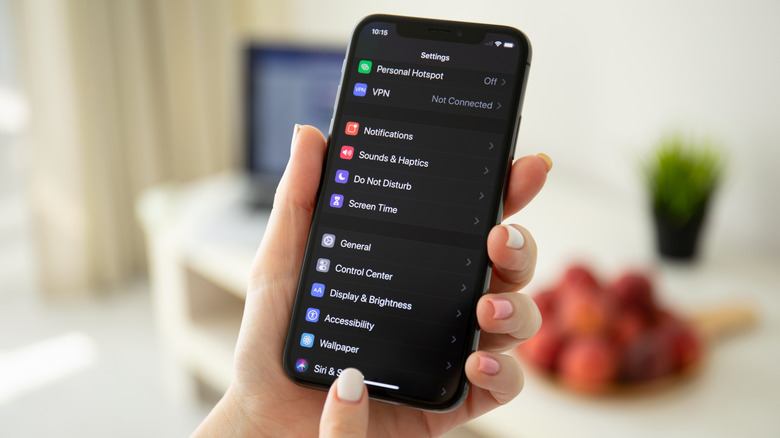
The recent iOS 18 update has made this even more seamless for iPhone users. The new Control Center customization allows you to add a dedicated theme toggle. This makes switching between light and dark modes faster than ever, which is critical for maintaining reading comfort as ambient light levels change throughout the day. By keeping your browser in sync with the system, you ensure that opening a new tab at midnight doesn't result in a blinding flash of white light.
Mobile Mastery: Android and iOS Settings
While desktop users often focus on aesthetics, mobile users have a more practical reason to enable Chrome dark mode: battery longevity. Because many modern smartphones use OLED screens, displaying black pixels requires less power than white ones. If you are among the 82% of smartphone users who prefer a darker interface, the setup on mobile is straightforward but differs slightly between platforms.
To adjust your chrome dark mode settings for iphone and android, you typically start within the app itself. On Android, open Chrome, tap the three-dot menu in the top right corner, and navigate to Settings. Scroll down to Theme. Here, you can choose between System Default, Light, or Dark. Selecting Dark ensures the browser UI stays dark regardless of what your phone’s general settings are doing.
On iOS, Chrome usually follows the system setting mentioned earlier. However, the browser accessibility on mobile is somewhat limited because you cannot install third-party extensions like Dark Reader. To get a truly dark experience on websites that don't support it natively, you will need to utilize a force dark mode chrome android flags approach, which we will detail in the next section. This technical workaround is the only way to ensure that your mobile browsing experience remains consistent across the entire web.
Forcing Dark Mode Everywhere: The Chrome Flags Method
Sometimes, changing the browser UI isn't enough. You might find yourself on a legacy news site or a technical forum that only offers a light theme. This is where we move from a "scalpel" approach to a "sledgehammer" approach. By accessing experimental flags, you can change the rendering engine behavior to invert light backgrounds on every single website you visit.
To learn how to turn on dark mode for all sites in chrome using this method, follow these steps:
- Open a new tab and type chrome://flags into the address bar.
- In the search box at the top, type "Auto Dark Mode for Web Contents."
- Click the dropdown menu next to the setting and change it to Enabled.
- Chrome will prompt you to Relaunch at the bottom of the screen. Click this to apply the changes.
This setting tells Chrome to intelligently analyze the color palette of a website and swap light values for dark ones. It is remarkably effective, even for complex sites. If you have ever wondered how to make google docs dark mode on chrome without using a third-party add-on, this flag is the answer. It forces the document canvas and the surrounding UI into a dark grey, making late-night typing sessions much easier on the eyes. This is especially useful for professionals who spend hours in front of a screen and need consistent eye strain reduction across all their work tools.
| Feature | Chrome Flags (Sledgehammer) | Dark Mode Extensions (Scalpel) |
|---|---|---|
| Ease of Setup | High (Built-in) | Medium (Requires Download) |
| Customization | Low (All or Nothing) | High (Per-site adjustments) |
| Performance | Best (Native Engine) | Moderate (Can slow down page loads) |
| Availability | Desktop & Mobile | Desktop Only |
| Site Compatibility | Good (Automatic) | Excellent (Manual Overrides) |
The Professional Choice: Dark Mode Extensions
For PC builders and power users who want more precision, the Chrome Web Store themes and extensions offer a superior level of control. While flags are a global toggle, extensions like Dark Reader allow you to fine-tune the brightness, contrast, and sepia levels for individual websites. This is the "Scalpel" method: you can keep your favorite photo gallery in its original colors while forcing a harsh wiki page into a dark theme.
Installing a chrome dark mode extension for all websites gives you a dedicated dashboard where you can whitelist or blacklist specific URLs. This level of user interface customization is vital for professionals who need to see accurate colors in certain web apps but want a blue light filter for everything else. As of late 2021, data suggests that 22% of web traffic comes from users who prefer a dark color scheme, and many of these users rely on extensions to maintain that preference across the fractured landscape of web design.
Beyond just colors, these extensions often provide a more polished Chrome dark theme than the default settings. They can hide bright borders and unify the look of your browser with your high-end desktop setup. If you are running an expensive OLED monitor, using these tools isn't just a matter of taste; it's a way to protect your hardware from burn-in and maximize those deep black levels that high-end computing hardware is designed for.

Troubleshooting: Why Dark Mode Isn't Working
Even with the best tools, you might encounter a chrome dark mode not working troubleshooting guide moment. The most common issue occurs when there is a conflict between your system-wide appearance and your browser settings. If your Windows 11 theme is set to dark but Chrome remains light, double-check chrome://settings/appearance to ensure the theme isn't manually set to a specific light-colored skin from the Web Store.
Another frequent complaint involves visual breakage. When you use the "Auto Dark Mode" flag, certain elements like Google Sheets cells or complex maps might look inverted or unreadable. This happens because the rendering engine struggles to distinguish between "content" and "background." In these cases, the best fix is to disable the flag and switch to an extension where you can manually adjust the "Invert" settings for that specific domain.
If you notice that dark mode doesn't seem to activate on mobile, verify that your Android or iOS version is updated. Older operating systems lack the "prefer-color-scheme" API that modern browsers use to communicate with the OS. High contrast mode in Windows can also override Chrome's settings, so ensure that accessibility features aren't forcing a specific palette that conflicts with your desired dark theme.
FAQ
How do I turn on dark mode in Chrome?
To turn on the basic dark theme for the browser interface, go to Settings, click on Appearance, and select Dark under the theme section. Alternatively, you can change your Windows or macOS system settings to Dark, and Chrome will follow that preference automatically.
How to force dark mode on all websites in Chrome?
You can force every website to appear dark by using Chrome Flags. Enter chrome://flags in the URL bar, search for Auto Dark Mode for Web Contents, and set it to Enabled. This forces the browser to re-render light websites with a dark color palette.
Is dark mode better for your eyes?
For many users, yes. According to surveys, 68.4% of dark mode users report it helps with eye strain reduction, especially in low-light environments. It reduces the amount of blue light hitting your eyes, which can make long browsing sessions more comfortable.
Why is dark mode not working on some websites?
Some websites use hard-coded colors or complex image-based backgrounds that the browser cannot easily invert. If a site doesn't have a native dark mode, Chrome's standard setting won't change it. You will need to use the Flags method or a dedicated extension like Dark Reader to force a dark theme on those specific pages.
How to enable dark mode in Chrome on Android?
Open the Chrome app on your Android device, tap the three dots in the corner, and select Settings. Tap on Theme and choose Dark. If you want the websites themselves to be dark as well, you must use the chrome://flags method described in the guide above.
Can I schedule dark mode in Google Chrome?
Chrome does not have a built-in scheduler, but it responds to your operating system's schedule. If you set Windows or macOS to Auto (which switches themes at sunset), Chrome will transition into dark mode at the same time as your system.