Quick Facts
- Primary Function: Manual Bluetooth discovery and factory resets for connectivity troubleshooting.
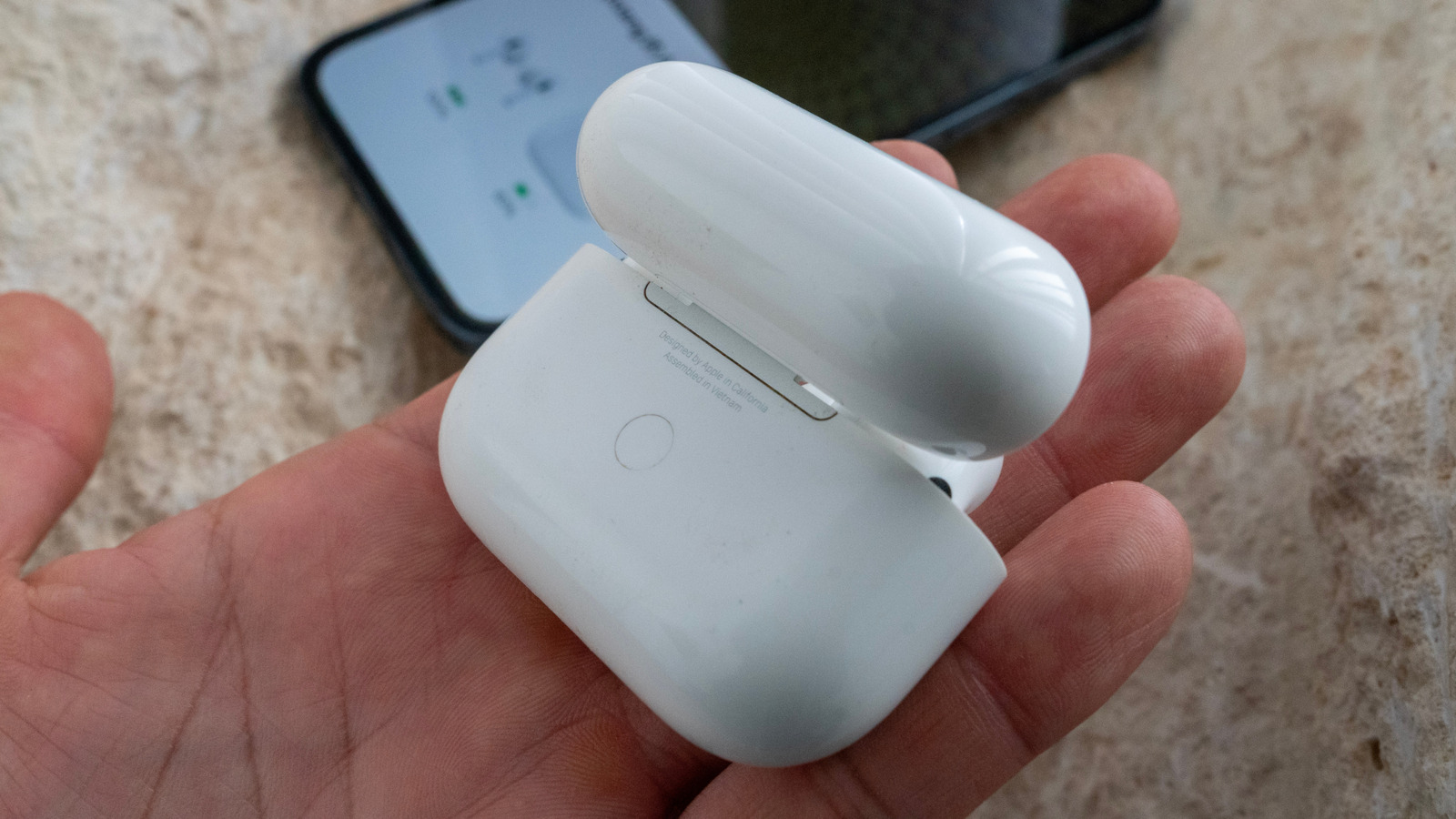
- AirPods 1-3 & Pro Location: A circular physical setup button located on the rear of the charging case.
- AirPods 4 Location: An invisible capacitive sensor situated on the front of the case, just below the status LED.
- Reset Trigger: A 15-second hold for legacy models or a specific triple-double-tap gesture for AirPods 4.
- Success Indicator: The status indicator LED will flash Amber followed by White.
- Minimum Charge: It is highly recommended to have at least a 50% battery level before attempting a hardware reset.
- Pairing Instruction: To trigger AirPods manual pairing mode, open the lid and either hold the back button or double-tap the front sensor until the light flashes White.
The AirPods case button is the essential gateway for manual Bluetooth pairing and performing a full factory reset of the hardware. While older generations and Pro models feature a tactile, circular button on the back of the case, the new AirPods 4 has introduced a hidden capacitive sensor on the front that replaces the physical switch for a cleaner, more seamless aesthetic.
The Physical vs. Invisible: Identifying Your Button
For years, the design of the AirPods case remained remarkably consistent. If you flipped the case around, you would see a small, flush circular button. This AirPods case button served as the one-stop shop for everything from connecting to a new iPhone to fixing sync issues between the left and right earbuds. However, as Apple moves toward a more minimalist hardware language, the physical button is becoming a relic of the past.
If you are using the AirPods Pro 2, AirPods Gen 3, or earlier versions, your button is exactly where you expect it to be: on the rear, right below the hinge. This tactile button requires a firm press to engage the internal switch. On the other hand, if you recently upgraded to the AirPods 4 or the AirPods 4 with Active Noise Cancellation, you might be scratching your head wondering where is the button on airpods case.
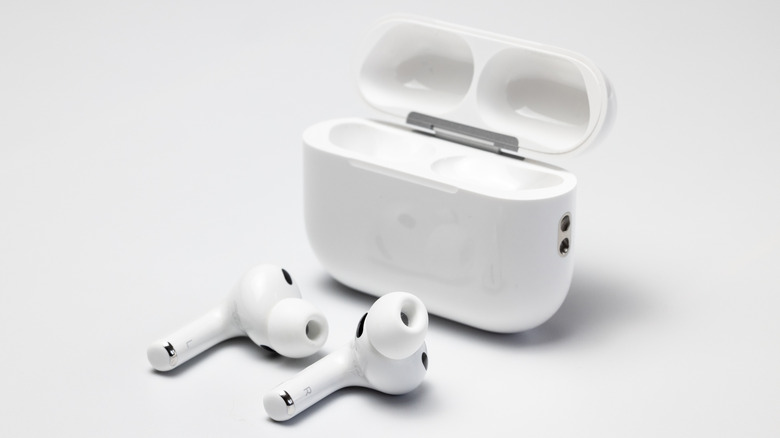
For the latest generation, Apple has integrated a capacitive touch interface into the front of the case. There is no longer a seam or a physical click; instead, the area just below the status indicator LED is sensitive to touch. This design change isn't just for looks—it helps improve the overall durability and water resistance of the case. To identify if you have the ANC version of the AirPods 4 without looking at the buds, check the bottom of the case for small speaker holes used for Find My alerts.
How to Reset AirPods with the Back Button (Legacy Models)
When your audio starts cutting out or your Mac refuses to recognize your earbuds, the first step is usually to reset AirPods to factory settings. For those with a physical button, the process is straightforward but requires precise timing. This procedure clears the paired device memory and forces the H1 or H2 chip to reboot into its factory default state.
The setup button on the back of the AirPods charging case is designed to initiate this process when the lid is open. Here is the step-by-step breakdown:
- Place both AirPods inside the charging case and close the lid for 30 seconds to allow the hardware to settle.
- Open the lid, but keep the earbuds inside the case.
- Locate the setup button on the back.
- Press and hold the button for about 15 seconds.
- Watch the status indicator LED carefully. It will first flash Amber, indicating the reset is in progress, and then transition to a flashing White light.
Once you see the flashing White light, the factory default restoration is complete. This flashing amber light airpods case button reset is the most effective way to solve persistent pairing "handshake" failures. According to technical documentation, holding the setup button for approximately 15 seconds is the industry-standard method to ensure all cached Bluetooth data is purged from the device.
Mastering the AirPods 4 Gesture: Reset and Pair
The shift to an invisible sensor in the latest hardware means the old "hold and wait" method has evolved. The AirPods 4 hidden sensor button uses a capacitive area that responds to specific tap patterns rather than sustained pressure. This change can be a bit jarring for long-time users who are used to the tactile feedback of the older cases.
To enter AirPods manual pairing mode on the AirPods 4, you must open the case lid and double-tap the front area where the status indicator LED is located. This replaces the old long-press for Bluetooth discovery. When successful, the LED will pulse White, signaling to nearby devices that the AirPods are ready to broadcast their pairing signal.
If you need to perform a full factory reset on the AirPods 4, the gesture becomes slightly more complex. Instead of a single double-tap, you must perform a "triple-double-tap." This means double-tapping the capacitive sensor three times in quick succession while the lid is open. This specific sequence prevents accidental resets while the case is in your pocket or bag. The AirPods 4 hidden button location and use is a clever piece of engineering, but it certainly has a learning curve for those of us who grew up with physical buttons.
| Model | Button Type | Primary Location | Reset Gesture |
|---|---|---|---|
| AirPods 1 & 2 | Physical | Rear Center | 15-second hold |
| AirPods 3 | Physical | Rear Center | 15-second hold |
| AirPods Pro 1 & 2 | Physical | Rear Center | 15-second hold |
| AirPods 4 (Standard/ANC) | Capacitive Sensor | Front (below LED) | Triple-double-tap |
Troubleshooting: What to Do If the Button Isn't Working
Hardware isn't perfect, and there are times when the AirPods case button simply refuses to cooperate. For legacy models, the most common issue is a "stuck" button caused by pocket lint or debris getting lodged in the circular seam. A quick blast of compressed air or a tiny drop of 99% isopropyl alcohol on a cotton swab can often loosen a physical button that has lost its click.
However, if the issue is software-related, you might find that the status light doesn't change color no matter how long you hold the button. This often happens if the AirPods are still "locked" to a previous owner's Apple ID through the Find My network. If you have purchased a used set, you must ensure the previous owner has removed the device from their Find My app, or the reset procedure will be blocked for security reasons.
Another common hurdle occurs when pairing airpods to android via manual setup button. Unlike the seamless setup animation on an iPhone, Android and Windows devices require the AirPods to be in a constant state of Bluetooth discovery. If the button fails to trigger the white light, ensure the case has at least 50% battery. Many users aren't aware that a low-battery case will prioritize charging the buds over entering discovery mode to save power.
If you are dealing with a replacement case, there is a specific 20-minute rule: place both original buds into the new case and charge them for at least 20 minutes before attempting to use the setup button. This allows the hardware synchronization to complete. If you are still wondering what to do if airpods case button is not working after these steps, it may be a sign of a deeper hardware failure within the USB-C charging case or the H2 chip processing unit.
FAQ
What is the button on the back of the AirPods case for?
The button is primarily used for two tasks: putting the AirPods into manual pairing mode for non-Apple devices (like Android phones or PCs) and performing a factory reset to fix connectivity or battery syncing issues. It serves as the physical interface to communicate with the internal Bluetooth controller when software-based pairing isn't available.
How do I reset my AirPods using the case button?
To reset, place your AirPods in the case and keep the lid open. For cases with a physical back button, press and hold it for 15 seconds until the LED transitions from amber to white. For the AirPods 4, you must double-tap the capacitive front sensor three times quickly. This clears all previous device connections and restores the earbuds to their original out-of-the-box state.
Why is my AirPods case button not clicking or stuck?
Physical buttons can become stuck due to the accumulation of dirt, lint, or moisture in the small gap around the button. This is common if the case is frequently carried in pockets without a protective cover. Cleaning the area with a small amount of isopropyl alcohol or using compressed air usually restores the tactile click. On AirPods 4, there is no physical click, as the sensor is capacitive.
How do I put my AirPods in pairing mode using the button?
Open the charging case lid with the AirPods inside. For older models, hold the setup button on the back until the status light begins to pulse white. For AirPods 4, double-tap the hidden capacitive sensor on the front of the case. Once the white light is pulsing, you can find the AirPods in the Bluetooth settings menu of your device.
Can I pair AirPods if the case button is broken?
If the physical button is broken, pairing with non-Apple devices becomes significantly harder because you cannot manually trigger discovery mode. However, if you are using an iPhone or iPad, the earbuds may still pair automatically via the iCloud-linked setup animation if they were previously connected to your Apple ID. If they are completely new and the button is broken, you may need to seek a hardware replacement from Apple.
Before you head to the Apple Store for a replacement, always ensure your case is clean. For users of the AirPods 4, remember that the capacitive sensor is quite sensitive to oils from your skin; a quick wipe with a microfiber cloth can often improve the responsiveness of the invisible sensor. Keeping your firmware updated via an iOS device is also the best way to ensure the H2 chip continues to handle these "secret" button gestures accurately.