Quick Facts
- Best For: Flat-screen TVs ranging from 55 to 85 inches
- Camera System: Upgraded dual-camera setup capturing 690,000 pixel dots per second
- LED Density: High-density strip with 60 LEDs per meter for smoother transitions
- Core Technology: RGBIC technology for simultaneous multi-color display
- Primary Benefit: A 40% improvement in color-matching accuracy compared to previous models
- Compatibility: Designed strictly for flat-screen televisions; not compatible with curved monitors
- Smart Ecosystem: Integration with Govee DreamView for whole-room synchronization
To install the Govee Envisual T2, attach the RGBIC LED strips to the back of your 55-85 inch TV and mount the dual-camera system at the top center. Calibration is completed by following the Govee Home app prompts to map the camera view to the corners of your screen, ensuring the system accurately tracks on-screen colors to project immersive bias lighting onto your walls. This Govee Envisual T2 installation for beginners is the first step toward reducing eye strain and achieving professional-grade home cinema aesthetics.
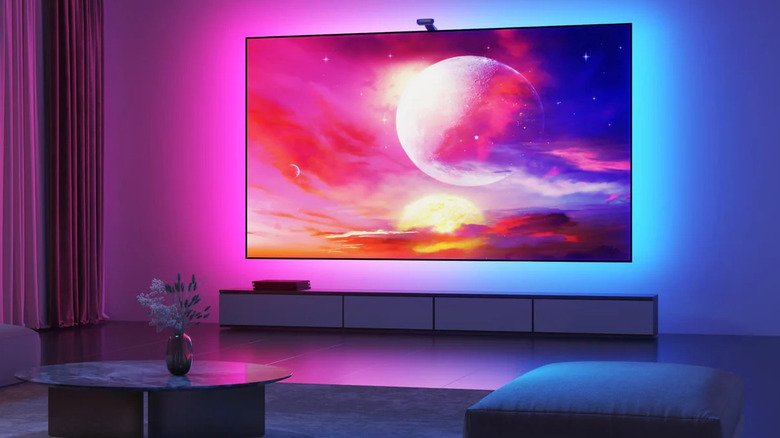
There is a specific moment when a standard living room transforms into a dedicated home cinema. It is not just about the size of the glass or the rumble of the subwoofer; it is about how the light interacts with your environment. For years, smart home enthusiasts have chased the perfect ambient lighting setup to extend the action beyond the bezel. The Govee Envisual T2 represents the current gold standard in this category, utilizing a sophisticated dual-lens system to read your screen and paint your walls with light in real-time. Whether you are navigating a neon-soaked cyberpunk city in a video game or watching a high-contrast blockbuster, this system bridges the gap between the digital world and your physical space.
Compatibility and Pre-Installation Requirements
Before you unbox your new Govee Envisual T2, specifically model H605C, you need to verify that your hardware is ready for the upgrade. This system is meticulously engineered for flat-screen TVs. If you own a curved screen, the dual-camera lenses will struggle to map the geometry of the display accurately, leading to distorted color tracking. The T2 comes in different lengths tailored for 55-65 inch or 75-85 inch sets, so ensure you have matched the kit to your screen size for edge-to-edge coverage.
From a technical infrastructure standpoint, your home network plays a vital role. The control box requires a 2.4GHz Wi-Fi connection for initial setup and firmware optimization. If your router uses a combined 2.4GHz and 5GHz SSID, you may need to temporarily split them or move further away from the router to force your phone onto the 2.4GHz band during the pairing process.
The physical environment also matters. For the best contrast enhancement, your TV should be mounted or placed at least 6 to 12 inches away from a light-colored, preferably matte white, wall. This distance allows the light to diffuse naturally, preventing harsh hotspots and maximizing the peripheral immersion. Darker walls or reflective surfaces like mirrors can absorb or bounce the light unpredictably, which might compromise the color matching accuracy you are looking for.
Step-by-Step: Physical Installation and Camera Mounting
The foundation of a great smart TV backlighting setup guide starts with the physical application of the LEDs. The T2 features a high-density light strip with 60 LEDs per meter, which is significantly more robust than previous iterations. This density is what allows for those buttery-smooth color transitions that do not look pixelated on your wall.
First, clean the back of your TV with an alcohol wipe to remove any dust or oils. Starting from the bottom corner, peel the adhesive backing and apply the strip about half an inch to an inch from the edge. When you reach the corners, the strip is designed to loop or fold slightly—do not cut the strip, as this will break the RGBIC technology circuit. Ensure the strip is taut and secure; a sagging strip will lead to uneven bias lighting.
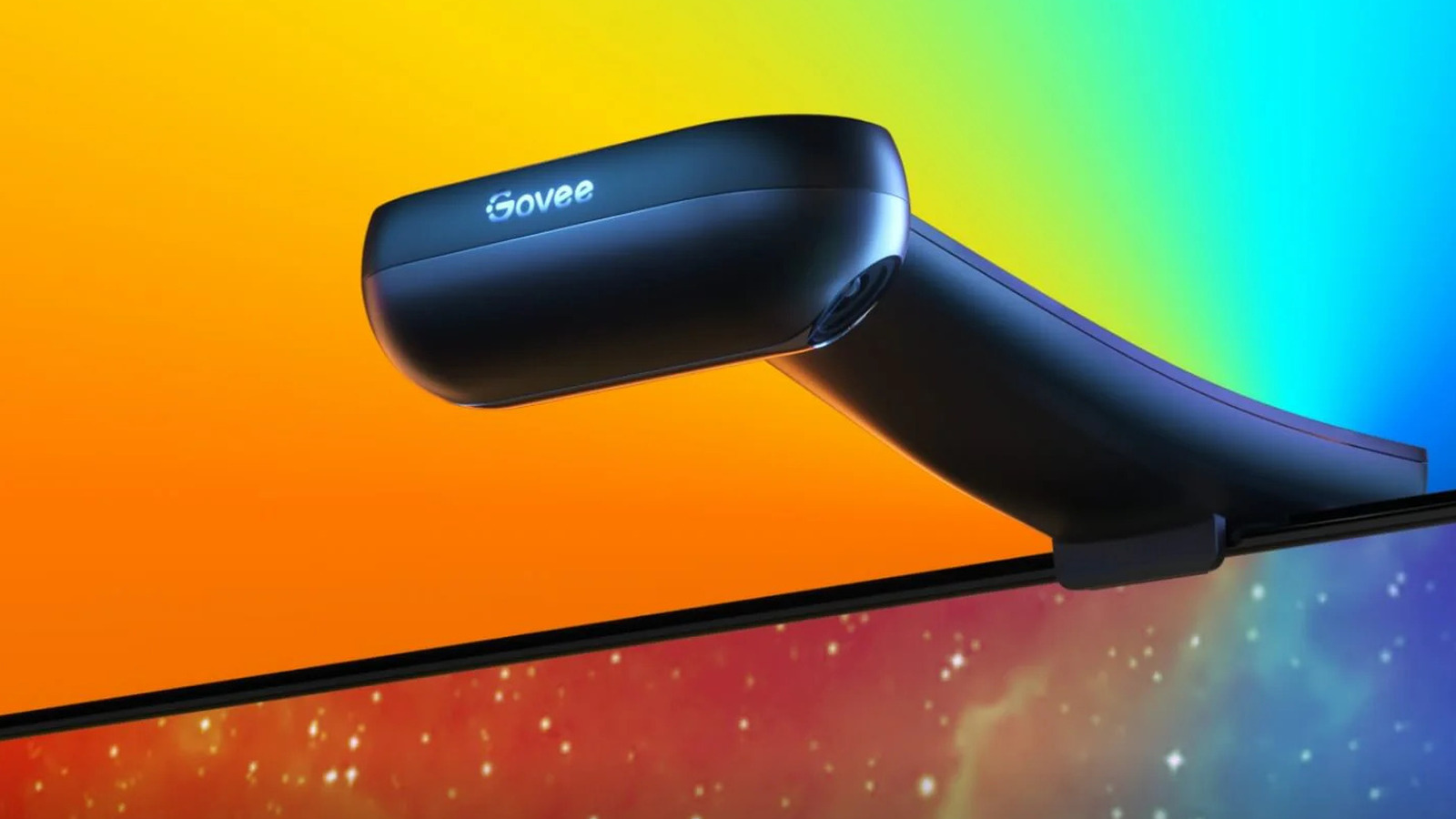
Next comes the dual-camera mounting. Unlike older models that relied on simple adhesive, the T2 uses a gravity-stabilization mechanism with a counterweight. Place the camera unit at the top center of your TV. The dual-camera setup is designed to hang slightly over the front bezel, angled downward to see the entire screen. This design minimizes the physical footprint on your screen while providing the sensor a wide-angle view of the zone-division capture scheme that divides the screen into individual sections.
Finally, connect the LED strip and the camera USB cable into the control box. Use the included adhesive to mount the control box out of sight. At this stage, you will also apply the 7 to 8 orange foam stickers to the corners and midpoints of your screen. These are temporary physical markers that help the camera orient itself during the digital calibration phase.
Pro-Calibration: Mastering the Govee Home App
Once the hardware is in place, the Govee dual camera calibration process begins within the app. This is the most critical step for achieving real-time synchronization. After pairing the device via Bluetooth and Wi-Fi, the app will show you a fish-eye view of your TV screen as seen by the dual cameras. You will need to drag the on-screen calibration points to match the orange foam stickers you placed earlier.
For the best results, perform this calibration in a darkened room. Ambient light from windows or lamps can create reflections on your TV glass that the camera might mistake for on-screen content. When you are mapping the points, try to be as precise as possible. If the points are even slightly off, you might notice that the light on the left side of the wall is reacting to content on the right side of the screen.
A common hurdle for new users is the color balance. If you notice the lights don't quite match the mood, you might need to learn how to fix govee t2 red tint issues. This often happens because the camera perceives the warmth of your TV's panel or the reflection of your floor as red light. To fix this, head into the Govee Home app settings and look for the White Balance and Saturation sliders. I recommend turning the saturation down to about 15-30% for a more natural look. Adjust the white balance toward the blue side of the spectrum if your whites look too yellow or reddish. These fine-tuned calibration tips for better color accuracy will make the lighting feel like a seamless extension of the picture rather than a distracting glow.
T2 vs. T1: Is the Upgrade Worth It?
If you are already using an older immersion kit, you might wonder if comparing govee envisual t2 vs previous immersion models justifies an upgrade. The short answer is yes, particularly if you value precision. The T2 is a significant leap forward in both hardware and software.
| Feature | Govee Immersion T1 | Govee Envisual T2 |
|---|---|---|
| Camera Type | Single Lens | Dual Lens (Envisual) |
| LED Density | 30 LEDs per meter | 60 LEDs per meter |
| Pixel Capture | Approx. 170,000 pts/sec | 690,000 pts/sec |
| Mounting | Adhesive-based | Gravity Counterweight |
| Color Accuracy | Standard | 40% Improvement |
The doubling of the light bead density means that the colors on your wall are more vivid and transitions are less jarring. But the real hero is the dual-camera system. By using two lenses, the T2 can "see" the screen from two different angles, which drastically reduces the impact of screen glare and improves the accuracy of the zone-division capture. This leads to a much more responsive real-time synchronization that keeps up with fast-paced action movies and high-frame-rate gaming.
Expanding Immersion: Gaming and DreamView Ecosystem
For many of us, the home theater is also a gaming hub. Using govee envisual t2 for immersive gaming changes the way you interact with your console. When an explosion happens on the right side of your screen in a game like Call of Duty, the entire right side of your room flashes orange and red, providing a level of spatial awareness that sound alone cannot achieve. The low-latency response of the T2 ensures that the light matches the frame rate of your gaming sessions perfectly.
The true potential of the Govee Envisual T2 is unlocked when you treat it as the brain of your lighting setup. Through the DreamView ecosystem, you can link the T2 as a center device to up to 5 additional Govee lights in your room, such as the Lyra floor lamps or Glide wall lights. When you do this, the T2 shares its color data with every other light in the room.
Imagine watching a nature documentary where a blue whale swims across the screen. Not only does the back of the TV turn deep blue, but your floor lamps and wall panels also transition into shades of azure and teal simultaneously. This syncing Govee lights with TV creates a cohesive, room-wide ambient lighting effect that completely removes the boundaries of the television screen. It is scene customization at its most advanced, allowing for adaptive lighting that responds to every frame of your favorite content.
FAQ
How does the Govee Envisual T2 work?
The system uses a dual-camera setup mounted at the top of your TV to scan the screen in real-time. It processes the visual data using an Envisual algorithm to divide the screen into zones. These zones then inform the RGBIC LED strip exactly which colors to display, creating a glow on the wall that mirrors the content on the screen.
What is the difference between Govee T1 and T2?
The T2 features a dual-camera system instead of the T1's single lens, which results in better color accuracy and less interference from reflections. Additionally, the T2 has double the LED density with 60 LEDs per meter and a much more stable gravity-based mounting system for the camera.
Does the Govee T2 sync with other smart lights?
Yes, it uses Govee's DreamView technology. You can set the T2 as the master device in the Govee Home app and sync up to five other Govee smart lights to mirror the colors it detects on the TV, creating a fully immersive room-wide experience.
How do you calibrate the Govee T2 dual camera?
Calibration is done through the Govee Home app by placing orange foam stickers on specific points of your TV screen. The app then shows you a camera view where you drag digital points to match the physical stickers, allowing the software to accurately map the boundaries of your display.
Can you use Govee Envisual T2 with a curved screen?
The Govee Envisual T2 is specifically designed for flat-screen televisions. Because the dual cameras rely on a specific geometric perspective to map the screen, the curvature of a curved monitor or TV can lead to inaccurate color tracking and distorted lighting effects.