Quick Facts
- Battery Benchmark: Apple designs MacBook Pro batteries to retain up to 80% of their original charging capacity after completing 1,000 full charge cycles.
- The 80% Rule: Keep your charge level between 20% and 80% whenever possible to minimize chemical wear on the lithium-ion cells.
- Thermal Killers: Internal dust accumulation is the primary cause of logic board fatigue and premature hardware failure.
- Support Window: While Apple typically marks products as obsolete after seven years, they may offer battery-only repairs for up to 10 years depending on part availability.
- User Retention: A 2024 CIRP report found that 56% of Mac users now keep their devices for three years or more, reflecting a growing trend in hardware longevity.
- Direct Answer: To maximize extending MacBook lifespan, users must adopt a rigorous MacBook Pro maintenance routine that balances internal thermal management with strategic battery cycle control, potentially keeping hardware functional for 10-12 years.
To keep a MacBook Pro running for over a decade, regular physical maintenance is essential. Users should clean the exterior with a lint-free cloth and use compressed air to clear dust from vents and ports to prevent overheating. Periodically cleaning internal fans and heatsinks helps avoid thermal throttling, ensuring that internal hardware components do not degrade prematurely due to excessive heat accumulation.

The Physical Secret: Internal Thermal Management
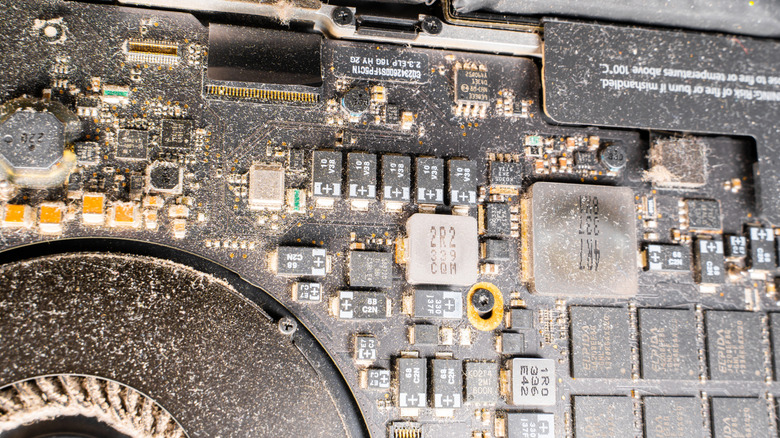
In my years testing computing hardware, I have seen more MacBooks killed by heat than by accidental drops. We often focus on the sleek aluminum exterior, but the real battle for extending MacBook lifespan happens inside the chassis. Apple Silicon and high-end Intel chips generate significant heat, and your Mac relies on a clear path to exhaust that energy. When dust builds up, it creates a literal dust blanket over the logic board and fans, forcing the SoC efficiency to drop as the system fights to stay cool.
The secret habit of ten-year Mac owners is semi-annual internal cleaning. You do not need to be a certified technician to use a can of compressed air. Every six months, give the intake vents and exhaust ports a thorough blast. If you are comfortable removing the bottom pentalobe screws, a gentle cleaning of the internal fans can prevent the micro-vibrations and friction that lead to fan failure.
Impact Score: 10/10
A major mistake I see professionals make is using hardshell plastic cases or silicone keyboard covers. While they "protect" against scratches, they act as insulators. MacBooks are designed to dissipate heat through the aluminum body and the gaps around the keys. By trapping that heat, you are essentially slow-cooking your internal components, leading to thermal throttling and reduced component life. If you want your hardware to last, let the aluminum breathe.
Battery Alchemy: The 20-80% Power Habit
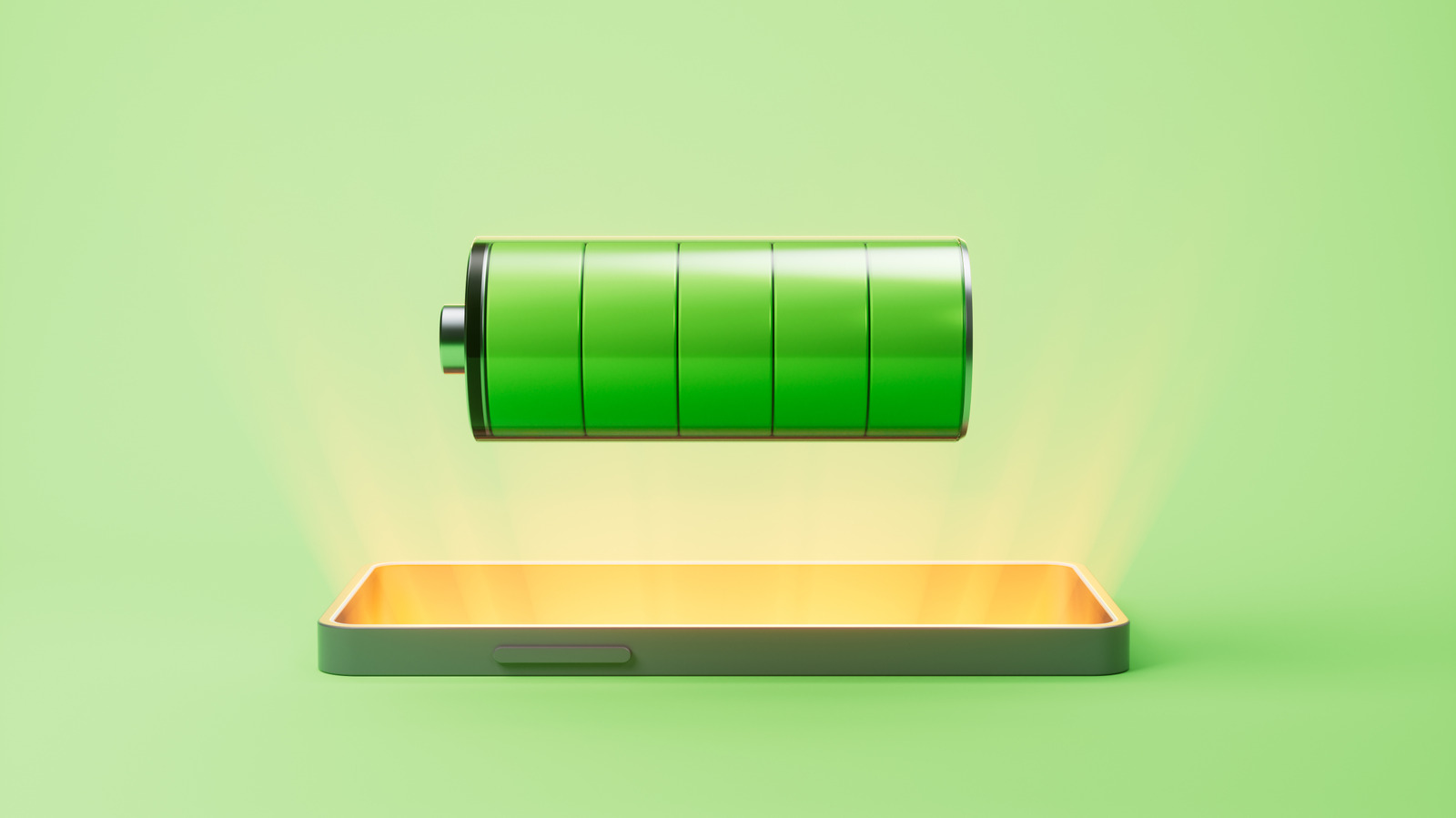
The battery is usually the first component to fail in a laptop. However, lithium-ion battery cycles are not just a countdown to death; they are a resource you can manage. According to Apple, modern MacBooks are built to sustain 1,000 full charge cycles before hitting 80% health. If you hit that limit in three years, your laptop feels "old." If you stretch those cycles over seven years, it feels "reliable."
The most effective habit for MacBook battery health tips is the 20-80% rule. Lithium-ion batteries are most stressed when they are at 0% or 100%. By keeping your charge in the "Goldilocks zone" of 20% to 80%, you significantly reduce the chemical strain on the battery cells. You should enable the built-in macOS feature by going to System Settings > Battery > Battery Health and clicking the "i" to ensure Optimized Battery Charging is toggled on.
Impact Score: 9/10
Many users ask me if they should leave their Mac plugged in all day. While macOS manages this better than it used to, "plugged-in-permanence" can sometimes cause the battery to swell over several years. If you use your MacBook as a desktop replacement, I recommend a habit of unplugging it once a week and letting it discharge to 20% to keep the electrons moving. If the system starts acting strange with power delivery, an SMC reset (on older Intel Macs) or a simple restart (on Apple Silicon) can recalibrate the power management controllers.
Software Optimization for the Long Haul
A MacBook Pro that feels "slow" is often just a MacBook Pro with a struggling SSD. Modern macOS uses a feature called "Swap," which uses your SSD as temporary RAM when you run out of physical memory. While this keeps the system snappy, excessive storage swap usage causes NAND wear. This is the "silent killer" of modern soldered-SSD laptops.
To ensure your macOS software optimization is effective, you must keep at least 15-20% of your SSD space free. This allows the controller to perform "wear leveling," spreading data across the drive evenly rather than hammering the same few storage cells over and over. I make it a habit to perform a monthly audit of background process management using Activity Monitor.
Impact Score: 8/10
Go to Applications > Utilities > Activity Monitor and check the "Memory" tab. If your "Memory Pressure" graph is constantly in the yellow or red, you are forcing the system to use swap, which shortens the lifespan of your storage. Closing browser tabs you are not using and quitting unused background apps isn't just about speed; it's about extending MacBook Pro SSD life through storage management. This hardware-software synergy is what allows a ten-year-old machine to still feel responsive in 2024.
The Longevity Checklist: A Quarterly Routine
Beyond the daily habits, a dedicated MacBook Pro maintenance routine involves looking at the small things that eventually become big problems. I tell my readers to treat their Mac like a high-performance car: it needs a quarterly inspection. This includes checking for peripheral port oxidation, which can happen if you live in humid environments. A quick wipe of the USB-C ports with a dry, lint-free cloth or a tiny bit of electronic contact cleaner can prevent charging issues down the line.
| Symptom | Potential Root Cause | Solution |
|---|---|---|
| High fan noise on idle | Internal dust accumulation | Compressed air cleaning of vents |
| Rapid battery drain | High background process management | Check Activity Monitor for "runaway" apps |
| Stiff or "sticky" keys | Debris under the butterfly/scissor switch | Compressed air at a 75-degree angle |
| "Service Recommended" | High lithium-ion battery cycles | Battery replacement (check Apple's 10-year rule) |
For quarterly maintenance checklist for MacBook Pro longevity, follow these steps:
- Clean the screen correctly: Use only a slightly damp microfiber cloth. Avoid window cleaners or alcohol-based sprays that can strip the anti-reflective coating, a phenomenon commonly known as "staingate."
- Aluminum chassis care: Wipe the palm rests to remove skin oils and sweat. Over years, these acids can slightly pit or discolor the aluminum surface.
- Inspect the power adapter: Look for fraying near the MagSafe or USB-C connector. A faulty charger can send irregular voltage to the logic board, causing permanent damage.
- Port Audit: Ensure no lint is trapped in the ports. Use a non-metallic toothpick if you need to gently clear out debris.
Maintaining MacBook Pro ports and keyboard longevity is about consistency. These machines are incredibly resilient, but they are not invincible. By catching a "symptom" early, you prevent it from turning into a logic board failure that costs $600 to repair.
FAQ
How can I maintain my MacBook battery health?
To maintain long-term health, keep your charge between 20% and 80%, enable "Optimized Battery Charging" in System Settings, and avoid exposing the laptop to temperatures above 95°F (35°C), which can permanently damage battery capacity.
Is it bad to leave a MacBook plugged in all day?
While modern macOS manages power well, leaving it plugged in 24/7 can lead to chemical "stagnation." It is best to let the battery discharge to 20% at least once a week to keep the lithium-ion cells active.
How do I prevent my MacBook from overheating?
Prevent overheating by ensuring the vents are clear of dust, using the laptop on hard surfaces rather than beds or pillows, and avoiding hardshell cases that trap heat against the aluminum chassis.
How often should I clean the dust out of my MacBook?
For most users, a quick blast of compressed air through the vents every three to six months is sufficient. If you work in a dusty environment or have pets, you may want to do this more frequently.
Can I upgrade my MacBook to make it last longer?
Most MacBooks made after 2016 have soldered RAM and SSDs, meaning they cannot be hardware-upgraded. For these models, longevity depends entirely on software optimization and physical maintenance. Older "Pre-Retina" or certain "Unibody" models can still have their RAM and SSDs upgraded.
Does shutting down my MacBook every night help?
Shutting down isn't strictly necessary, but a restart once or twice a week is beneficial. It clears out system caches and terminates "runaway" background processes that might be taxing your hardware unnecessarily.
The Long View on Hardware
We live in an era of "planned obsolescence," but the MacBook Pro is one of the few consumer electronics that can genuinely defy that trend. It requires a shift in mindset: seeing your laptop not as a disposable gadget, but as a professional tool that requires a MacBook Pro maintenance routine.
By mastering thermal management and being disciplined about your battery habits, you aren't just saving money; you are participating in e-waste prevention. The 2024 data shows that more people are holding onto their Macs longer than ever before, and with the efficiency of Apple Silicon, the hardware's functional utility is now capable of outlasting the official software support window. Start these habits today, and your current MacBook might still be on your desk in 2034.