We have all been there. You are at a concert, a wedding, or simply witnessing a perfect sunset, and you tap the record button on your camera. Instead of a masterpiece, you get a dreaded pop-up: "Storage Full." It is one of the most frustrating modern inconveniences, especially when you realize that just 10 minutes of Ultra High Definition video can occupy approximately 5 GB of storage space on a modern device.
In the past, the only solution was a digital "Sophie’s Choice"—deciding which photos to delete or which apps to uninstall. But Google has quietly introduced a feature that fundamentally changes how we manage our digital footprint. It is called Android app archiving, and it is the middle ground we have been waiting for.
Quick Facts
- 60% Storage Reclaim: The feature frees up storage on Android by removing the bulk of an application's code while leaving the essential parts behind.
- Preserved Data: Unlike a full uninstallation, your personal logins, settings, and progress remain safely on the phone.
- Visual Indicator: You can spot an archived app by the small cloud or arrow icon overlaying its existing icon in the app drawer.
- Automatic Management: The system can intelligently identify rarely used applications and archive them when you run low on internal storage.
- Internet Requirement: Because the system needs to re-fetch the core software components, you will need a data connection to restore the app to full functionality.
Android app archiving is a system-level feature that allows users to free up storage on Android by removing approximately 60% of an application's code while keeping user data and settings intact. By utilizing this hidden setting, you can keep your home screen organized and your data ready to go without the friction of a total reinstallation.
What is Android App Archiving and How Does It Work?
For years, the choice between keeping an app and deleting it was binary. If you kept it, it occupied precious megabytes (or gigabytes) of disk space. If you deleted it, you lost your login credentials, your local save files, and any custom configurations. Research shows that while the average user has about 80 apps installed, they typically use only nine apps on a daily basis. This leaves dozens of apps sitting idle, hogging resources.
Android app archiving solves this by performing a partial uninstallation. Instead of wiping the app from existence, the OS removes the heavy binary files—the "guts" of the software—but keeps the user data preservation layer active. This is made possible through App Bundle technology. When a developer uses the Android App Bundle (AAB) format, the Google Play Store can serve only the parts of the app necessary for the user's specific device. Archiving takes this a step further by essentially "shelving" the heavy lifting until you need it again.
According to Google, this process can free up nearly 60% of an app's storage space without requiring you to start from scratch when you decide to use the app again. It is an elegant solution for those apps you use once a year—like a specific airline app or a holiday-themed game—but don't want to set up every single time.

How to Enable Google Play Store Auto-Archive
The beauty of this feature is that it can work entirely in the background. You do not need to manually sift through your app drawer to manage Android app storage. Instead, you can let the Google Play Store handle it for you. This is particularly helpful when you try to install a new, large game and the device realizes it does not have enough room. Instead of failing the installation, the system will offer to archive old apps to make space.
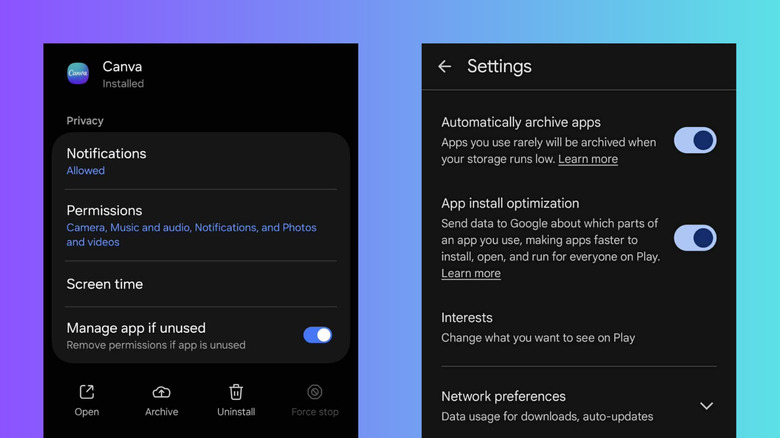
To enable the Google Play Store auto-archive feature manually, follow these steps:
- Open the Google Play Store app on your device.
- Tap your Profile Icon in the top-right corner.
- Select Settings from the menu.
- Expand the General section.
- Look for the toggle labeled Automatically archive apps and switch it to the On position.
Once enabled, your phone begins its own smartphone maintenance routine. When your internal storage management system detects that you are running low on space, it identifies rarely used applications and archives them automatically. You won't even notice it's happening until you see the visual cues on your icons, but you will certainly notice that the "Storage Full" warnings appear much less frequently.
How to Restore and Manage Archived Apps
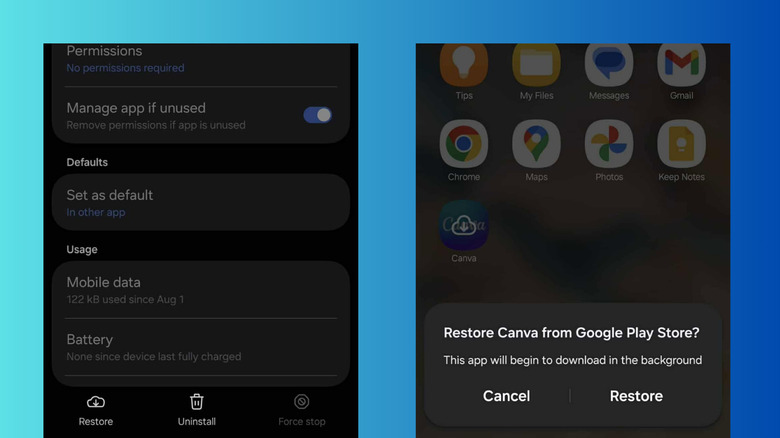
Using an archived app is almost as easy as using a regular one. Because the icon remains in your app drawer, there is no need to head back to the store to search for the app again. You will notice app drawer overlays—specifically a small cloud icon with a downward-pointing arrow—sitting on top of the original app icon. This is the indicator that the app is currently in its archived state.
To restore an archived app, simply tap the icon. Your phone will immediately begin downloading the missing software components from the Google Play Store. This is why an active internet connection is vital; you are essentially downloading the engine of the car while the chassis stayed in your garage.
The restoration process is designed to minimize reinstallation friction. Because the app state retention was maintained, once the download finishes, the app opens exactly where you left off. You won't have to type in your password or re-agree to the terms of service. It is a seamless transition that feels like the app was there the whole time. If you prefer to manage things through menus, you can also go to your device Settings > Apps, select the specific app, and choose the restore option from there.
Archiving vs. Uninstalling: Which Is Better?
When you are trying to reduce android app storage usage by 60 percent, you might wonder if you should just go all the way and delete the app. The choice really depends on how likely you are to return to that software.
Archiving is a form of disk space optimization that prioritizes your time. Uninstalling is a more nuclear option that prioritizes maximum space recovery. If you have an app that you haven't touched in two years and have no intention of using again, uninstalling is the way to go. But for the "maybe" apps, archiving is almost always superior.
| Feature | Archiving | Uninstalling |
|---|---|---|
| Space Saved | Approximately 60% | 100% |
| User Data | Saved on device | Deleted |
| Re-entry Effort | Zero (No login needed) | High (Setup required) |
| Visibility | Icon stays in drawer | Icon is removed |
| Internet Needed | To restore/re-download | To re-download |
By choosing to free up space on android without deleting apps entirely, you are essentially creating a dynamic storage system that breathes with your needs. It allows for better long-term performance without the psychological burden of wondering if you will need that specific loyalty card app while standing at a checkout counter with no Wi-Fi.
FAQ
What is Android app archiving and how does it work?
It is a feature that reduces the footprint of an app by removing its core code while keeping your personal data. It uses App Bundle technology to separate the functional software from your personal settings, allowing the OS to delete the former and keep the latter to save space.
How much storage space can app archiving save?
The feature can reduce android app storage usage by 60 percent on average. While the exact amount varies by app, most users see a significant reclaim of internal storage, especially on larger applications like games or social media platforms.
How do I enable automatic app archiving on Android?
Open the Google Play Store, tap your profile icon, go to Settings, then General, and toggle on the option for Automatically archive apps. This allows the system to manage your storage proactively when space gets tight.
What is the difference between archiving and uninstalling an app?
Uninstalling removes everything, including your logins and settings. Archiving removes only the app's software components, meaning your data stays on the phone, making it much faster and easier to pick up where you left off when you need the app again.
How do I restore or reinstall an archived app?
Simply tap the app icon in your app drawer. The icon will have a cloud overlay to show it is archived. Once you tap it, the phone will automatically re-download the necessary files. You can also restore apps through the device's main settings menu under the Apps section.
Does app archiving remove the app icon from the home screen?
No, the app icon remains exactly where you put it. This prevents your home screen layout from becoming cluttered or disorganized. The only change is the addition of a small cloud symbol to indicate that the app needs to be restored before it can be opened.
Digital storage management shouldn't feel like a chore. With Android app archiving, Google has provided a sophisticated tool that balances our need for space with our desire for convenience. By enabling the auto-archive toggle today, you can ensure that your phone is always ready for that next 5GB video, without losing the apps that make your device personal. It is a simple switch, but it is easily the most effective secret to a stress-free mobile experience.