Quick Facts
- Hidden Location: The pairing control is now a capacitive sensor on the front of the case, just below the LED.
- New Interaction: Apple has removed the physical setup button entirely in favor of a touch-sensitive surface.
- Pairing Gesture: A Double-tap on the front of the case while the lid is open activates discovery mode.
- Reset Gesture: A sequence of three sets of Double-taps initiates a full factory reset.
- Status Signals: A white blinking light confirms pairing mode, while an amber light signifies a successful reset.
- Launch Details: The AirPods 4 were released on September 20, 2024, with two models priced at $129 and $179.
The AirPods 4 setup process has changed significantly because the pairing button is now a hidden capacitive sensor located on the front of the charging case, positioned just below the LED status light. Unlike previous generations that used a physical button on the back, this invisible touch-sensitive area requires specific tap gestures to initiate pairing or reset functions while the case lid is open.
Where is the AirPods 4 Hidden Pairing Button?
If you have spent the last ten minutes flipping your new charging case over and over looking for a small circular indentation, don't worry—you aren't alone. As an audio editor who has handled every iteration of Apple’s personal audio line, I can tell you that this is the most significant hardware shift in the AirPods 4 setup experience since the introduction of the H1 chip.
Apple replaced the traditional physical setup button on the back of the case with a capacitive sensor. This means the back of the case is now a smooth, unbroken piece of plastic, contributing to a cleaner, more minimalist aesthetics. This design choice isn't just about looks; it is a move toward more durable hardware. Mechanical buttons can wear out or collect debris, whereas a touch-sensitive surface is theoretically immortal.
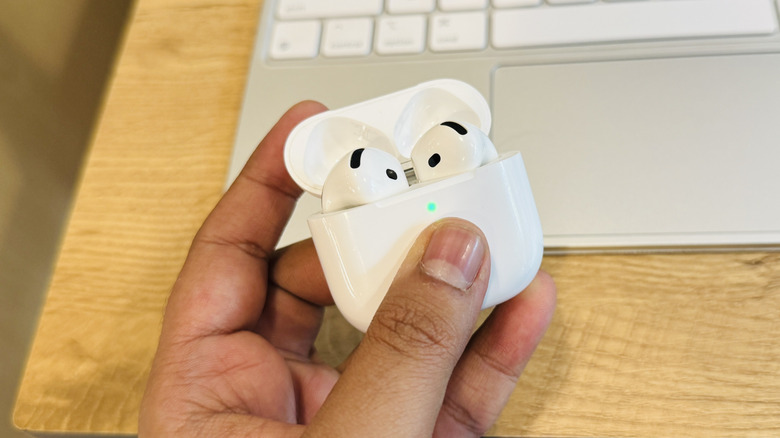
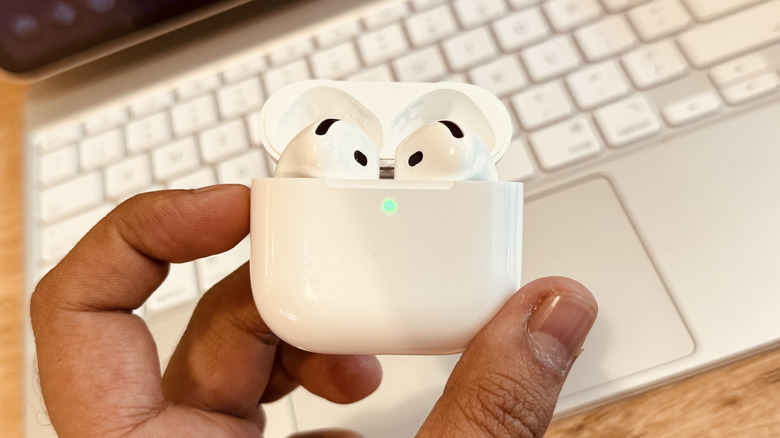
To find the AirPods 4 hidden button location, look at the front of the case, right where the LED status indicator is. The sensor is invisible to the naked eye, but it occupies the area directly beneath that tiny light. However, there is a catch: the sensor is only active when the lid is open. This prevents accidental triggers while the case is in your pocket or bag.
How to Put AirPods 4 in Manual Pairing Mode
For most iPhone and iPad users, the proximity pairing feature—where a card pops up on your screen the moment you open the lid—is still the primary way to connect. But what if you are trying to use these earbuds with an Android phone, a Windows PC, or a high-end Sony Walkman? That is where you need to know how to put AirPods 4 in pairing mode manually.
To initiate pairing mode on the AirPods 4, you must first ensure the earbuds are tucked into their cradles. Open the lid and wait for the LED status indicator to glow green or amber. Once the case is awake, you need to perform a Double-tap on the front surface of the case, specifically the area where the capacitive sensor is positioned.
When done correctly, the LED will begin a white blinking light sequence. This indicates that your earbuds have entered Bluetooth discovery mode. You can now go into the Bluetooth settings of your non-Apple device and find your AirPods in the list of available hardware. It is a seamless process once you get the timing of the gesture down, though it feels a bit like learning a secret handshake the first few times.
How to Reset AirPods 4 to Factory Settings
Sometimes, technology just doesn't behave. Whether you are experiencing audio dropouts, one earbud isn't charging, or you are preparing to sell your pair to a friend, knowing how to reset AirPods 4 to factory settings is essential. Since there is no longer a physical button to hold down for 15 seconds, the reset process has also moved to a gesture-based system.
Before you begin, it is good practice to "Forget this Device" in the Bluetooth settings of your previously connected phone. Once that is done, follow these steps:
- Place the AirPods back in the case and leave the lid open.
- Locate the hidden AirPods 4 hidden pairing button location on the front.
- Perform a series of three double-taps in quick succession.
- Watch the LED status indicator carefully.
During this manual synchronization, the light will go through a specific sequence. First, it will flash white, then it will transition to a fast-blinking amber light signal, and finally, it will return to a steady white pulse. That amber flash is your confirmation that the internal memory has been wiped and the earbuds are back to their out-of-the-box state.
Diagnostic Light Table
| LED Color/Pattern | Meaning | Required Action |
|---|---|---|
| Solid Green | Fully charged | None |
| Solid Amber | Less than one full charge remaining | Charge soon |
| Flashing White | In pairing mode | Search for device in Bluetooth menu |
| Flashing Amber | Setup error or reset in progress | Continue reset or re-insert earbuds |
| Solid White (after reset) | Ready for fresh setup | Follow proximity pairing prompts |
Troubleshooting: When the Pairing Sensor Doesn't Respond
Transitioning to a touch-sensitive surface isn't always smooth. In my testing, I found a few quirks that might make you think your sensor is broken. Most of these issues come down to power and cleanliness. Because the sensor relies on the Apple H2 chip to interpret the touch signals, it requires a minimum level of battery power to function.
Pro Tip: The 5-Minute and 20-Minute Rules
- The 5-Minute Rule: If your case is completely dead, plugging it into a USB-C charging port for 30 seconds won't be enough to wake the capacitive sensor. Give it at least 5 minutes of juice before you try the Double-tap gesture.
- The 20-Minute Rule: If you have a setting up a replacement AirPods 4 charging case situation, the two components need time to "introduce" themselves. Place the old earbuds in the new case, plug it into power, and wait 20 minutes before attempting to pair.
Another common issue is skin contact. Capacitive sensors work by detecting the electrical properties of your finger. If you are wearing thick gloves or if the front of the case is covered in a layer of oils or moisture, the sensor might not register your tap. A quick wipe with a microfiber cloth usually fixes this.
If you find that the AirPods 4 setup animation not appearing on your iPhone, ensure that your iOS is updated to the latest version. The AirPods 4 require specific software hooks that weren't present in older versions of iOS 17. Updating is often the "magic fix" for proximity pairing issues.
Device Management and the Apple Ecosystem
The beauty of the modern Apple ecosystem is that once you complete the initial setup, you rarely have to touch that hidden button again. Thanks to iCloud device syncing, once you pair your AirPods 4 with your iPhone, they are automatically available on your Mac, iPad, Apple Watch, and Apple TV.
The Apple H2 chip manages the handoff between these devices based on which one is active. This is where the minimalist design of the new case really shines—Apple wants the hardware to disappear so you can focus on the listening experience. The move away from physical buttons is a clear signal that the future of audio is automated and gesture-driven.
FAQ
How do you put AirPods 4 into pairing mode?
To put the earbuds into discovery mode, place them in the charging case and keep the lid open. Perform a Double-tap on the front of the case just below the status light. The LED will begin to flash white, indicating they are ready to connect to any Bluetooth-enabled device.
What should I do if my AirPods 4 setup fails?
First, ensure that both earbuds and the case have at least a 50% charge. If the proximity pairing animation doesn't appear, try the manual method by double-tapping the front capacitive sensor. If that still fails, perform a factory reset by doing three series of double-taps on the front sensor until the light flashes amber.
Why won't my AirPods 4 pair with my phone?
This is often caused by outdated software. Ensure your iPhone is running the latest version of iOS. Additionally, verify that Bluetooth is turned on in your settings and that the earbuds are properly seated in the case. If you are using a non-Apple device, ensure you have manually triggered the white blinking light on the case.
How do I set up a replacement AirPods 4 charging case?
If you have lost your original case and purchased a replacement, place your existing earbuds into the new case and connect it to a USB-C charging port. Let it sit for at least 20 minutes to allow the hardware to synchronize. After 20 minutes, you can follow the standard pairing procedure using the front capacitive sensor.
Final Thoughts on the New Interaction Model
Adapting to the AirPods 4 hidden pairing button location takes a minute of unlearning years of muscle memory. We have been conditioned to reach for the back of the case for nearly a decade. However, once you realize the sensor is on the front, the ergonomics actually make more sense. You can hold the case, open the lid with your thumb, and Double-tap the sensor without ever changing your grip.
It is a sophisticated evolution for the world’s most popular earbuds. While the lack of a physical button might be frustrating for the first five minutes, the long-term benefits of a sealed, more durable case are worth the slight learning curve. Just remember: lid open, front tap, and wait for the white light. Happy listening.