Our Top Picks
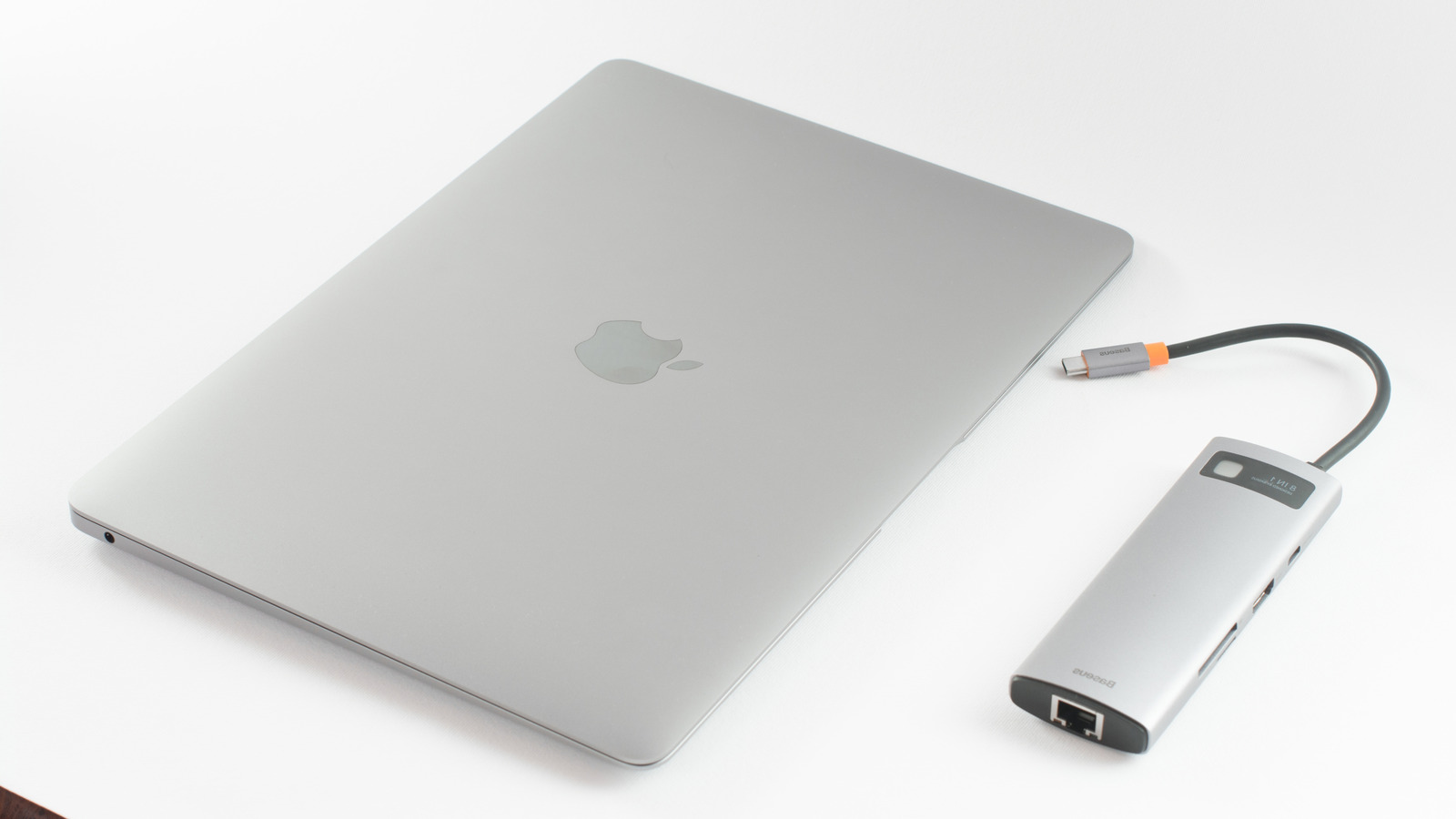
- The Ultimate All-Rounder: Compact 7-in-1 USB-C hubs offer the best balance of portability and connectivity, featuring 4K HDMI, SD card slots, and high-speed data ports.
- The Speed Demon: Rugged external SSDs with 1,050 MB/s transfer speeds are essential for creative professionals looking to avoid the high cost of Apple internal storage upgrades.
- The Desktop Powerhouse: Thunderbolt 4 docking stations utilizing DisplayLink technology allow M-series MacBook users to bypass monitor limitations and drive dual-display setups.
- The Travel Minimalist: Small USB-C to USB-A adapters provide a low-footprint solution for connecting legacy peripherals like mechanical keyboards or legacy thumb drives.
Selecting the right MacBook USB accessories is the most effective way to overcome the connectivity limitations of modern Apple hardware and maintain peak efficiency while working remotely. Compact USB-C hubs with 4K@60Hz resolution and 100W power delivery are the essential tools for most users, allowing a single-cable connection to transform a laptop into a full-scale workstation.
By 2025, it is estimated that approximately 32.6 million Americans will be working in remote roles. For many of these professionals, the MacBook Pro or MacBook Air is the primary tool of the trade. However, as Apple continues to prioritize a slim profile, the burden of connectivity has shifted to the user. We have tested dozens of peripherals to find the gear that actually survives a digital nomad lifestyle without overheating or bottlenecking your workflow.
At a Glance: Comparison of Top Remote Work Tools
| Accessory Type | Port Count | Max Data Speed | Power Delivery | Best For |
|---|---|---|---|---|
| Multi-Port Hub | 7-in-1 | 10Gbps | 100W (85W net) | General Remote Work |
| Rugged SSD | 1 Port | 1,050 MB/s | N/A | Video Editing/Backup |
| TB4 Dock | 13-in-1 | 40Gbps | 90W+ | Dual-Monitor Setup |
| PD Charger | 3-4 Ports | N/A | 100W+ | Travel Multi-device |
| USB-A Adapter | 1 Port | 5Gbps | N/A | Legacy Peripherals |
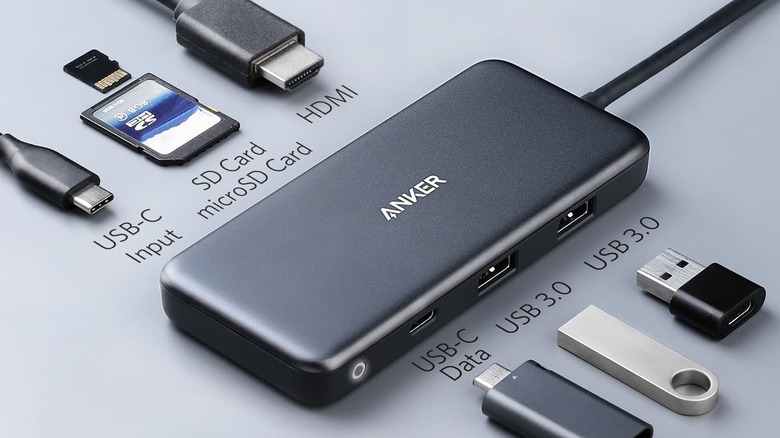
1. The Versatile Multi-Port Hub: Connectivity Meets Portability
When we look at the landscape of portable MacBook hubs, the 7-in-1 configuration remains the gold standard for most remote workers. These devices typically include an HDMI port, two USB-A ports, a USB-C data port, and SD/microSD card slots. However, not all hubs are created equal. Many cheap alternatives cap their video output at 30Hz, which leads to noticeable cursor lag and eye strain. We recommend looking for hubs that specifically support 4K@60Hz resolution to ensure a desktop-like experience on external monitors.
Thermal management is another critical factor. Under heavy load—such as transferring large files while charging—these hubs can reach temperatures up to 149°F. High-quality aluminum heat dissipation is vital here. An aluminum chassis acts as a heat sink, pulling warmth away from the internal components to prevent thermal throttling of your data speeds. For photographers, choosing macbook usb-c hubs with sd card readers for photographers that support the UHS-I standard ensures that offloading high-resolution RAW files doesn't become a bottleneck in your creative workflow optimization.
2. Rugged High-Speed Storage: Avoiding the Apple Storage Tax
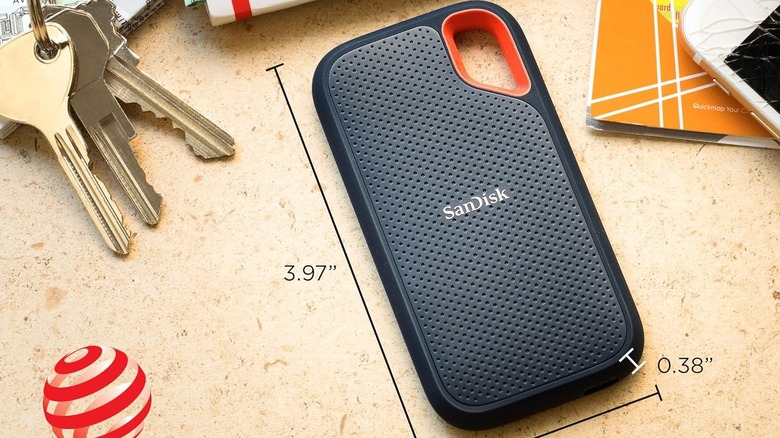
One of the most frustrating aspects of the MacBook ecosystem is the exorbitant cost of internal storage upgrades. Apple often charges $200 or more to move from 512GB to 1TB. From a technical and economic perspective, using high speed external ssd for macbook mobile video editing is a far more logical choice. Modern NVMe-based external drives offer read and write speeds of around 1,050 MB/s, which is more than sufficient for editing 4K video directly off the drive.
For the mobile professional, durability is just as important as speed. We look for rugged external storage for macbook users on the go that features an IP65 rating for water and dust resistance, along with drop protection. These drives are designed to be tossed into a backpack and used in coffee shops, airports, or remote field sites. By offloading large project files to an external SSD, you keep your MacBook internal drive lean and fast while saving hundreds of dollars on the initial purchase of the machine.
3. The 100W PD Charger & Hub: Power Delivery Math Explained
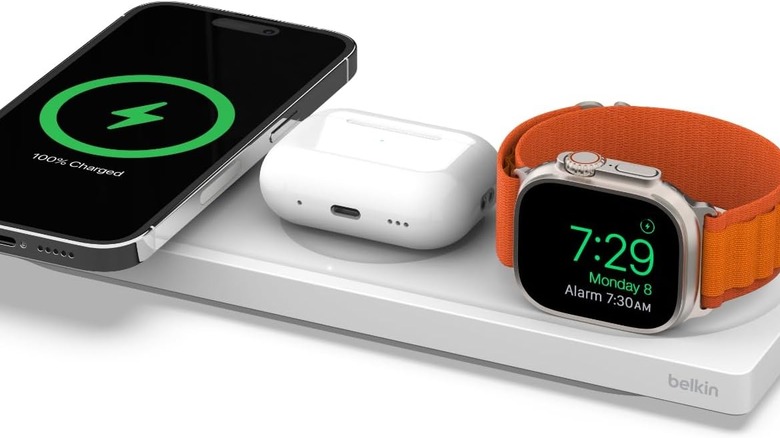
A common point of confusion among remote workers is the difference between advertised power and actual power delivered to the laptop. When you see macbook usb-c accessories with 100w power delivery, it is important to understand the internal overhead. Most hubs require roughly 15W of power to run their own internal circuitry and provide power to the connected USB-A and HDMI ports.
Pro Tip: If you use a 100W wall charger with a pass-through charging hub, your MacBook will typically receive a net 85W. This is still plenty for a 14-inch MacBook Pro, but if you are pushing an M3/M4 Apple Silicon Max chip to its limits with 3D rendering, you might see a slow battery drain unless you use a higher-wattage power brick.
Pass-through charging is a lifesaver for users of the MacBook Air, which has a limited number of ports. By plugging your charger into the hub and the hub into your laptop, you maintain all your connectivity while keeping the battery topped up. This integrated approach simplifies cable management and reduces the number of items you need to carry in your tech kit.
4. Thunderbolt 4 Docks: The Ultimate Desktop Workstation
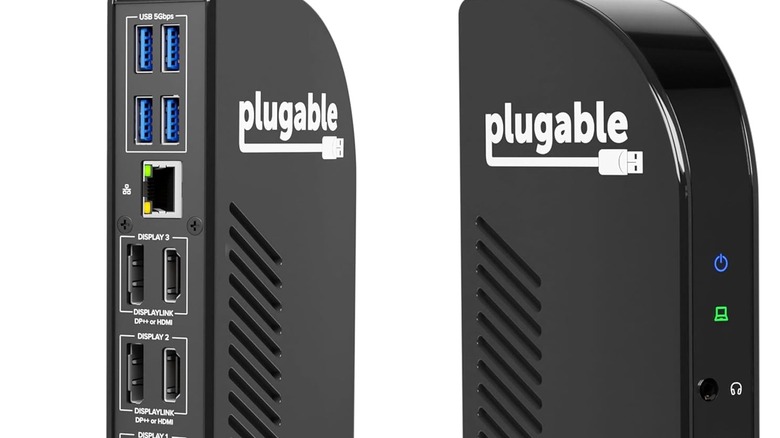
While portable hubs are great for travel, a dedicated desk setup often requires more bandwidth. This is where we see the distinction between standard USB-C and Thunderbolt 4. A standard USB-C hub is usually limited to 10Gbps, which can be split between video and data. Thunderbolt 4, however, offers 40Gbps of bandwidth. This massive pipe allows for multiple high-resolution displays and daisy-chaining multiple high-speed drives without performance degradation.
The value of this setup is backed by data. Research indicates that utilizing dual-monitor setups can increase individual productivity by an average of 42% compared to using a single screen. For those using the base model M3/M4 Apple Silicon chips—which natively support only one external display—Thunderbolt 4 docks featuring DisplayLink technology provide a workaround, allowing you to drive two or more monitors via a single cable. When considering thunderbolt 4 vs usb-c hubs for macbook pro 2026, the primary factor is whether your workflow requires that 40Gbps overhead for consistent, high-bandwidth professional tasks.
5. Slim USB-C to USB-A Adapters: Bridging the Legacy Gap
Sometimes, a massive hub is overkill. If you are a digital nomad who only needs to plug in a single YubiKey, a wireless mouse dongle, or an older thumb drive, the most efficient MacBook USB-C adapters are simple, individual "nub" adapters. These are tiny connectors that sit flush against the side of the MacBook, converting a single USB-C port into a USB-A 3.0 port.
Even though they are small, we still look for technical specs like 5Gbps data transfer speeds. These are the ultimate tools for maintaining a minimalist aesthetic while working from a small cafe table. Because they have a minimal footprint, they don't block adjacent ports, which is a common issue with larger, wider adapters. They are an essential part of any "just in case" kit, ensuring you are never caught off guard when someone hands you an old-school USB flash drive.
FAQ
Are USB-C hubs safe to use with MacBooks?
Yes, USB-C hubs are safe as long as you purchase from reputable brands that implement proper power regulation and over-current protection. In the early days of USB-C, there were rare issues with "bricking" during macOS updates, but modern hubs from established manufacturers have resolved these communication protocol errors. We recommend avoiding ultra-cheap, unbranded hubs that lack proper aluminum heat dissipation, as excessive heat can lead to connection drops.
Can I charge my MacBook through a USB hub?
Most modern MacBook USB accessories support pass-through charging. To do this, you plug your MacBook power adapter into the dedicated PD (Power Delivery) port on the hub, and then connect the hub's built-in cable to your laptop. Keep in mind the 15W overhead mentioned earlier; if your laptop requires 60W to charge effectively, you should use at least a 75W or 100W power source to account for the energy consumed by the hub itself.
What is the difference between USB-C and Thunderbolt accessories?
While they use the same physical connector, the difference lies in the bandwidth. USB-C hubs generally operate at 5Gbps or 10Gbps, which is sufficient for one 4K monitor and a few peripherals. Thunderbolt 4 accessories offer 40Gbps, allowing for much higher data transfer speeds and the ability to drive dual 4K monitors at 60Hz or even 8K displays. Thunderbolt is also required for certain high-end audio interfaces and external GPU enclosures.
Which USB-C adapter is best for high-speed data transfer?
For the best data transfer speeds, you should look for adapters or hubs rated for USB 3.1 Gen 2 (10Gbps) or Thunderbolt 4 (40Gbps). If you are using an external NVMe SSD, a 5Gbps adapter will act as a bottleneck, cutting your potential speed in half. Always match the speed rating of your adapter to the speed rating of your drive to ensure you are getting the performance you paid for.
Do I need a powered USB hub for external hard drives?
If you are using a single portable SSD or a modern 2.5-inch hard drive, a standard bus-powered hub is usually sufficient. However, if you plan to connect multiple mechanical hard drives or high-performance desktop drives simultaneously, a powered USB hub (one that plugs into a wall outlet) is recommended. This ensures that each drive receives a stable voltage, preventing accidental disconnections or data corruption during heavy read/write cycles.