Quick Facts
- Primary Function 1: Local media playback for high-bitrate, lossless audio (WAV, FLAC).
- Primary Function 2: Manual firmware updates to fix bugs and improve sound staging.
- Compatible File Systems: Most soundbars require the FAT32 file system or exFAT for recognition.
- Storage Limit: Reliability is highest with external storage media of 32GB or smaller.
- Audio Quality: USB supports a full CD-quality bitrate of 1,411.2 kbps compared to 328 kbps for standard Bluetooth.
- Resolution Support: Direct USB connections allow for high-resolution audio up to 96kHz at a 24-bit resolution.
- Key Constraint: Files and firmware must be placed in the root directory for the system to detect them.
Your soundbar usb port is more than just a hidden plug; it is a gateway to high-fidelity audio and system stability. While most users rely on Bluetooth, the USB port allows for lossless music playback and critical firmware updates that fix bugs and enhance sound staging. By understanding how to properly format your drive and identify service ports, you can significantly improve your home theater experience.
Identifying Your Port: Service vs. Playback
Before you start loading your favorite albums onto a flash drive, you need to take a close look at the rear or side panel of your device. Not every soundbar usb port is created equal. Manufacturers often include a port that is strictly limited in its capabilities, and understanding the physical labeling is the first step toward better audio.
Most modern soundbars from brands like Samsung, LG, or Sony feature a port clearly labeled USB. However, you might also see a service port label or a port marked "Service Only." In the world of audio engineering, a service port is typically reserved for factory diagnostics or internal technician use. If you plug a drive full of music into a dedicated service port, the system's internal controller will likely ignore it entirely.
In some compact or budget-friendly models, the physical space is so limited that manufacturers use a microUSB-to-USB adapter. If you see a tiny trapezoidal port instead of the standard rectangular Type-A slot, don't worry—it usually serves the same purposes, provided you have the right dongle. Always check your manual to see if the port supports external storage media for music or if it is strictly for software maintenance. Identifying this early saves you the frustration of a soundbar that refuses to acknowledge your high-quality files.
Use Case 1: High-Fidelity Local Music Playback
As an editor who spends hours A/B testing gear, I often find that listeners underestimate how much audio quality they leave on the table by relying solely on wireless streaming. While a standard Bluetooth connection is convenient, it relies on lossy compression like the SBC codec. This codec caps at 328 kbps, which essentially strips away the fine detail and "air" in a recording.
In contrast, utilizing the soundbar usb port for direct playback allows you to tap into lossless audio codecs. For instance, a WAV or FLAC file delivered via USB can reach a CD-quality bitrate of 1,411.2 kbps. This is nearly four times the data of standard Bluetooth. Furthermore, high-end soundbars can support sampling frequencies of up to 96kHz, providing a level of depth that Bluetooth simply cannot replicate.
When you use the USB port, you are also bypassing the electronic interference and encoding delays inherent in wireless transmissions. These direct USB connections provide near-instant audio output with much lower latency, making it the superior choice for critical listening.
Supported Audio Formats for Soundbar USB Playback
| Format | Quality Type | Typical Bitrate | Compatibility |
|---|---|---|---|
| WAV | Lossless | 1,411.2 kbps | High |
| FLAC | Lossless | Variable (High) | Moderate/High |
| MP3 | Lossy | Up to 320 kbps | Universal |
| WMA | Lossy | Up to 192 kbps | Universal |
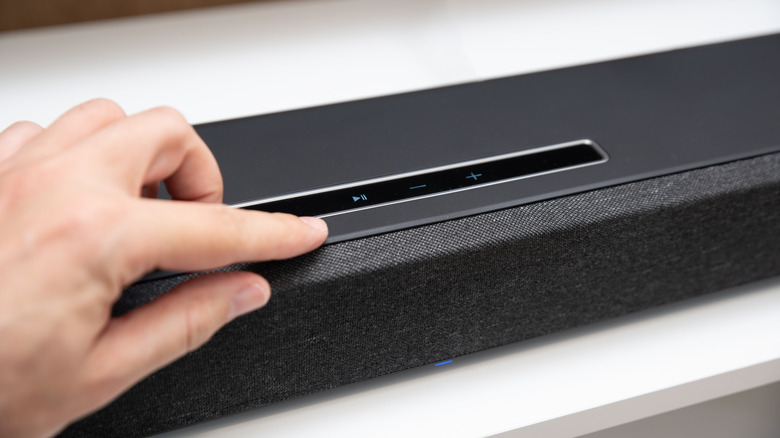
To begin, you will need to switch your device to the correct input. You can usually do this by pressing the source selection button on the remote or the main body of the soundbar. Cycle through the options—which usually include HDMI ARC/eARC and digital optical input—until "USB" appears on the display.
Use Case 2: Manual Firmware Updates for Peak Performance
Even the best-sounding hardware can be held back by buggy software. I have seen many instances, such as with recent Samsung Q-Series models, where a simple firmware update drastically improved the handshaking between the soundbar and the TV, or even refined the surround sound mapping. While many modern units update via Wi-Fi, there are times when an app fails or the connection is unstable. This is where a soundbar firmware update USB procedure becomes essential.
Manual updates ensure that your system is running the latest firmware versioning, which can include improvements to Dolby Atmos processing or EQ balances. To perform an update, you typically visit the manufacturer’s support website, find your specific model, and download the software package.
The most common mistake users make is failing to prepare the files correctly. The download is usually a compressed ZIP file. You must use a computer to extract the unzipped installation files. Once extracted, you must place these files directly in the root directory of the flash drive. If you place them inside a folder named "Updates" or "New Software," the soundbar's simple operating system will not find them.
The trigger sequence for an update varies, but it often involves inserting the drive while the unit is powered off. Once you turn the power on and select the USB source, look for visual cues on the LED display. You might see the word 'UPDATE' or 'INIT' flashing across the screen. Do not unplug the power during this time; a mid-update power failure can "brick" your soundbar, rendering it unusable.
Technical Setup: Formatting and File Architecture
Success with the soundbar usb port often comes down to the technical preparation of the drive itself. If your soundbar is not recognizing my USB drive, the culprit is almost always the formatting or the capacity of the hardware.
Most consumer electronics, especially those with simpler processors like soundbars, prefer the FAT32 file system. While newer computers might default to NTFS or APFS, these formats are often unreadable by a soundbar. If you have a larger drive or are using a Mac, exFAT is sometimes supported, but FAT32 remains the gold standard for compatibility.
Another hardware ceiling to keep in mind is the capacity. While we live in an era of 1TB thumb drives, many soundbar controllers struggle with anything larger than 32GB. If you use a massive drive, the soundbar might "hang" or time out while trying to index the files. For the best experience, use a dedicated 16GB or 32GB drive specifically for your audio files.
Finally, let's talk about the root directory. As mentioned with firmware, music files should also be placed in the top-level folder of the drive. While some advanced models can navigate subfolders, many basic models will only play what they see immediately. Avoiding deep nesting of folders ensures your soundbar USB music playback starts as soon as you hit the play button.
Checklist for Formatting USB Flash Drive for Soundbar Playback
- Plug the drive into your PC or Mac.
- Right-click the drive and select "Format."
- Choose FAT32 (or exFAT if your manual specifies it).
- Ensure the "Volume Label" is simple (e.g., "MUSIC").
- Drag your unzipped installation files or music tracks directly onto the drive icon, not into a folder.
- Eject the drive safely before moving it to the soundbar.
FAQ
What is the USB port on a soundbar used for?
A soundbar usb port is primarily used for two tasks: playing high-quality local audio files (like MP3, WAV, and FLAC) and performing manual firmware updates. It allows for a stable, high-bitrate connection that often surpasses the audio quality of wireless streaming. In some cases, it can also provide a small amount of power to charge a mobile device, though this is less common.
Can I play music from a flash drive on my soundbar?
Yes, most soundbars with a standard USB Type-A port support music playback from a flash drive. You simply need to ensure the audio files are in a supported format, such as MP3 or WAV, and that the drive is formatted to a compatible file system like FAT32. Once the drive is inserted, you switch the soundbar to the USB source using the remote.
Why is my soundbar not recognizing my USB drive?
There are three common reasons for this: the drive is formatted to a system the soundbar doesn't recognize (like NTFS), the drive capacity is too large (over 32GB), or the files are hidden inside too many subfolders. Additionally, check to see if the port is a service port vs usb playback port; if it is labeled "Service Only," it will not read media files.
What audio file formats are supported by soundbar USB ports?
Most soundbars support standard lossy formats like MP3 and WMA. However, the real benefit of the USB port is its support for lossless audio codecs like WAV and FLAC. These formats provide a much higher bitrate, often reaching 1,411.2 kbps, which delivers a much richer listening experience than compressed Bluetooth audio.
Is the USB port on a soundbar only for firmware updates?
Not always, but it depends on the model. While many soundbars use the port for both music and software updates, some budget or specialized models have a port that is strictly for service and firmware. You can check your owner's manual or look for a service port label near the slot to determine if your specific model supports media playback.