Quick Facts
- Prerequisites: iOS 18 or later is required for native Calendar integration and advanced Apple Intelligence features.
- Hardware Requirements: The customizable Action Button for rapid entry is available on iPhone 15 Pro, iPhone 15 Pro Max, and the entire iPhone 16 lineup.
- Best for Visuals: The Column View transforms standard lists into a Kanban-style board for better project tracking.
- Fastest Capture: Use the Action Button or Siri for hands-free task entry within the productivity ecosystem.
- Collaboration: Tasks can be assigned to specific individuals in shared lists, with contextual triggers like When Messaging.
- Automation: Smart Grocery Lists now use Apple Intelligence to automatically categorize items by aisle.
You can maximize iPhone Reminders features by integrating them with Apple Calendar for time-blocking and using View as Columns to create a Kanban-style workflow. These tools, combined with hashtag-based Smart Lists, allow for a fully automated productivity ecosystem that manages both your time and your tasks in one unified interface.
As of 2024, over 1.46 billion active iPhone users have access to native iPhone Reminders features, yet most only use basic lists. By mastering advanced iPhone Reminders organization tips, you can transform your phone into a powerful digital planner that rivals expensive third-party subscription apps.
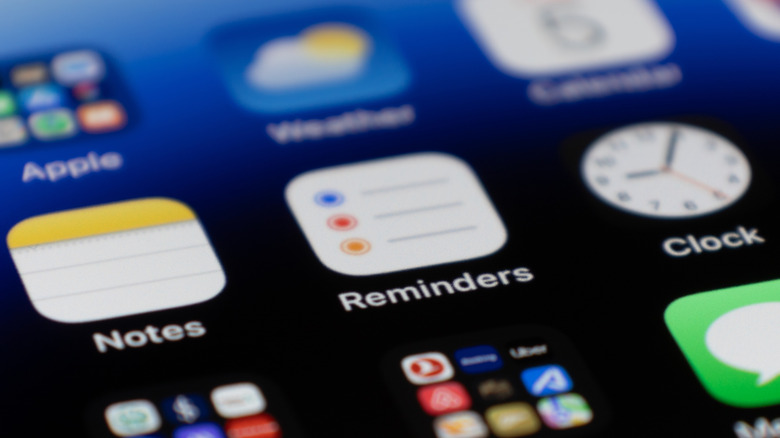
Sarah’s Field Note: The Gear You Need To get the most out of this guide, you should be running iOS 18. This version introduces the long-awaited bridge between your schedule and your to-do list. If you are using an iPhone 15 Pro or newer, you also have the physical hardware needed for the fastest capture method available on any smartphone today.
1. Frictionless Capture: Action Button and Siri Integration
The biggest hurdle to staying organized is the friction of entering a task. If it takes more than three seconds to log a thought, you probably won't do it. This is where hardware synergy becomes a game-changer. For users with compatible devices, the Action Button is the ultimate tool for fast entry. Instead of unlocking your phone, finding the app, and tapping the plus icon, you can map a New Reminder shortcut directly to the side button.
To set this up, go to Settings > Action Button and select Shortcut. Choose the Reminders app and specifically the New Reminder action. Now, a simple long-press allows you to type or dictate a task even while the phone is locked. This supports a Capture First, Sort Later methodology, ensuring that no fleeting thought is lost while you are on the move.
Siri has also received a significant overhaul in the latest updates. With the new Dynamic Island text-field UI, Siri feels less like an interruption and more like a helpful overlay. You can say, "Hey Siri, remind me to check the quarterly report when I get to the office," and the app will use geofencing to trigger the notification precisely when you arrive. This type of to-do list automation is essential for a mobile-first professional who needs to capture data without breaking their flow.
2. Visual Project Management: Transforming Lists into Kanban Boards
For years, users have looked to third-party tools like Trello or Asana for visual task tracking. However, the iPhone Reminders features now include a native Kanban view that is surprisingly robust. This is officially called View as Columns, and it is the key to managing complex projects without feeling overwhelmed.
To use this feature, you first need to create Sections within a list. Open any list, tap the three dots in the top right corner, and select New Section. You might create columns for To Do, In Progress, and Completed, or perhaps categorize by project phase. Once your sections are set, tap those three dots again and select View as Columns.
Your list will rotate into a horizontal board where you can drag and drop tasks between columns. This iPhone Reminders Kanban board column view guide approach is perfect for visual thinkers. It provides a high-level overview of where bottlenecks are occurring in your workflow, making task prioritization much more intuitive than a standard vertical list. It turns your phone into a professional-grade project management tool that stays in sync across your Mac and iPad.
3. Automated Organization: Smart Lists and Apple Intelligence
If you have hundreds of tasks across different areas of your life, manual sorting becomes a chore. This is where advanced iPhone Reminders organization tips come into play, specifically through the use of tags and Smart Lists. By adding a simple hashtag like #work or #urgent to any reminder, you create a metadata layer that the app can use to filter your view.
A Smart List is essentially a saved search. You can create a list that only shows items tagged with #finance that are also due this week and marked as high priority. This level of granular filtering ensures that you only see what is relevant to your current context.
| Feature | Folders | Smart Lists |
|---|---|---|
| Organization Type | Manual grouping of specific lists. | Dynamic filtering based on rules. |
| Best For | Separating Work from Personal life. | Viewing all High Priority tasks across all lists. |
| Automation | None. | Automatically updates as you add tags or dates. |
| Flexibility | Static. | Highly customizable via multiple attributes. |
With the rollout of iOS 18, we are also seeing the introduction of Smart Grocery Lists powered by Apple Intelligence. When you set a list type to Grocery, the app will automatically categorize reminders on iPhone into sections like Produce, Dairy, and Frozen Foods.
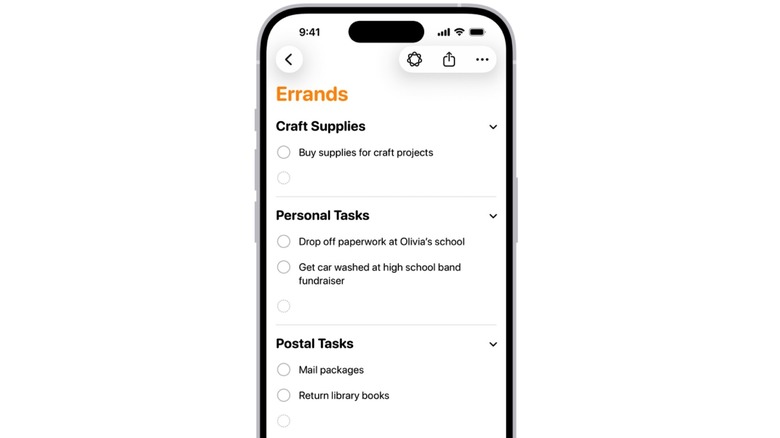
This use of Apple Intelligence auto-categorize reminders on iPhone functionality is a prime example of how the app is evolving from a simple digital planner into an intelligent assistant. You no longer need to spend time organizing your shopping list; the phone does the heavy lifting for you as you walk through the store.
4. Collaborative Power: Shared Lists and Task Assignment
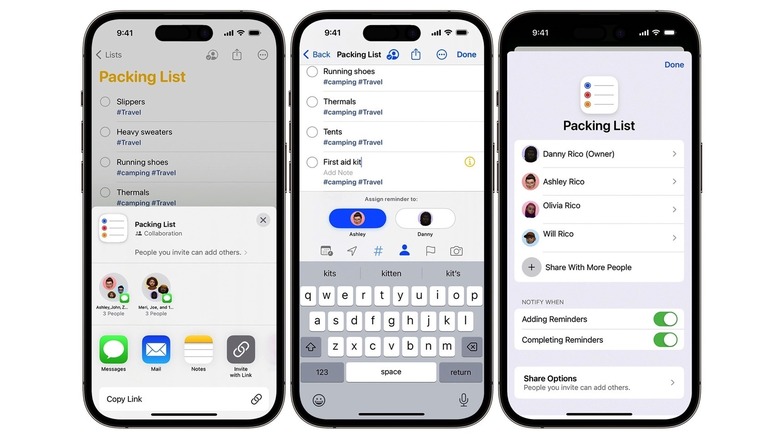
The Reminders app isn't just for solo productivity; it is a powerful tool for team collaboration and family management. By using shared Reminders lists iPhone users can delegate tasks and track progress in real-time. Whether it is a shared household chore list or a collaborative work project, the process is seamless via iCloud.
Once a list is shared, you can utilize the task assignment feature. By tapping the person icon on a specific reminder, you can assign it to a member of the group. They will receive a notification, and their name will appear next to the task. This ensures clear accountability within your productivity ecosystem.
One of the most underutilized contextual triggers is the When Messaging feature. When setting a reminder, you can toggle on When Messaging and choose a contact. The next time you start a thread or reply to that person in the Messages app, a notification will pop up at the top of your screen. This is incredibly effective for those "I need to ask my boss about the budget" moments that always seem to slip your mind during an actual conversation.
5. Ecosystem Synergy: Calendar Integration and Time-Blocking
Perhaps the most significant update in recent years is the deep Reminders app integration with Calendar. Historically, tasks and appointments lived in separate silos. With the iOS 18 software update, users can now create, view, and manage tasks from the Reminders app directly within the native iPhone Calendar application.
This integration allows for true time-blocking. When you assign a date and time to a reminder, it automatically appears alongside your meetings and events. This provides a realistic view of your day—you can see that a two-hour deep work task won't fit between two back-to-back meetings.
To how to sync iPhone Reminders with Apple Calendar effectively, simply open the Calendar app and ensure the Reminders toggle is active in the calendars list. You can even create new reminders without leaving the Calendar app by tapping the plus button and selecting the Reminders tab. This cross-device continuity ensures that whether you are looking at your Apple Watch, your Mac, or your iPhone, your schedule and your to-do list are in perfect harmony.
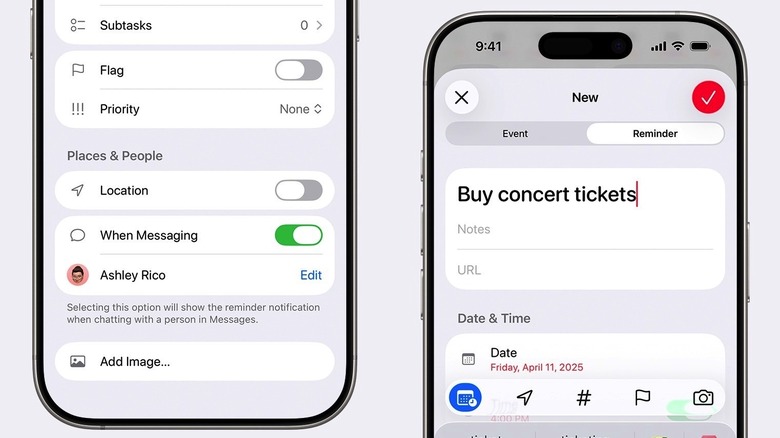
This synergy effectively solves the problem of over-commitment. By treating your tasks as time-based events, you move from a never-ending list to a structured day. It is the final piece of the puzzle in creating a frictionless workflow.
FAQ
How do I use iPhone Reminders effectively?
To use the app effectively, move beyond simple checklists. Start by organizing tasks into specific lists (Work, Personal, Errands) and use sections to create a visual workflow. Utilize the Action Button or Siri for immediate capture, and always assign a date or location trigger to important items to ensure they surface when they are actually actionable.
Can you share a Reminders list with others?
Yes, you can share any list (except for Smart Lists) with anyone who has an iCloud account. Open the list, tap the Share icon, and send an invite via Messages or Mail. Once shared, all participants can add, edit, or complete tasks, and you can assign specific reminders to individual members of the group.
How do I organize tasks with tags and Smart Lists?
You can add a tag to any reminder by typing the # symbol followed by a keyword (e.g., #urgent). To create a Smart List, tap Add List at the bottom of the main screen, select Make into Smart List, and choose your filters. You can filter by tags, dates, times, locations, flags, and priority levels to create a custom view of your tasks.
Can I add subtasks to a reminder on iPhone?
Yes, you can create a hierarchy of tasks. Tap on a reminder to open its details, or swipe right on a task and select Indent to turn it into a subtask of the item above it. Alternatively, you can drag and drop one reminder on top of another to create a nested list, which is helpful for breaking down large projects into smaller steps.
How do I set a reminder to trigger when messaging someone?
Select a reminder and tap the info (i) button. Toggle on the When Messaging switch and tap Choose Person to select a contact from your address book. The next time you chat with that person in the Messages app, a notification will appear reminding you of the specific task or topic you needed to discuss.
What is the difference between the Reminders and Calendar apps?
The Calendar app is designed for time-specific events and appointments that have a set duration, such as a meeting or a flight. The Reminders app is for actionable tasks that need to be completed. With the latest updates, the two apps now sync, allowing you to see your actionable tasks as scheduled items within your calendar view for better time management.
The evolution of iPhone Reminders features has turned a once-simple utility into a cornerstone of mobile productivity. By embracing these five advanced tips—from Kanban boards to AI-driven organization—you can stop just managing your tasks and start mastering your time. Try enabling the Column View on your most complex project today; it’s a small change that can radically transform how you work.