Quick Facts
- Release Date: April 29, 2026
- OS Requirement: Android TV OS 14 or later
- Hardware Threshold: Minimum 2GB RAM for advanced features like Dynamic Slideshows
- Creative Suite: Nano Banana (AI Image Generation) and Veo 3.1 (AI Video Creation)
- Device Milestone: 270 million monthly active devices worldwide
- Subscription Tiers: AI Plus ($7.99/mo) and AI Pro ($19.99/mo) with credit-based generation
- Key Hardware: Priority rollout for TCL Google TVs and Google TV Streamer
As Google TV reaches 270 million monthly active devices, the integration of Google TV Gemini marks the biggest shift in television history. Far from just a streaming update, Gemini AI features are turning screens into creative powerhouses. With the rollout of Android TV OS 14, users can now access tools like Nano Banana and Veo. Google TV Gemini introduces generative AI tools like Nano Banana for image editing and Veo for video creation via the Create tab. A new home screen row for YouTube Shorts allows users to scroll through snackable content. These updates transform the television into a tool for both media consumption and creative production.
Compatibility Checklist Before diving in, ensure your hardware is ready for the multimodal AI assistant experience. You will need:
- A device running Android TV OS 14.
- At least 2GB of onboard RAM (standard on the Google TV Streamer and high-end TCL models).
- An active Google Account (adult profiles only, 18+).
- High-speed internet for cloud-based generative artificial intelligence processing.
The Living Room Revolution: Gemini Integration Explained
For years, the smart home has promised a more proactive relationship with our devices. We’ve moved from simple voice commands to complex home automation, but the television has largely remained a passive window. That changes today. The integration of Google TV Gemini signifies a pivot from a basic content curation engine to a comprehensive living room technology hub that understands context, intent, and creativity.
The scale of this shift is reflected in the numbers. As of late 2024, the ecosystem saw an 80 percent increase in reach, growing from 150 million to 270 million active devices in just over a year. This massive user base is now receiving a suite of tools that redefine the Smart TV user interface.
One of the most practical additions is the News Brief feature. Instead of scrolling through endless headlines, Gemini utilizes generative artificial intelligence to aggregate and summarize news articles and YouTube headlines into personalized daily recaps. You can wake up, turn on your TV, and get a narrated visual breakdown of the world's events tailored specifically to your interests. It’s a seamless blend of information and entertainment that fits perfectly into a busy morning routine.
Discovery: Navigating the New YouTube Shorts Row
If you’ve found yourself reaching for your phone during commercial breaks to scroll through vertical video, Google has a solution. The new YouTube Shorts on Google TV integration brings that same quick-hit energy to the 65-inch screen in your living room. A dedicated "Short videos for you" row now appears on the home screen, optimized for the lean-back experience.
This isn't just a port of the mobile app; it’s a deliberate effort in home screen optimization. Gemini analyzes your viewing habits—what movies you watch, what tech reviews you follow—and populates this row with snackable content that complements your long-form history.
When you select a video from this row, the interface shifts to a vertical-friendly layout, allowing you to use your remote to scroll through a continuous feed. For those looking to keep their home screen tidy, customizing YouTube Shorts row on Google TV is straightforward. You can move the row higher for easier access or hide it if you prefer a traditional cinematic layout. This casual viewing experience bridges the gap between the "heavy" commitment of a two-hour movie and the "light" engagement of digital media management.
Creation: Mastering Nano Banana and Veo AI Tools
The most experimental—and arguably most exciting—part of this update is the Create tab. This is where Google TV Gemini shifts from being a librarian to being a collaborator. By accessing Gemini Create tab on TCL TVs and other compatible hardware, you unlock a suite of multimedia creation tools that were previously reserved for high-end PCs or smartphones.
Nano Banana is the standout tool for prompt-driven visuals. It allows you to generate high-resolution images simply by speaking into your remote. For example, you can say, "Create a photorealistic image of a futuristic smart home in a redwood forest," and the AI will generate several options that you can use as your system wallpaper or share with friends.
For those interested in motion, Veo 3.1 brings AI video generation to the big screen. Here is how you can start creating AI videos with Veo on Google TV:
- Navigate to the Create tab from the top navigation menu.
- Select Veo Video Generator.
- Enter a detailed prompt using the on-screen keyboard or voice remote. Be specific about style, lighting, and movement (e.g., "A drone shot flying over a neon-lit cyberpunk city in the rain").
- Wait for the cloud servers to process the request.
- Save your masterpiece to your Google library or set it as a live wallpaper.
It is important to note that these generative features operate on a credit system. While Nano Banana image generation is currently free for most users, generating video via Veo typically consumes 100 credits per use for Pro subscribers. This balance of power and cost is something every home automation enthusiast should consider when choosing their subscription tier. Knowing how to use Nano Banana on Google TV effectively can save you time and credits as you refine your creative prompts.
Personal Media: Gemini-Powered Google Photos Search
Your television has always been the best digital picture frame in the house, but finding the right photo among thousands can be a chore. The new Google Photos Gemini search makes your personal archives searchable through natural language. Instead of scrolling through years of dates, you can simply ask the multimodal AI assistant to "Find photos of our trip to Japan" or "Show me pictures of the kids at the beach last summer."
This upgrade extends beyond simple search. The Remix feature allows you to take older, lower-resolution photos and apply AI-driven styles or "upscale" them for the 4K display. It breathes new life into memories that might otherwise stay buried in your phone's storage.
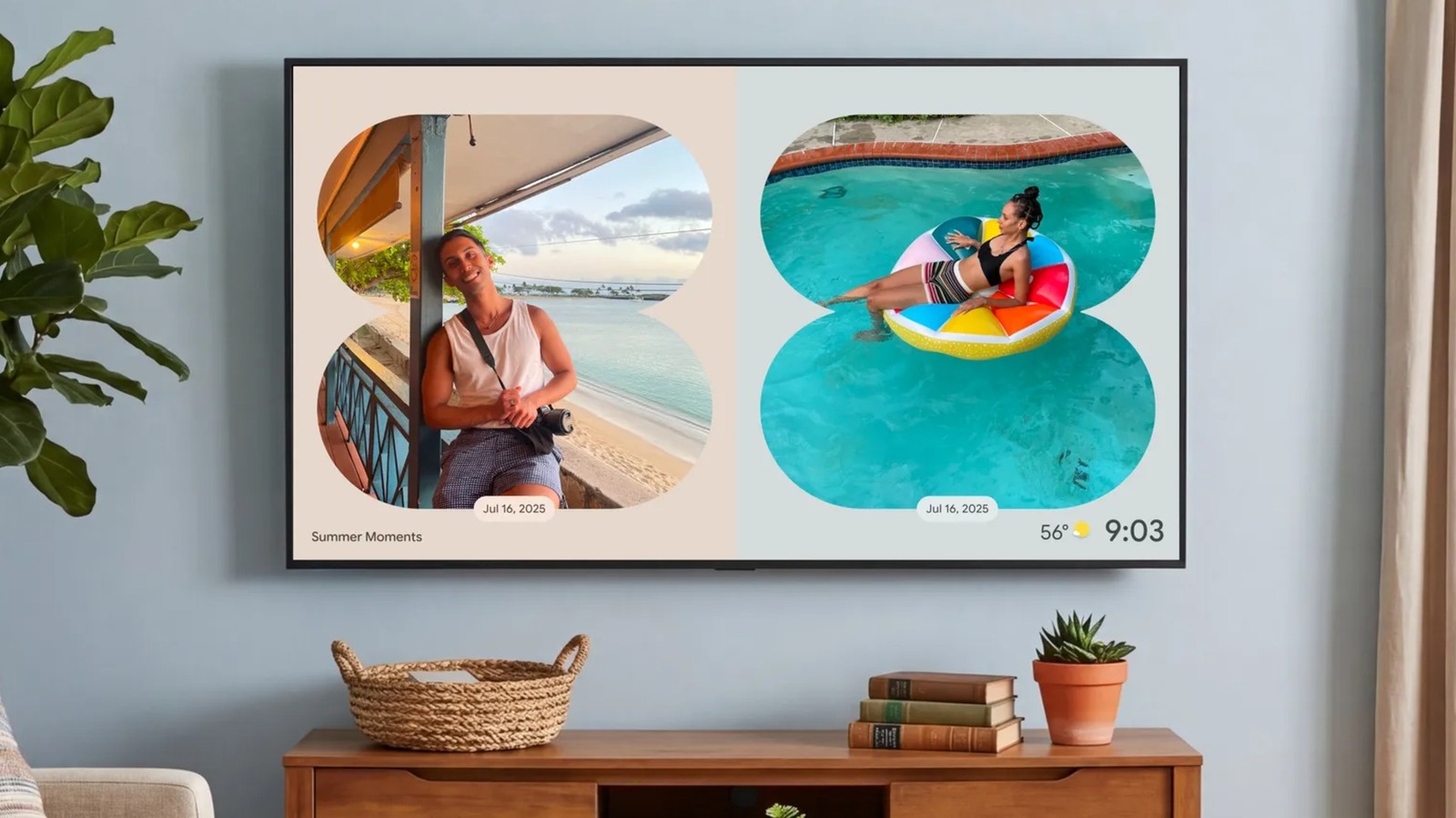
Furthermore, Google has introduced Dynamic Slideshows. This isn't just a rotating gallery; it’s an AI-curated experience that uses frames and collages generated in real-time to match the mood of the photos being displayed. You can activate this by going to Quick Settings > Screensaver and selecting the Gemini-powered ambient mode. It turns your TV into a piece of evolving art, perfectly representing the future of ambient computing. Searching Google Photos with Gemini on Google TV transforms the screen into a personalized window into your life.
Subscriptions and Hardware: What You Need to Know
To get the most out of these Google TV AI features, you’ll need to understand the new subscription landscape. While basic AI search and the YouTube Shorts row are available to all users on Android TV OS 14, the creative tools and high-level deep dives require a monthly commitment.
| Feature | Standard (Free) | AI Plus ($7.99/mo) | AI Pro ($19.99/mo) |
|---|---|---|---|
| Search & Summaries | Basic | Enhanced | Priority |
| Cloud Storage | 15GB | 200GB | 2TB |
| Nano Banana (Images) | Limited | Unlimited | Unlimited |
| Veo (Video) | None | 20 Credits/mo | 100 Credits/mo |
| News Brief | Standard | Personalized | Deep Dive Access |
As for hardware, the Google TV Gemini AI compatibility list 2026 is currently led by TCL. Their latest QLED and Mini-LED series were built with the necessary NPU (Neural Processing Unit) power to handle these tasks locally where possible. The Google TV Streamer is also a top-tier choice for those looking to upgrade an existing set.
Google is also rolling out AI-generated summaries of movies and television shows, providing "deep dives" that offer narrated visual breakdowns of complex topics. This makes the discovery process much more intuitive, ensuring you spend less time searching and more time watching content you actually enjoy.
FAQ
What is Gemini on Google TV?
It is the integration of Google's advanced multimodal AI assistant into the television operating system. It moves beyond simple voice control to offer generative art tools, smart content summaries, and natural language search for personal media.
How do I get Gemini features on my Google TV?
You must ensure your device is updated to Android TV OS 14. Once updated, the Gemini-powered features like the Create tab and enhanced search will appear automatically, provided you are using an adult Google profile and are in a supported region.
Which devices support the new Google TV Gemini features?
The rollout begins with TCL Google TVs and the Google TV Streamer. Any device with at least 2GB of RAM and the latest Android TV OS 14 update is eligible for the core features, though creative tools like Veo may be restricted to higher-end hardware.
What can Gemini AI do on a Google TV?
It can summarize news and movie plots, generate custom AI images via Nano Banana, create short videos with Veo, and perform complex searches within your Google Photos library. It also curates a new YouTube Shorts row based on your preferences.
How do I enable AI-generated summaries on Google TV?
These summaries are usually enabled by default on the content details page of movies and shows. To customize your experience, you can go to Settings > Accounts & Sign In > [Your Account] > Google Assistant to manage how the AI interacts with your content.