Quick Facts
- Core Feature: Intelligent task decomposition and notification filtering.
- Hardware Required: Copilot+ PC with a dedicated Neural Processing Unit (NPU).
- Software Integration: Native Microsoft To Do, Canvas, and Moodle support.
- Key Metric: Five-level 'Reflection' labels for subjective focus scoring.
- System Impact: Current builds show up to 2x RAM usage during active sessions.
- Privacy: Local machine learning ensures all productivity data remains on-device.
AI focus sessions are an advanced productivity tool in the Windows 11 Clock app that leverages on-device Neural Processing Units (NPUs) to intelligently break down complex projects into subtasks and filter distractions. Unlike traditional timers, these sessions use local machine learning to provide productivity analytics and personalized reflection insights to help users maintain deep work.
Getting Started: Launching Your First AI Focus Session
For years, the Windows Clock app was little more than a place to set an alarm for your morning coffee or time a quick pasta boil. That changed with Windows 11, but the latest iteration—the AI Focus Hub—represents a paradigm shift in how Microsoft views the operating system's role in your daily workflow. It is no longer just a passive environment; it is becoming an active participant in your focus.
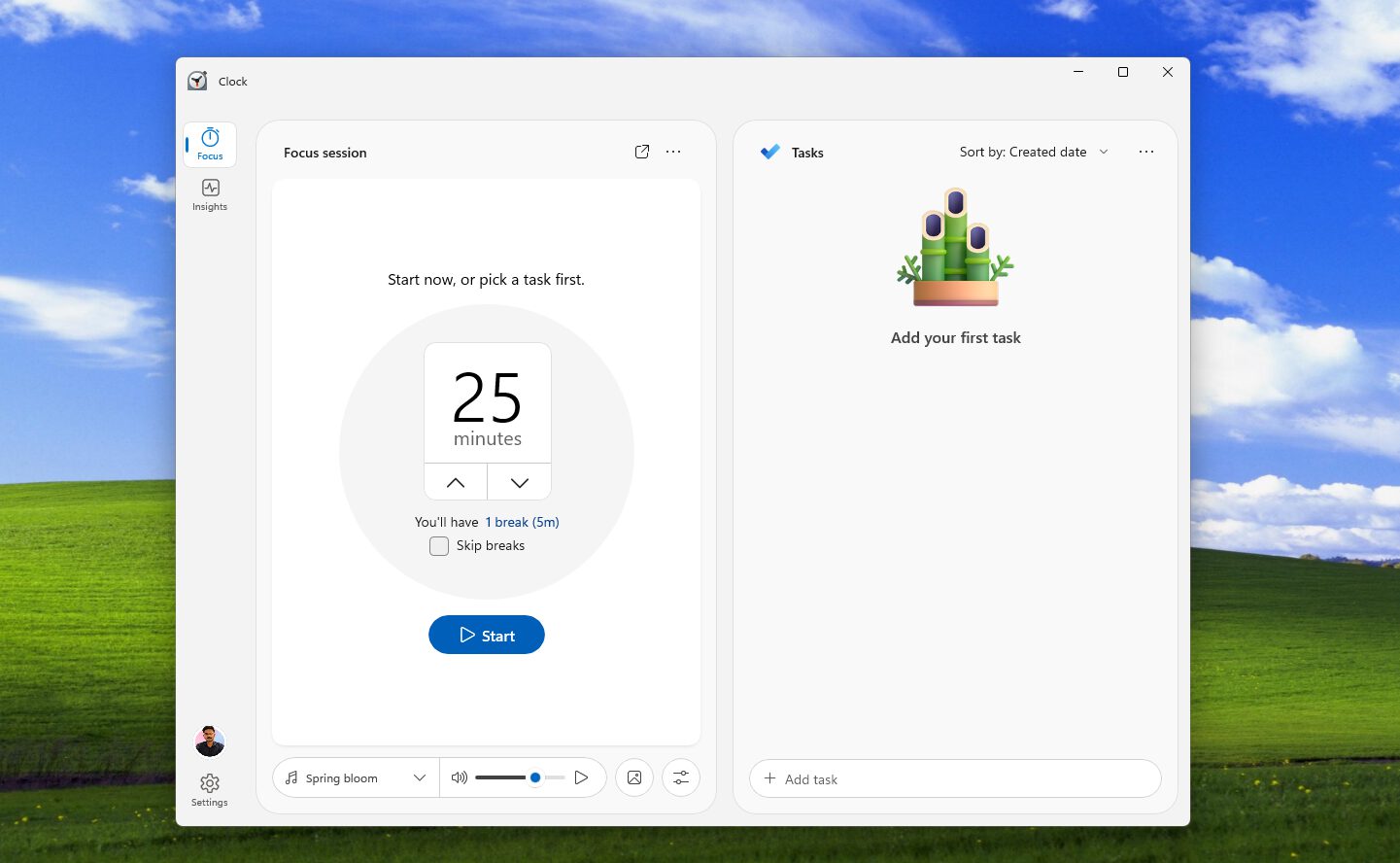
To find these tools, you will need to open the redesigned Clock app on a compatible Windows 11 machine. You will notice the interface has been overhauled to prioritize a central dashboard where your tasks and timer coexist. The layout typically dedicates nearly 50% of the screen real estate to your task list, a clear signal that this isn't just about counting down minutes—it is about what you do with those minutes.
If you are wondering how to start AI focus sessions in Windows 11, the process is straightforward but requires a bit of initial configuration to get the most out of the AI. Once you launch the app, you can select a task from your list or enter a new one. The Focus Hub will then suggest a duration based on the perceived complexity of the task, though you can manually override this. When you hit the "Start focus session" button, the system triggers a series of automated background actions: it enables Do Not Disturb mode, hides taskbar badges, and begins tracking your NPU-driven workflow planning to ensure the hardware is ready to assist with upcoming subtask generation.
The immediate benefit of this setup is time-boxing. By committing to a specific block of time, you create a psychological "sprint" that makes the work feel more urgent and contained. For professionals who struggle with the "infinite scroll" of tasks, this dedicated UI provides a necessary boundary.
Smart Task Decomposition: Breaking Down Complex Projects
The most significant technical hurdle for most knowledge workers isn't the work itself, but the "activation energy" required to start. When you are staring at a project titled "Quarterly Hardware Performance Report," the sheer scale of the task can lead to procrastination. This is where AI focus sessions prove their value through task decomposition.
By integrating directly with Microsoft To Do, the Focus Hub allows you to select a broad project and ask the AI to break it down. Using local machine learning, the system analyzes the task title and any associated notes to generate a list of logical subtasks. For our performance report example, the AI might suggest steps like "Analyze thermal benchmarks," "Compare GPU clock speeds," and "Draft executive summary." This functionality is a major evolution in Windows 11 AI task management, shifting the burden of project planning from the user to the system.
For students and academics, Microsoft has expanded this integration to include Canvas and Moodle. This means your course assignments can be pulled directly into the Focus Hub, where the AI can help you plan study blocks for specific modules. This approach significantly reduces cognitive load management by removing the need to manually figure out "where to start." Instead of being overwhelmed by a 20-page syllabus, the AI provides a granular, step-by-step roadmap for your deep work sessions.
This feature is particularly beneficial as ADHD productivity tools. People with executive function challenges often find the initial stages of task organization the most difficult. Having an automated system that provides a structured starting point can be the difference between a productive afternoon and several hours of "task paralysis."
The Reflection Dashboard: Subjective Focus Scoring
Most productivity apps tell you what you did, but very few help you understand how you did it. Microsoft’s new reflection features in the Clock app attempt to bridge this gap by introducing a qualitative layer to your productivity data. At the end of every session, you are prompted to provide a quick "reflection" on your attention levels.
The system uses a five-level categorization for these Microsoft Clock app reflection features:
- Deep Focus: You were in a flow state with zero external or internal distractions.
- Focused: You were productive but may have had a minor, brief interruption.
- Steady: You made progress but felt the effort required to stay on track.
- Drifting: You found yourself frequently checking emails or looking at your phone.
- Distracted: The session was largely unsuccessful due to interruptions or lack of concentration.
These aren't just empty labels. This data is aggregated into an Insights dashboard that tracks your focus habits over days, weeks, and months. By interpreting Microsoft Clock reflection dashboard insights, you can begin to identify patterns in your cognitive performance. Perhaps you find that you consistently hit Deep Focus at 10:00 AM but struggle to maintain even a Steady rating after 3:00 PM.
This type of focus scoring allows you to tailor your schedule to your biological reality. Instead of forcing yourself to tackle complex coding or writing during your "Drifting" periods, you can move those tasks to your peak performance windows. It’s a method of how to track deep focus levels in Windows 11 that goes beyond simple timestamps and into the realm of behavioral science.
Hardware Reality Check: NPUs, RAM, and Performance
As a hardware editor, I have to be honest: these features aren't free in terms of system resources. The "magic" behind the Windows 11 AI task management for professional projects relies heavily on the Neural Processing Unit found in newer Copilot+ PCs. The NPU is specifically designed to handle the matrix multiplications required for local machine learning without taxing the CPU or GPU, which are busy running your actual work applications.
However, there is a trade-off that users need to be aware of. While the NPU handles the "thinking," the data being processed still needs to sit in your system memory.
Technical Warning: During my testing of the AI Focus Hub, I observed that active AI focus sessions can consume up to 2x the RAM compared to the standard legacy Clock app. On systems with only 8GB of RAM, this can lead to noticeable slowdowns if you are also running heavy applications like Chrome with dozens of tabs or the Adobe Creative Suite.
To ensure you are optimizing PC performance for NPU driven workflows, I recommend a minimum of 16GB of RAM for any user planning to make the Focus Hub a core part of their daily routine. The benefit of this resource usage, of course, is privacy. Because the task decomposition and focus scoring happen on your local silicon, your sensitive project titles and productivity habits are never sent to the cloud for processing. This on-device approach is a critical advantage for professionals working under NDAs or in high-security environments.
Privacy and Customization: Tuning the Hub to Your Needs
Microsoft has integrated these focus tools deeply into the OS, but they have also provided the kill-switches necessary for those who want a leaner experience. You can manage how much the AI intervenes by navigating to Settings -> Privacy & Security -> Focus. Here, you can toggle specific notification filters and decide how aggressive the distraction mitigation should be.
One of the more subtle but effective features is smart notification management. During an active session, the AI doesn't just mute everything; it can be configured to allow "breakthrough" notifications from specific people or apps while suppressing "low-priority" clutter. This is part of a broader effort in the Windows 11 26H2 update context to reduce system-wide noise.
By fine-tuning these settings, you can transform the Focus Hub from a generic timer into a bespoke productivity assistant. Whether you need a strict lockdown for a deadline or a gentle nudge to stay on task during routine admin work, the combination of NPU-driven workflow planning and user-defined boundaries provides a level of customization we haven't seen in native Windows tools before.
FAQ
What are AI focus sessions and how do they work?
AI focus sessions are an evolution of the Windows 11 Clock app that use an on-device Neural Processing Unit to help users manage their time. They work by integrating your task list with a countdown timer, using AI to suggest subtasks, and automatically silencing distractions while you work.
How do AI focus sessions help improve productivity?
They improve productivity through task decomposition and time-boxing. By breaking a large, intimidating project into smaller, AI-generated steps, the system reduces the cognitive load required to start. Additionally, the reflection features help users identify their most productive times of day.
Can AI focus sessions help people with ADHD or distractions?
Yes, they are highly effective as ADHD productivity tools. The automated subtask generation helps with executive function, while the integrated notification filtering and Do Not Disturb mode minimize the external triggers that often lead to distraction.
Do AI focus sessions require special software or hardware?
While the basic Clock app and focus timer work on most Windows 11 PCs, the advanced AI features—like automated task decomposition and deep insights—require a modern Copilot+ PC equipped with a dedicated Neural Processing Unit. You may also notice higher RAM usage during active sessions.
Are there privacy concerns with AI focus tools?
Microsoft has addressed privacy by ensuring that the AI focus sessions process data using local machine learning. This means your task descriptions, subtasks, and focus ratings are processed on your computer's NPU rather than being sent to a remote server, keeping your data private and responsive.