Quick Facts
- Usage Decline: Microsoft Copilot adoption as a primary AI choice plummeted from 18.8% to 11.5% by early 2026.
- User Retention: Active users peaked at 36 million in February 2024 but dropped to 26 million by mid-2024.
- System Impact: Integrated AI components have contributed to Windows 11 system folders ballooning to an average of 35-45 GB.
- Privacy Backlash: Concerns over Recall AI monitoring have triggered a 70% increase in users exploring Linux-based alternatives.
- Performance Gain: Properly executing Windows 11 debloating steps can reclaim up to 15% of background CPU and RAM resources on mid-range hardware.
- Enterprise Control: The only permanent way to stop AI telemetry is through Group Policy or Registry Editor, as standard UI toggles are often cosmetic.
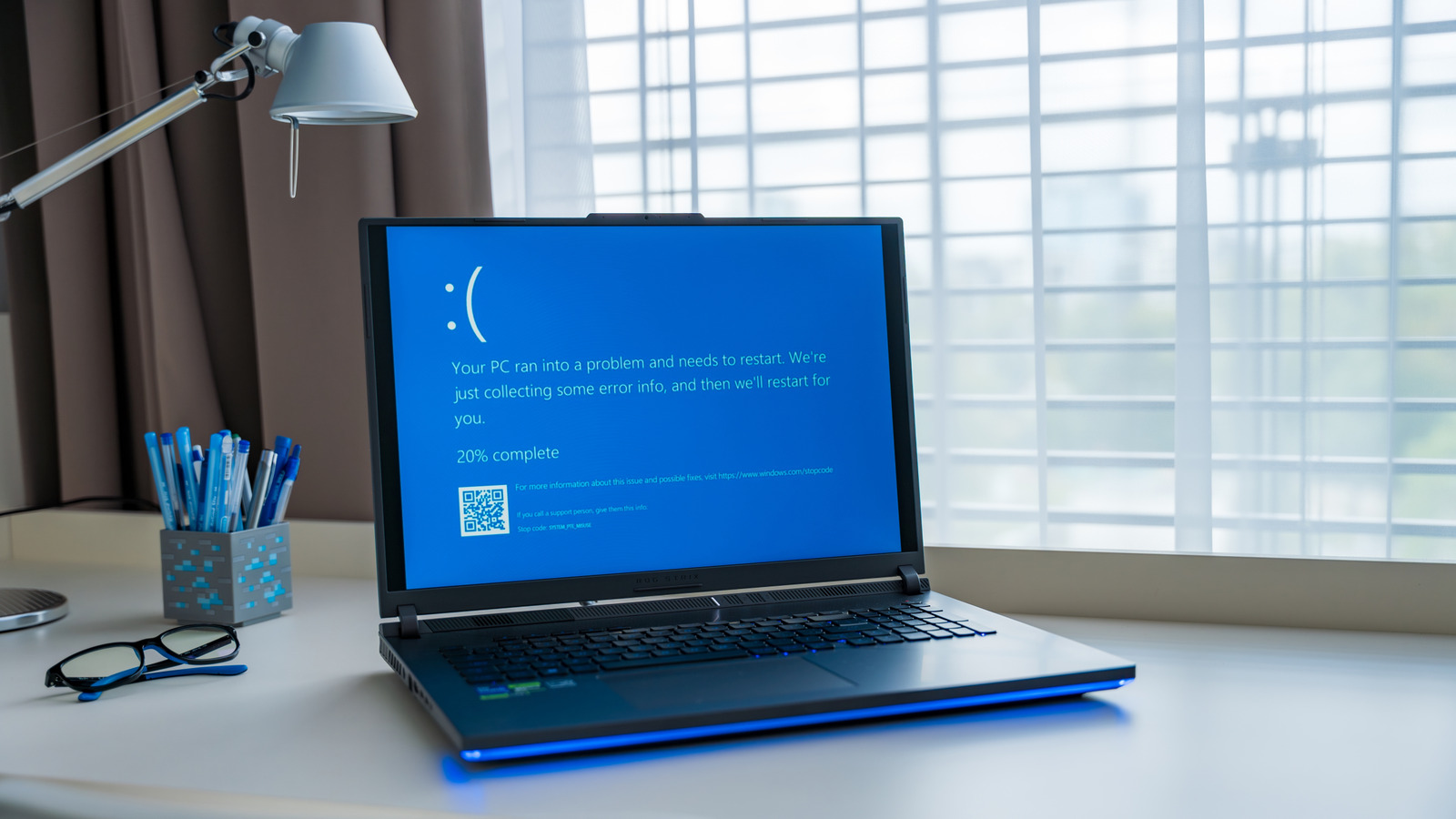
Microsoft Copilot integration was intended to revolutionize Windows 11, but rising concerns over AI bloatware have led to a significant drop in active users. As of May 2026, many power users are seeking ways to disable Windows 11 Copilot to reclaim system performance and privacy. This guide provides the exact Windows 11 debloating steps needed to manage or remove these features effectively.
To manage Microsoft Copilot integration, users should utilize the Group Policy Editor on Pro and Enterprise editions or the Registry Editor on Home editions to fully disable the interface and associated background services that standard UI toggles leave active.
The AI Gamble: Why Users are Fleeing Copilot
Microsoft’s aggressive push into generative AI felt like a pivot that nobody asked for but everyone was forced to host. When Windows 11 first introduced the Copilot preview, the marketing promised a digital co-pilot that would streamline workflows. However, the technical reality has been a "rented AI" model—essentially a web-wrapper for OpenAI’s tech that feels bolted onto the shell rather than integrated into the core OS.
The data confirms what many of us in the hardware community suspected: the novelty is wearing off. According to a survey of over 150,000 respondents, the percentage of users choosing Copilot as their primary AI fell from 18.8% in mid-2025 to just 11.5% by January 2026. Even more telling is the active user base, which saw a drop of 10 million users in a mere four-month span.
This decline isn't just about the AI being unhelpful; it’s about the resource overhead and the perceived Windows 11 AI bloatware. For a professional builder or a power user, every background process is a tax on system latency. When Microsoft began testing "Recall"—a feature that essentially takes screenshots of your desktop every few seconds for "contextual awareness"—the user retention conversation shifted toward digital sovereignty. Users don't want a system that monitors them; they want a tool that serves them.
Tier 1: Cosmetic Removal (The Taskbar Fix)
The most common point of frustration is the persistent icon sitting right next to your Start button. For the casual user, this is UI intrusion at its finest. Microsoft makes it relatively easy to hide the button, but it is important to understand that hiding is not the same as removing.
To remove Copilot button from Windows 11 taskbar, you can follow these steps:
- Right-click any empty space on the Taskbar.
- Select Taskbar settings.
- Under Taskbar items, toggle the Copilot (preview) switch to Off.
While this clears up your screen real estate, it does not stop Microsoft Copilot from running in background. The services associated with the AI stack remain initialized, waiting for a shortcut key or a secondary trigger within apps like Edge or Office. If your goal is to reclaim system telemetry bandwidth or CPU cycles, this "Tier 1" fix is purely aesthetic. We see a significant consumer backlash here because users expect a "toggle off" to mean "program terminated," but in the modern Windows ecosystem, that is rarely the case.

Tier 2: Permanent Disabling via GPO and Registry
For those of us who demand more control, we have to go under the hood. To truly disable Windows 11 Copilot, you must communicate with the OS at a policy level. This prevents the executable from launching and stops the background services from phoning home to Redmond.
For Windows 11 Pro and Enterprise (Group Policy)
If you are running a professional version of the OS, you have access to the Group Policy Editor, which is the cleanest way to manage Microsoft Copilot integration.
- Press
Win + R, typegpedit.msc, and hit Enter. - Navigate to:
User Configuration>Administrative Templates>Windows Components>Windows Copilot. - Locate the policy named Turn off Windows Copilot.
- Double-click it, set it to Enabled, and click Apply.
This action effectively tells Windows that the Copilot feature is restricted by administrative policy, which is the most stable way to disable Microsoft Copilot Windows 11 Group Policy settings without breaking system updates.
For Windows 11 Home (Registry Editor)
Home edition users are locked out of GPO, so a Windows 11 registry edit to remove Copilot is required.
WARNING: Modifying the registry can cause system instability if done incorrectly. Always back up your registry before making changes.
- Press
Win + R, typeregedit, and hit Enter. - Navigate to the following path:
HKEY_CURRENT_USER\Software\Policies\Microsoft\Windows - If a key named
WindowsCopilotdoes not exist, right-clickWindows, select New > Key, and name itWindowsCopilot. - Right-click
WindowsCopilot, select New > DWORD (32-bit) Value. - Name it
TurnOffWindowsCopilotand set its value to 1. - Restart your PC.
Using these methods also helps disable Windows 11 Recall AI monitoring by stripping the foundational AI hooks that these features rely on. It ensures a more privacy-centric computing environment.
Tier 3: Advanced Windows 11 Debloating Steps
If you want a truly lean machine, you might want to look at PowerShell scripts and package removal. Windows treats Copilot as part of the "Cortana/Bing" legacy stack, often identified by specific Appx package names.
To manually remove the core package, you can run PowerShell as an Administrator and use the following command:
Get-AppxPackage *Microsoft.549981C3F5F10* | Remove-AppxPackage
This specific package (often referred to as the "BingSearch" or "Cortana" shell) is the delivery vehicle for many AI features. However, proceed with caution. Many users turn to community-maintained tools like Win11Debloat or the Sophia Script to automate these Windows 11 debloating steps. These scripts can effectively how to uninstall AI features from Windows 11 apps in bulk.
CRITICAL: Be aware of the Component-Based Servicing (CBS) store. When you deep-remove packages via PowerShell, you are modifying the underlying OS image. This can sometimes lead to issues where Windows attempts to repair itself, leading to a loop where it tries to prevent Windows 11 from reinstalling Copilot after update. If the CBS store becomes corrupted or "unsupported," you may face errors during the next major Patch Tuesday.
For power users, the best PowerShell scripts to debloat Windows 11 AI are those that allow for a "dry run" or create a system restore point automatically. These tools help mitigate the resource-heavy features that Microsoft keeps pushing into the stable channel.
Performance Reality Check: Is AI the Only Bloat?
While the current artificial intelligence bubble has certainly added weight to the OS, it isn't the only culprit. As a hardware editor, I often see systems where the WinSxS folder and the indexing service are doing more damage to disk I/O than Copilot ever could. However, the cumulative effect of system telemetry and AI background services is undeniable.
Removing these features can reduce background RAM usage by several hundred megabytes—significant for users on 8GB or 16GB systems. When choosing a subscription plan for your home or office, consider whether the AI features are actually adding value or just overhead.
| Feature / Tier | Microsoft 365 Personal (Individual Pro) | Microsoft 365 Family |
|---|---|---|
| Annual Cost | $69.99 | $99.99 |
| User Count | 1 User | Up to 6 Users |
| AI Integration | Copilot Pro available ($20/mo extra) | Copilot Pro available per user |
| Storage | 1 TB OneDrive | 6 TB Total (1 TB per person) |
| Debloating Difficulty | High (Built-in) | High (Built-in) |
To keep your system lean, I also recommend regular use of the Deployment Image Servicing and Management (DISM) tool to clean up old update files:
dism /online /cleanup-image /startcomponentcleanup
This ensures that even if you can't fully remove every AI hook, you are at least keeping the system folders from growing unnecessarily.
FAQ
Is data shared with Microsoft Copilot integration secure?
Microsoft claims that data processed through enterprise-level Copilot integration is protected by commercial data protection, meaning the data isn't used to train the underlying models. However, for consumer versions, telemetry and interaction data are often sent to the cloud to improve the service, which is a major driver behind the recent user retention drop and privacy concerns.
How do I set up Microsoft Copilot for my organization?
To deploy Copilot at an organizational level, IT admins must manage licenses through the Microsoft 365 Admin Center. You will need to ensure that your environment meets the prerequisites, including being on the Current Channel for updates and having the necessary Microsoft 365 E3 or E5 licenses. Admins can then use Group Policy to control how the integration appears on end-user machines.
Do I need a specific subscription for Copilot integration?
Basic Copilot features are integrated into Windows 11 for free. However, "Copilot Pro" or "Copilot for Microsoft 365" requires a monthly subscription, typically $20 per user per month. This adds AI capabilities directly into Word, Excel, and PowerPoint, though many users find the standard free integration in the OS to be enough of a resource drain without adding more to the office suite.
Can I use Microsoft Copilot with third-party software?
Currently, Microsoft Copilot integration is primarily focused on the Windows shell, Edge, and the Microsoft 365 ecosystem. While there are "Copilot GPTs" and plugins that allow it to interact with certain third-party web services (like Kayak or OpenTable), it does not have deep, native integration for controlling third-party desktop software like Adobe Creative Cloud or Davinci Resolve in the same way it handles first-party apps.
The Path Forward
Microsoft’s gamble on AI has hit a significant roadblock. Whether it is the 11.5% adoption rate or the 10 million user exodus, the message from the community is clear: performance and privacy outweigh flashy features.
If you are a professional builder or someone who values a clean, efficient OS, taking a tiered approach to debloating is your best bet. Start with the cosmetic fixes, but don't be afraid to use the Registry or PowerShell to truly reclaim your hardware. For those who find the current state of Windows 11 untenable, the Windows 10 extended lifecycle remains a viable, AI-free haven—at least for a little while longer.