Quick Facts
- OS Version: iPadOS 26.2 (Optimized for M-series chips)
- Key Performance: M4 chip offers 50% faster CPU performance than the M2
- Multitasking Cap: Up to 12 simultaneous windowed apps with window snapping
- Market Growth: The global iPad productivity app market is estimated to reach 16.16 billion in 2026
- Setup Cost: Full Pro workstation approximately $1,200 including peripherals
- Best For: Creative professionals, academic researchers, and mobile office managers
- Device Share: Tablets and 2-in-1s held a 34.1% share of the global laptop and tablet PC market in 2025
In 2026, the iPad serves as a viable iPad laptop replacement for professionals focused on content creation, research, and mobile office tasks. Key advancements in iPadOS 26 include M-series processing power, improved external display integration, and desktop-class Safari. While developers and heavy Excel users may still prefer a MacBook, most workflows benefit from the iPad's modular setup, Apple Pencil support for digital annotation, and the ability to switch between a tablet and a workstation. This shift is driven by best iPadOS 26 features for mobile office productivity that finally bridge the gap between mobile simplicity and desktop utility.
1. Desktop-Class Windowing: Beyond Stage Manager
For years, the biggest hurdle for any iPad laptop replacement was the rigid way it handled apps. If you wanted to see more than two things at once, you had to fight against a system designed for a single-tasking world. In 2026, iPadOS 26 has finally matured into a true multitasking powerhouse. The transition from the original Stage Manager to a free-form windowing system marks a turning point for iPad multitasking for work.
We no longer have to settle for preset window sizes. The new system introduces macOS-style minimize, zoom, and close buttons on every app header. More importantly, window snapping has arrived. Much like on a PC or Mac, you can now drag a window to the corner of your screen and have it instantly snap to a quarter-view or half-view. For those of us running M-series iPad models, the system now supports up to 12 simultaneous windowed apps. This is a massive leap from the limited "four apps per screen" we saw in previous versions.
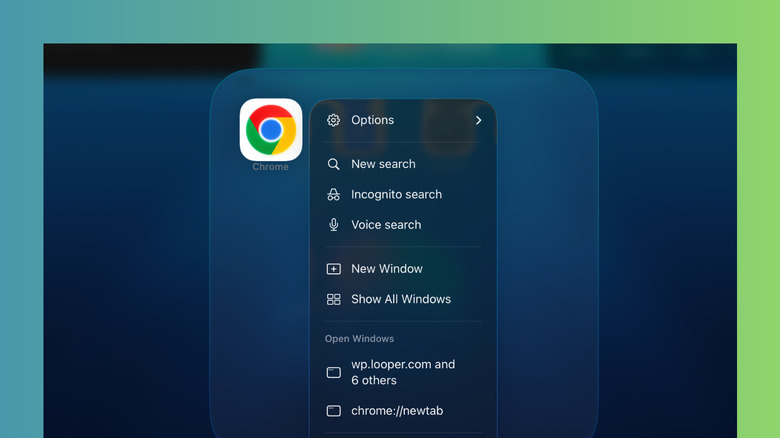
The experience feels remarkably fluid because of how it integrates trackpad support. Using the Magic Keyboard, the cursor now behaves exactly as it would on a MacBook—it changes shape based on the UI element it hovers over and allows for precise resizing of app borders. Whether you are comparing an iPad multitasking Stage Manager vs Split View 2026 approach, the winner is clearly the new free-form mode which treats the iPad screen as a canvas rather than a grid.
2. Advanced File Management: The macOS-Style Finder
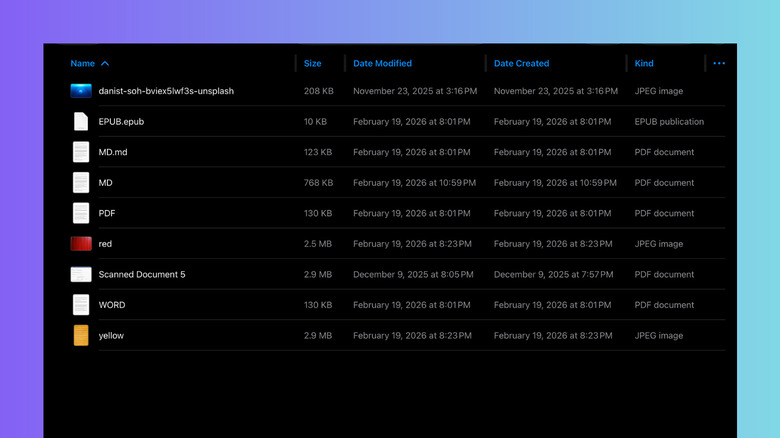
If multitasking was the first hurdle, file management was the second. For the longest time, the Files app felt like a "lite" version of a real file explorer. In 2026, that has changed. The iPadOS 26 file management tips for laptop replacement start with the new list view. This isn't just a list of names; it includes customizable file metadata columns for file size, kind, and modification dates, allowing professionals to sort through hundreds of assets as they would in a macOS Finder window.
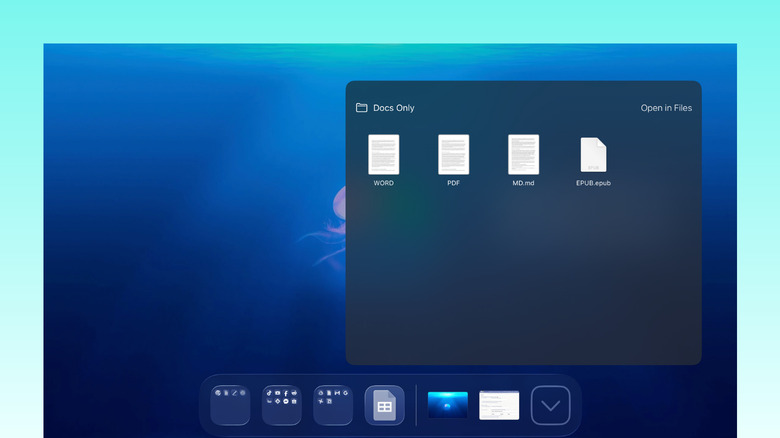
The Files app now mirrors the desktop experience by allowing users to pin specific folders directly to the iPad Dock. This allows for instant access via "Fan" or "Grid" views without even opening the main app. It is a game-changer for workflow optimization, especially when moving between different project folders.
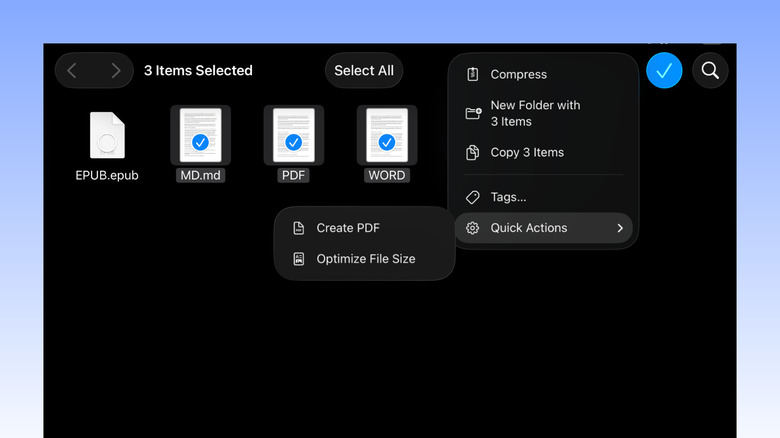
Another critical update is the ability to merge multiple files into PDF on iPad natively. Previously, you had to hunt for a third-party app or use a clunky Shortcut. Now, you can select a mix of images and documents, long-press, and hit "Create PDF." This native handling of complex document tasks is part of why many users no longer feel the need to reach for a laptop. These iPad file management tips are essential for anyone trying to maintain an organized mobile office.
3. Ending the 'Foreground Lock': True Background Processing
One of the most frustrating aspects of using an iPad for professional work used to be the "Foreground Lock." If you started a large 4K video export in Final Cut Pro or a massive 5GB file download in Safari, you couldn't leave the app. If you did, the system would often pause the task to save memory.
Apple's M4 chip, which provides 50% faster CPU performance than the M2 chip while utilizing 50% less power, has finally allowed Apple to remove these artificial limits. iPadOS 26 introduces true background processing. Creative pros can now start a render and switch over to Slack or Notes to continue working, confident that the export will finish in the background.
This change signals a new era for iPadOS productivity features. It turns the iPad into a reliable machine for power user workflows. When we tested this with high-resolution content creation apps, the thermal management of the M4 chip kept the device cool even while multitasking during a background render. This elimination of the 10-minute task limit for background apps is what truly makes the device a mobile workstation.
4. The Modular Workstation: External Display & Automation
The iPad's greatest strength is its modularity. One moment it is a thin tablet for reading; the next, it is a desktop computer. In 2026, the external display integration has been perfected. When you plug your iPad into a 4K monitor, it no longer feels like a mirrored mobile screen. It provides a full, independent desktop experience without black bars, complete with a dedicated menu bar and persistent dock on the second screen.
To make this transition easier, we recommend using Shortcuts automations to manage your "Context Switching." You can set a trigger so that the moment you connect to your home monitor, the iPad automatically opens your email, calendar, and a specific project folder while setting the focus mode to "Work."
Shortcut Recipe: The Instant Workstation
- Trigger: When iPad connects to External Display.
- Action: Open Safari with a specific tab group (Work).
- Action: Launch Stage Manager and set specific window layout.
- Action: Turn on "Do Not Disturb" until disconnected.
This level of peripheral connectivity and automation turns a simple tablet into a highly efficient environment. It is no longer about forcing a mobile OS to work like a desktop; it’s about having a system that understands which mode you need based on the hardware you’ve attached.
5. Professional Research: Apple Pencil Pro & Digital Annotation
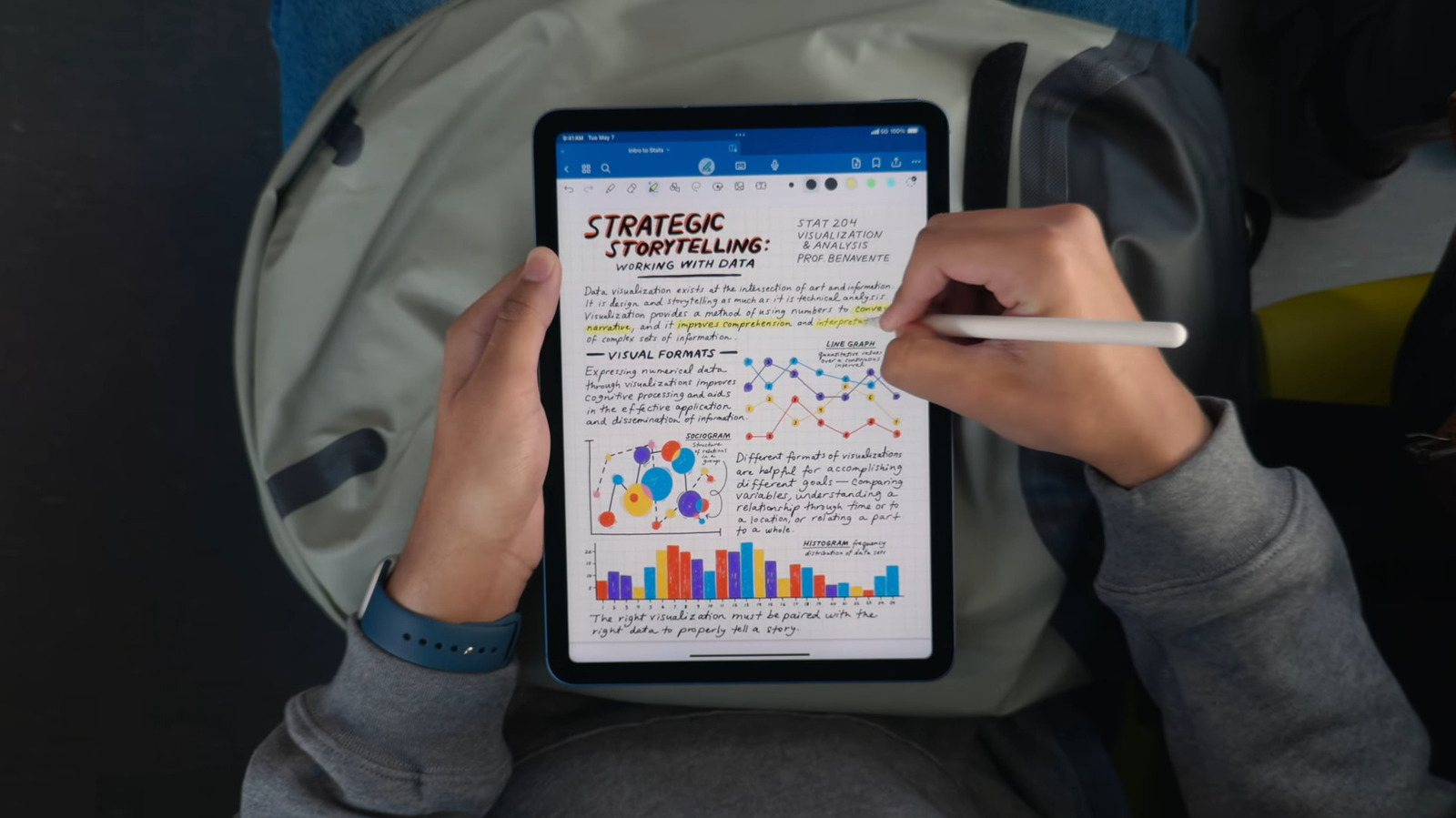
While a laptop is great for typing, it fails miserably at digital annotation. This is where the iPad remains undefeated for professional research. Using iPad and Apple Pencil for professional research in 2026 involves more than just drawing; it’s about a haptic-driven, AI-integrated experience.
The Apple Pencil Pro features haptic squeeze gestures that allow for rapid tool switching. If you are reviewing a legal brief or a scientific paper in the native Preview app, you can squeeze to bring up a tool palette, highlight a section, and have Apple Intelligence summarize the highlighted text instantly. This combination of physical input and machine learning makes the iPad the ultimate tool for a paperless office.
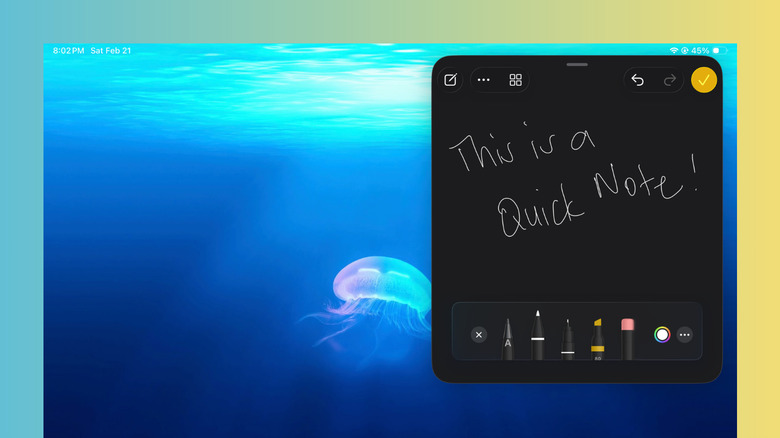
The ability to write directly on PDFs and have that handwriting converted into searchable text means your research notes are never lost. For academics and analysts, the iPad isn't just a replacement for a laptop; it is a significant upgrade over the traditional keyboard-and-mouse workflow.
Who Should Switch and Who Should Wait?
Despite these massive leaps, the iPad isn't for everyone. If your work involves writing complex code, managing deep-level server architecture, or performing heavy-duty Excel modeling with thousands of macros, a MacBook is still your best bet. The "top-heavy" nature of the iPad with a keyboard can also be an ergonomic challenge for long hours of lap-typing compared to the balanced hinge of a laptop.
However, for 90% of office workers, marketers, and creators, the iPad offers a more versatile experience. Below is a breakdown of how the modern iPad setup compares to the standard laptop choice.
| Feature | iPad Air (M4) Workstation | MacBook Air 13-inch |
|---|---|---|
| Display | 11/13-inch Liquid Retina (Touch) | 13.6-inch Liquid Retina (Non-touch) |
| Input Methods | Touch, Pencil, Magic Keyboard | Keyboard, Trackpad |
| Background Tasks | Improved (iPadOS 26) | Full Background Processing |
| Portability | High (Detachable tablet) | Moderate (Fixed clamshell) |
| Software | App Store & Desktop-class Safari | Full macOS Suite |
| Weight | ~1.02 lbs (Device only) | 2.7 lbs |
If you find yourself constantly wishing you could draw on your screen or wanting a device that fits easily on an airplane tray table while still being powerful enough for 4K video editing, the transition is worth it. The question of can iPad replace laptop for photo and video editing 2026 has been answered with a resounding yes, thanks to the M-series processing power and refined software.
FAQ
Can an iPad truly replace a laptop for everyday use?
Yes, for the majority of users, an iPad running iPadOS 26 is more than capable of handling everyday tasks like web browsing, email, document editing, and video calls. The addition of desktop-class Safari and advanced file management has removed the most common frustrations that previously held the device back.
What are the main limitations of using an iPad as a computer?
The main limitations are found in niche professional fields. Developers cannot easily run local environments for coding, and power users of software like Excel may find the mobile versions lack some advanced data-modeling features. Additionally, the iPadOS file system, while improved, is still more sandboxed than macOS or Windows.
Is the iPad Pro powerful enough to replace a MacBook?
In terms of raw hardware, yes. The M4 chip in the iPad Pro is actually more powerful than the chips found in many entry-level laptops. The hardware is rarely the bottleneck; it is whether the specific apps you need have been optimized for the iPad's touch-and-keyboard interface.
Which iPad model is best for professional work?
The iPad Pro (M4) is the gold standard for professional work due to its ProMotion display and Thunderbolt support for external monitors. However, the iPad Air (M4) offers about 90% of the same performance at a much lower price point, making it the better value for most office professionals.
Can you run desktop software on an iPad?
You cannot run macOS (.app) or Windows (.exe) files directly. However, many developers have released "desktop-class" versions of their software for iPadOS, including Adobe Photoshop, Final Cut Pro, and DaVinci Resolve, which offer nearly identical features to their desktop counterparts.
What accessories are necessary to turn an iPad into a workstation?
To create a true workstation, you will need a Magic Keyboard (or a similar keyboard case with a trackpad), an Apple Pencil Pro for creative work, and a USB-C hub if you plan on connecting to an external monitor and wired peripherals simultaneously.