Quick Facts
- Latest Version: Access requires Google app beta version 16.51.52 or 17.5.42 and newer for the most stable experience.
- Core Feature: Gemini background processing now allows the AI to generate long-form content while you use other apps.
- Device Support: Features are rolling out beyond foldables to standard handsets like the Pixel 8 and Pixel 9.
- Multitasking Method: Users can trigger Gemini multitasking by dragging the overlay handle bar to initiate a split-screen view.
- Visual Cues: A minimized bottom-screen icon and system notifications indicate when background tasks are complete.
- Technical Logic: The AI uses Chrome URLs for context or system-level screenshots to analyze app data in real-time.
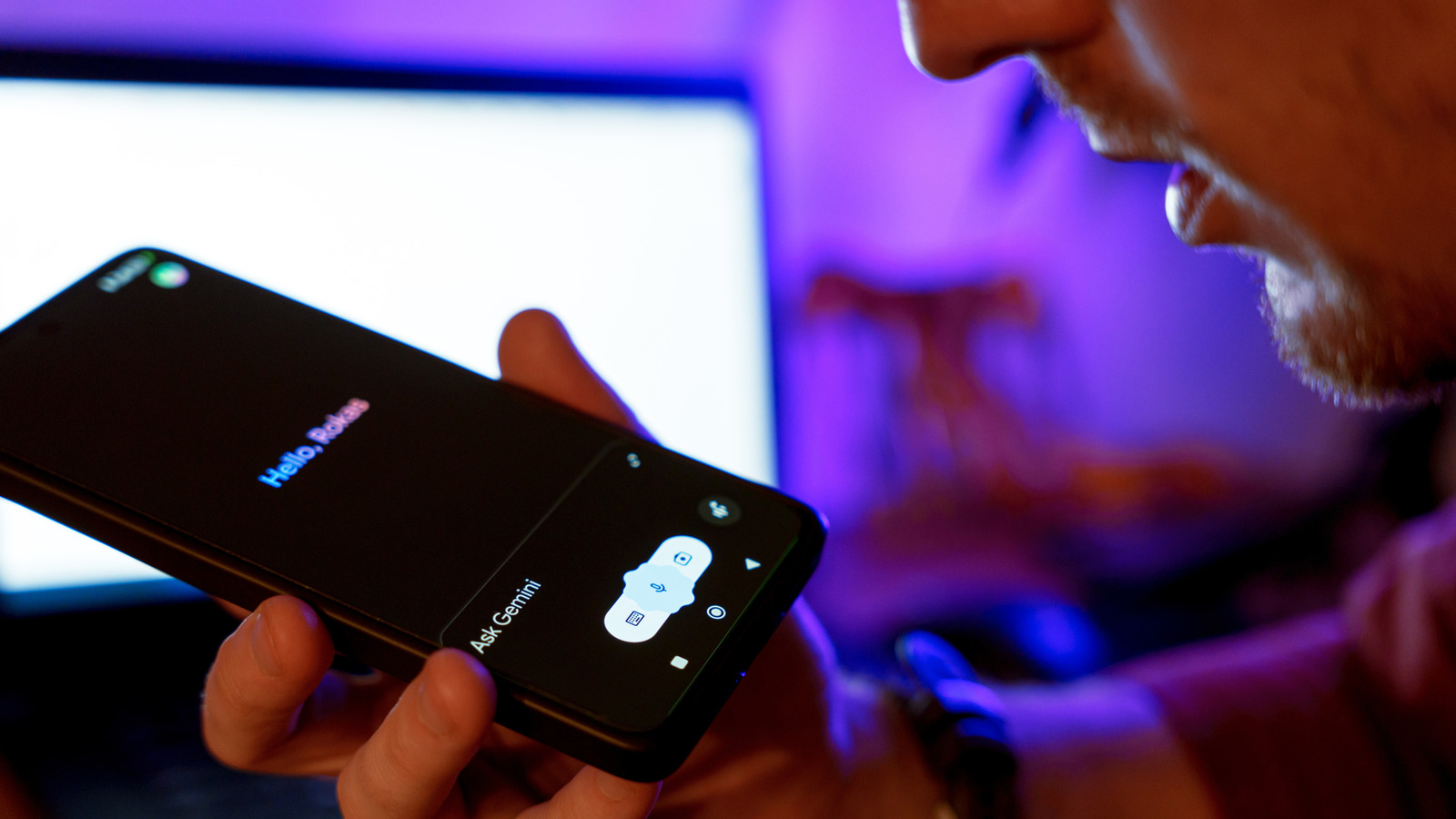
Google has officially updated the Gemini Android overlay to support background processing and split-screen multitasking. Users can now interact with other apps while Gemini generates responses in the background, effectively turning the AI into a system-level layer that doesn't block the user interface.
For anyone who has spent the last year staring at a pulsing AI gradient waiting for a 500-word summary to finish, this update is a massive relief. As a mobile editor, I’ve seen countless productivity tools stumble because they demand 100% of your screen and your attention. Google is finally moving past that limitation. By introducing Gemini multitasking, Android is evolving from a platform that hosts an AI app to a platform that is powered by an AI assistant. This shift means your workflow no longer has to pause just because you asked a complex question.
Gemini Background Processing: How it Works
The most immediate change you will notice is the death of the full-screen blocking overlay. Previously, when you triggered the assistant, it sat on top of your work like a digital paperweight. With the latest update, the Gemini background processing capabilities allow the interface to shrink. When you ask a question and then swipe away or tap into another app, Gemini doesn't just die in the memory—it collapses into a small, elegant icon at the bottom of your display.
Visual animations are key here. You aren't left wondering if the AI crashed. The icon itself pulses with a subtle glow, providing a real-time progress indicator. This is particularly useful when you are leveraging the expanded token limits. Since Gemini can now handle up to 65K tokens in a single output, some responses take time to synthesize. Instead of hovering over the screen, you can check your email or scroll through social media. When the AI is finished, a standard system notification appears, allowing you to jump back into the Gemini Android overlay with a single tap to see your results.
This change is part of a broader vision for the ecosystem. Google introduced Gemini Intelligence in May 2026, which acts as a system-level layer for Android that enables the AI to automate multi-step tasks across different apps in the background. It’s no longer just a chatbot; it’s a background process that understands what you’re doing across the entire operating system.
Expanding Split-Screen: From Foldables to Standard Handsets
For a long time, the best way to use Gemini while interacting with other apps was to own a Galaxy Z Fold or a Pixel Tablet. The large canvas made side-by-side work natural. However, the new update brings those same gestures to standard candybar phones. To activate Gemini split screen on non-foldable Pixel phones, you simply trigger the assistant and then grab the horizontal handle bar at the top of the Gemini window. Dragging that bar toward the top of the screen snaps the assistant into a split-view mode.
On a device like the Pixel 9, this creates a vertical stack. You might have a YouTube video playing in the top half while Gemini summarizes the transcript in the bottom half. For those who own a larger device, the Gemini multitasking tips for Galaxy Z Fold users remain the same but feel more refined: you can now pin the assistant to the side, creating a permanent research companion that stays active as you switch between your browser and document editor.
The update focuses heavily on gesture control. Google has made the transition between the floating overlay and the split-screen view fluid. If you decide you need more room for your primary app, you can collapse the AI back into that persistent floating button, which was a core part of the 2026 update to the Gemini Android overlay. This button can be moved anywhere on the screen, ensuring it never covers up important UI elements like "Send" buttons or navigation arrows.
The Intelligence Layer: 'Share Screen and App Content'
The true power of this update lies in how Gemini "sees" what you are doing. Inside the multitasking menu, there is a new toggle for a Gemini share screen and app content feature instructions. When enabled, the AI can read the context of your active window without you having to copy and paste text manually.
There is a sophisticated technical logic behind this. If you are using Google Chrome, Gemini doesn't just take a picture of the screen; it fetches the actual URL to ensure it has the most up-to-date and accurate text. For other apps that don't support direct URL sharing, the system uses high-resolution "screen scraping" to analyze the visual data. This is how the assistant is able to analyze 30,000 lines of code or 1,500 pages of text while you are still navigating through the file structure of your project.

In my real-world testing, I used this to plan a trip. I had a travel blog open in Chrome and asked Gemini to "Extract all the hotel names mentioned here and put them in a table." While it was processing that list in the background, I was already in the Maps app looking at the layout of the city. As soon as the notification popped up, I dragged Gemini into split-screen, saw the table, and immediately started saving those locations to my "Want to Go" list. It’s the kind of productivity workflow that used to require a desktop setup with two monitors.
Choosing Your Tier: Gemini Plus vs. Pro vs. Ultra
To make the most of these background features, you need to understand which version of the AI you are running. The background processing and high-token limits are scaled based on your subscription tier. While basic multitasking is available to everyone, the "Deep Research" mode that thrives in background tasking is reserved for higher tiers.
| Feature | Gemini Plus | Gemini Pro | Gemini Ultra |
|---|---|---|---|
| Monthly Price | $7.99 | $19.99 | $249.99 |
| Background Processing | Standard | Priority | Dedicated Server |
| Output Limit | 8K Tokens | 65K Tokens | 2M+ Tokens |
| Split-Screen Support | Yes | Yes | Yes |
| Best For | Casual Users | Power Users/Students | Developers/Enterprise |
For most people reading this, Gemini Pro is the sweet spot. It provides the best value for Gemini multitasking by offering enough memory to handle long documents in the background without the extreme cost of the Ultra tier, which is designed for enterprise-level data processing.
Getting the Update: Google App Beta Version
If you don't see these features on your phone yet, you likely need to enroll in the beta. Google is currently testing these multitasking improvements in specific builds. Specifically, you should look for the Google app beta version for Gemini multitasking update which is usually version 16.51.52 or 17.5.42.
To check your version:
- Open the Google App.
- Tap your Profile Picture.
- Go to Settings > About.
- If you aren't on the right version, you can join the beta program through the Google Play Store page for the Google app.
Once updated, make sure you go into the Gemini settings and enable the "Screen Context" and "Background Progress" toggles. This ensures that the AI has the permissions it needs to stay active even when it isn't the primary focus of your screen.
FAQ
How do I enable multitasking with Gemini?
To enable multitasking, you must ensure your Google app is updated to the latest beta version. Once updated, trigger Gemini and look for the handle bar at the top of the overlay. You can drag this bar to the top of the screen to enter split-screen mode or simply swipe home to allow the AI to continue processing your request as a background task.
Can Gemini perform multiple tasks at the same time?
Currently, Gemini can process one complex query in the background while you perform other manual tasks in different apps. While it cannot generate two separate AI responses simultaneously yet, the background processing feature allows you to continue your digital workflow without waiting for the AI to finish its current task.
How does Gemini multitasking work on Android?
Gemini multitasking works by utilizing a system-level intelligence layer. When you minimize the AI, it collapses into a floating icon or a notification. It uses a combination of URL fetching for web pages and screen analysis for other apps to understand context while you move between different pieces of software.
Can I use Gemini while using other apps?
Yes, this is the primary goal of the latest update. By using either the split-screen gesture or the floating overlay button, you can keep Gemini visible on one part of the screen while interacting with apps like Slack, Chrome, or YouTube on the other.
Does Gemini support split-screen mode?
Yes, Gemini supports split-screen mode on both foldable and non-foldable Android devices. On standard smartphones, dragging Gemini bar to enable split screen mode will divide the screen vertically, allowing the AI to sit above or below another active application for easier data referencing.