Quick Facts
- EU Mandate: All laptops sold after April 28, 2026, must use standardized USB-C ports for charging.
- Maximum Power: The USB-C 2.1 standard supports up to 240W through Extended Power Range (EPR).
- Top Speed: Latest USB4 Version 2.0 cables can reach data speeds of 80 Gbps.
- Security Chip: An E-Mark chip is mandatory for any cable exceeding 60W or 5Gbps.
- Video Output: DisplayPort Alt Mode is a specialized feature not found in basic charging cables.
- Length Limits: Data performance often drops significantly in passive cables longer than two meters.
In 2026, USB-C cable standards are primarily defined by their Power Delivery (PD) and data transfer ratings rather than physical appearance. The USB-C 2.1 specification introduces Extended Power Range (EPR), allowing cables to support up to 240W of power. Data speeds vary significantly, ranging from 480 Mbps on basic USB 2.0 cables to 80Gbps on USB4 Version 2.0. Users should look for standardized USB-IF logos on the connector or packaging that explicitly list the wattage and bandwidth to ensure the cable meets their device requirements.
As of the April 28, 2026, EU mandate, all new laptops and tablets must use USB-C. But not all cables are equal. This guide breaks down USB-C cable standards to help you choose the right speed and power.
Myth 1: If It Fits, It Charges at Full Speed
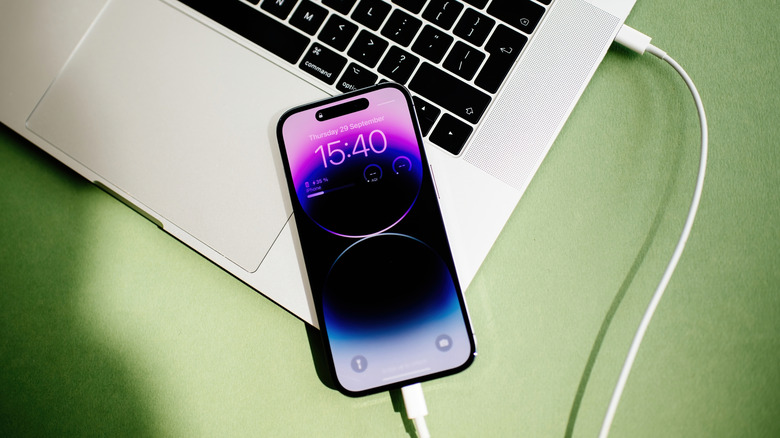
One of the most dangerous assumptions in the computing world is that any cable with the right connector will provide the fastest possible charge. In my years testing hardware, I have seen flagship laptops throttled to a literal crawl because the user grabbed a random cable from a drawer. The reality is that charging is a complex negotiation between the power brick, the device, and the cable sitting between them.
Under the USB Power Delivery specs, a sophisticated five-step handshake occurs the moment you plug in. First, the device detects a connection. Then, the charger offers its available power profiles. The device requests a specific voltage and current, and only then does the power begin to flow. If you use a basic cable without an E-Mark chip, the system defaults to a safe 60W (or even 15W) to prevent overheating.
To get the most out of modern hardware, you need a cable that supports the Extended Power Range (EPR). This is part of the USB-C 2.1 update that allows for 240W charging, which is finally enough to power high-end gaming laptops without a proprietary brick. If you are wondering how to tell if usb-c cable supports data transfer and high-wattage charging, the answer is rarely in the thickness of the cable; it is in the electronic signature provided by that internal chip.
Editor's Note: Never ignore the E-Mark chip. It acts as the cable’s ID card. Without it, your 140W MacBook Pro charger will never provide more than 60W to your laptop, regardless of how "heavy-duty" the cable looks.
Myth 2: All USB-C Cables Support Video Output
I frequently receive emails from readers complaining that their brand-new USB-C monitor stays black despite using the cable that came with their phone. This happens because video transmission is not a default function of the USB-C port. It requires a specific protocol called DisplayPort Alt Mode.
While the connector has 24 pins, many cheap cables—often sold as "charging cables"—only have the wires connected for power and low-speed USB 2.0 data. To push 4K or 8K video, the cable must have high-speed data lanes wired correctly to handle the massive bandwidth. If you are building a professional workstation, you must specifically look for full-featured cables.
When setting up a usb-c alt mode for 8k monitor setup, you are looking for cables that can handle at least 20Gbps to 40Gbps. Standardizing on a high-speed cable ensures signal integrity over the distance between your PC and the screen. If the cable is too long and lacks active amplification, you will see flickering or a complete loss of signal.
Myth 3: Thunderbolt is Always Better for Charging
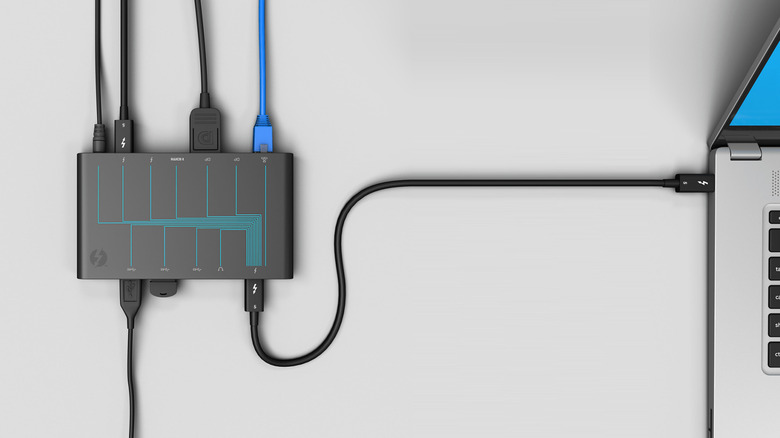
There is a common misconception that Thunderbolt 4 or Thunderbolt 5 is the gold standard for everything, including charging. While Thunderbolt offers incredible data speeds, the Thunderbolt vs USB-C compatibility chart reveals a strange quirk regarding power. For a long time, Thunderbolt 4 cables were capped at 100W.
However, the latest USB-C 2.1 standards introduced 240W support before many Thunderbolt cables caught up. This created a "240W paradox" where a high-end USB-C 2.1 cable might actually be better for charging a workstation than an older Thunderbolt 4 cable. When comparing usb4 version 2 vs thunderbolt 4 compatibility, remember that while they are largely cross-compatible, the specific wattage rating is what matters for your battery.
Thunderbolt is a proprietary technology owned by Intel that guarantees a high minimum floor of performance (like dual 4K monitor support). USB-C is the broader standard. While you can find the best usb-c 2.1 cables for 240w charging that are not Thunderbolt certified, they will still safely power your device if they carry the USB-IF certification.
Myth 4: Flipping the Cable Doesn't Change Anything
We were told USB-C is reversible, and physically, it is. You can plug it in either way. However, from a technical perspective, the internal 24-pin architecture is quite complex. Issues like usb-c cable reversibility and data speed issues often stem from a phenomenon where a cable works perfectly for charging in one orientation but fails to provide high-speed data if flipped.
This is usually caused by a failure in the Symmetrical pinout design or wear and tear on the internal CC (Configuration Channel) pins. If a cable is poorly manufactured, one side of the connector might not have the signal integrity required for USB-C data transfer speeds of 40 Gbps or higher.
If you notice your external SSD is transferring files at a measly 40MB/s (USB 2.0 speeds) instead of 1000MB/s, try flipping the connector. If the speed changes, the cable is defective or has a broken internal trace. This is a classic troubleshooting step that many "pro" users forget.
Myth 5: Version Numbers (USB 3.2 vs 4.0) are the Best Way to Shop
If you try to shop by version numbers alone, you will find yourself in a world of marketing pain. The naming schemes for USB 3.2 Gen 1, Gen 2, and Gen 2x2 are notoriously confusing. In 2026, the industry has finally moved toward performance-based labeling, which is a much more honest way to treat consumers.
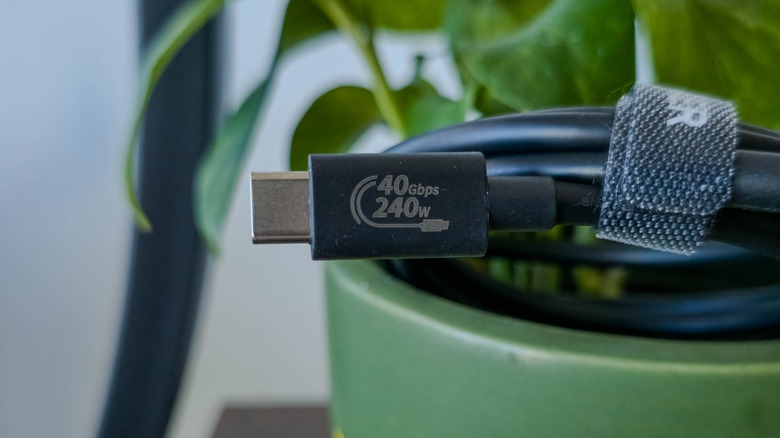
Instead of looking for a version number, you should look for the USB-IF logos that state the speed and power directly. A label that says "40Gbps 240W" tells you everything you need to know. This performance-based approach makes it easier to understand how to identify usb-c cable speeds by labels. Whether it is USB4 Version 2.0 or an older standard, the logo on the housing is your most reliable guide.
| Feature | Legacy Standard (Pre-2021) | 2026 USB-C Standard |
|---|---|---|
| Max Power Delivery | 60W or 100W | 240W (EPR) |
| Max Data Speed | 10 Gbps (USB 3.1) | 80 Gbps (USB4 v2) |
| Video Support | Optional / Rare | Standard on Full-Featured |
| Mandatory Chip | Not always required | E-Mark for >60W/5Gbps |
| Mandatory Logo | Often missing | Required for USB-IF |
Choosing the Perfect Cable: 2026 Checklist
Before you click "buy" on that multi-pack of cables, run through this quick professional checklist to ensure you aren't bottlenecking your expensive hardware.
- Check the Wattage: If you have a laptop, look for a cable specifically rated for 100W or 240W. The best usb-c 2.1 cables for 240w charging will always be thicker and have more robust strain relief.
- Verify the Speed: For external drives, you want at least 10Gbps or 20Gbps. For professional video editing off an NVMe enclosure, look for 40Gbps or 80Gbps.
- Confirm Alt Mode: If you are connecting a portable monitor or a desk display, the cable must explicitly mention video support or DisplayPort Alt Mode.
- Length Matters: If you need a cable longer than 1 meter, you might need an "active" cable to maintain USB-C data transfer speeds without a significant voltage drop.
- Look for the Badge: Always prioritize cables with the official USB-IF certification logos. It is the only way to guarantee that the internal E-Mark chip is communicating correctly with your devices.

FAQ
Are all USB-C cables the same?
No. While they share the same physical connector, their internal wiring and chips vary wildly. Some are designed only for slow charging and USB 2.0 data, while others support 240W power delivery and 80Gbps data speeds.
How do I know if my USB-C cable supports fast charging?
Check the packaging or the connector itself for a wattage rating like 100W or 240W. High-speed charging requires a cable with an E-Mark chip that can negotiate power levels with the charger.
What is the difference between USB 3.2 and USB4?
USB 3.2 is an older standard maxing out at 20Gbps. USB4 is based on the Thunderbolt protocol and starts at 40Gbps, with the latest version supporting up to 80Gbps and much better resource allocation for video and data.
Do all USB-C cables support video output?
No. Video output requires DisplayPort Alt Mode. Most basic charging cables included with phones or low-cost accessories do not have the high-speed data lanes required to transmit a video signal.
How do I identify a Thunderbolt 4 cable?
Thunderbolt 4 cables are identified by a lightning bolt icon and the number 4 printed on the connector housing. They are certified to support at least 40Gbps and dual 4K monitor outputs.
Can a low-quality USB-C cable damage my device?
Yes. A poorly made cable may lack the necessary resistors or E-Mark chips to regulate power, potentially leading to overcurrent issues that can fry the charging circuitry in your laptop or smartphone.