Quick Facts
- Status: Consumer accounts are opt-in for data training by default, meaning your data helps improve the model unless you change it.
- Retention: OpenAI retains all conversation data for at least 30 days for safety monitoring, even if history is turned off.
- Best Practice: Always enable multi factor authentication for chatgpt account and avoid sharing any personally identifiable information.
- Enterprise Benefit: ChatGPT Enterprise and Business accounts have training disabled by default and offer SOC 2 compliance.
- New Features: Recent updates include a Temporary Chat mode for ephemeral sessions that are not recorded or used for training.
As AI becomes a daily tool, protecting your data is critical. You can easily manage ChatGPT privacy settings to prevent your prompts from being used for training while keeping your history intact. To stop OpenAI from using your conversations for model training, log in to ChatGPT and navigate to Settings via your profile icon. Select Data Controls and toggle off the option labeled "Improve the model for everyone." This prevents future chats from being used for large language model refinement while still allowing you to maintain your chat history for personal reference.
1. Adjust Your Internal Data Controls
The most direct way to handle your digital footprint within the OpenAI ecosystem is through the internal dashboard. For a long time, users felt they had to choose between keeping a record of their chats and maintaining their privacy. However, on April 25, 2023, OpenAI introduced a privacy setting that allows users to disable chat history, which stops new conversations from being used to train and improve future AI models.
To find these options on a desktop browser, click on your profile icon in the bottom-left or top-right corner. Follow the path to Settings > Data Controls. Here, you will see a toggle for "Chat History & Training." If you turn this off, your conversations will no longer appear in the sidebar, and they won't be used for Large Language Model refinement. If you prefer to keep your history visible but still want to opt out of training, look for the specific toggle labeled "Improve the model for everyone" and switch it off.
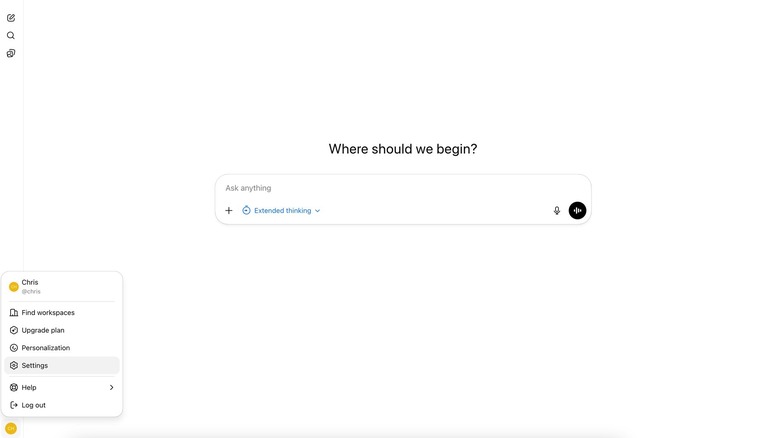
Managing these ChatGPT data controls on the mobile app follows a similar logic. Tap the two lines to open the sidebar, then tap the three dots or your profile icon to access Settings. Navigate to Data Controls and adjust the toggles accordingly. It is important to remember that even when you disable ChatGPT model training, OpenAI still keeps your data on their servers for 30 days. This is part of the OpenAI privacy policy intended to monitor for abuse or harmful content before the data is permanently deleted from their active systems.
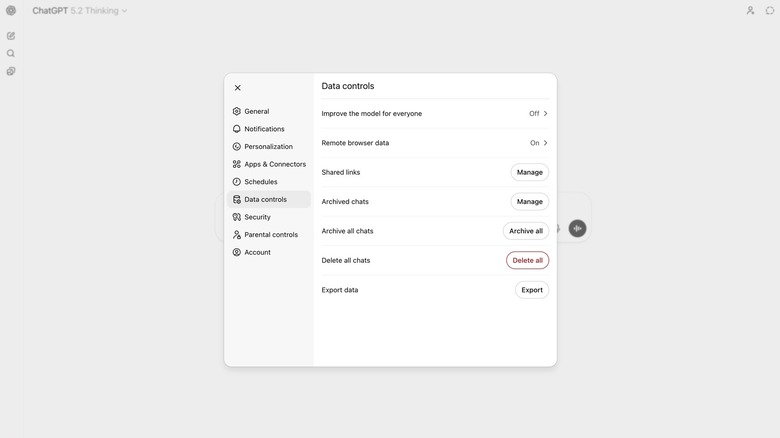
By taking this step, you are effectively telling the system to stop using your User-provided content as fuel for its next iteration. This is a vital move for anyone who uses the tool for creative writing or brainstorming and wants to keep their unique ideas out of the public machine learning datasets.
2. Utilize Temporary Chat for Sensitive Sessions
Sometimes you just need to ask a quick, sensitive question without it becoming a permanent part of your digital record. This is where Temporary Chat comes in. Think of this as the "Incognito Mode" for AI. When this mode is active, the AI starts with a blank slate. It won't remember previous things you have talked about, and it won't save the current session to your history.
To activate this, look at the chat header at the top of the screen where the model name (like GPT-4o) is displayed. Click or tap the model name to reveal a dropdown menu and select Temporary Chat. You will see a distinct visual change in the interface to let you know you are in an ephemeral session. This is an excellent method for using chatgpt temporary chat for sensitive information because it bypasses the standard history logging entirely.
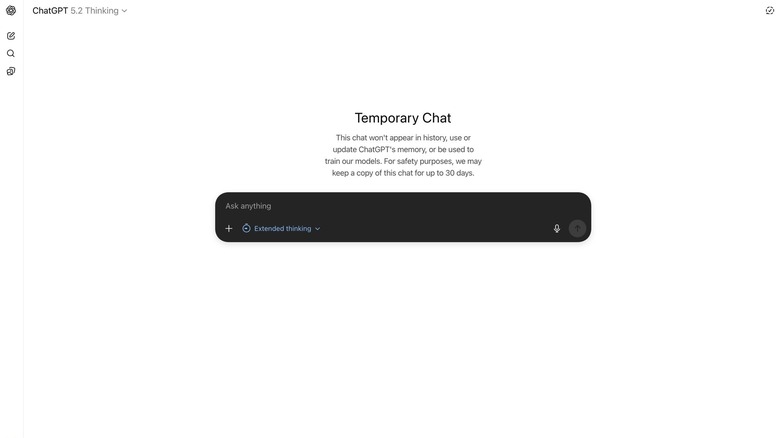
While in this mode, the session follows strict information security best practices. The conversation exists only for the duration of the window. Once you close it, the data is gone from your view. This is perfect for analyzing a specific piece of text or getting feedback on a sensitive email where you don't want the context lingering in your sidebar for weeks. This is a major upgrade for anyone looking for ephemeral chat history without having to toggle global settings back and forth.
3. Hardening Your Account with MFA
Privacy is not just about what OpenAI does with your data; it is also about who can access your account. Account hijacking is a real threat, and if someone gains access to your login, they can see your entire history and even your custom instructions. According to the 2024 AI Index Report, global confidence in AI companies' ability to protect personal data declined from 50% in 2023 to 47% in 2024. This decline highlights why users need to take individual responsibility for their account-level security.
Setting up ChatGPT multi-factor authentication is one of the most effective ways to prevent account hijacking protection failures. To enable this, go back to Settings and select the General or Security tab (depending on your device). Look for the Multi-factor authentication section and click Enable.
You will generally need to use one of the many available authenticator applications like Google Authenticator or Microsoft Authenticator. The app will provide a QR code to scan, which then generates a rolling six-digit code. From that point on, even if someone steals your password, they cannot enter your account without that physical code from your phone. This extra layer is a cornerstone of modern information security best practices and ensures that your private data stays under your control.
4. Mastering Prompt Sanitization (The Red List)
The most effective way to keep your data private is to never share it in the first place. This requires a behavioral shift in how you write prompts. Many users treat the AI like a trusted coworker, but it is better to treat it like a helpful stranger. Industry surveys indicate that approximately 15% of employees have inadvertently pasted sensitive corporate or personal information into public AI chatbots.
To combat this, I recommend following a "Red List." This is a mental or physical checklist of things that should never enter a prompt.
The Privacy Red List: Never Share These
- Personal Identifiers: Full names, home addresses, phone numbers, or social security numbers.
- Financial Data: Credit card numbers, bank account details, or specific salary figures.
- Corporate Secrets: Internal project codenames, unreleased product specs, or proprietary code.
- Credentials: Passwords, API keys, or login tokens.
When you need the AI to help with a sensitive task, you should learn how to anonymize sensitive information in chatgpt prompts using data anonymization techniques. For example, instead of pasting an email that says, "Dear Mr. Henderson, regarding the $50,000 budget for Project X," you should sanitize it: "Dear [Client], regarding the [Budget Amount] for [Project Name]." This allows the AI to give you the structural help you need without ever seeing the actual sensitive details.
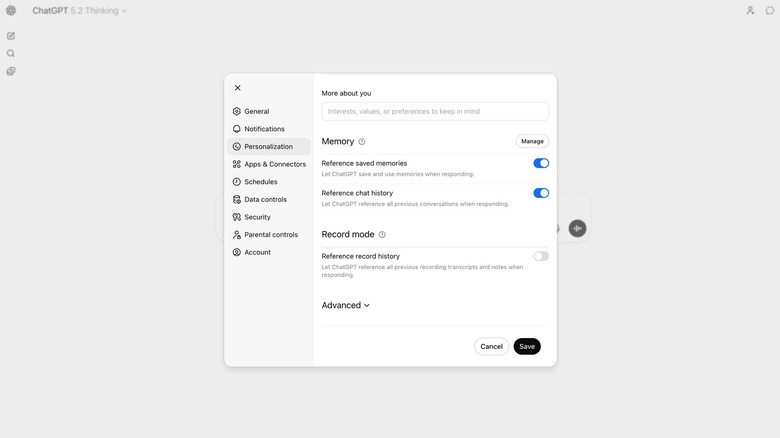
Additionally, keep an eye on the "Memory" feature. This is a separate function from training where the AI learns your preferences over time. You can manage what it remembers by going to Settings > Personalization > Memory. From here, you can view specific things the AI has "learned" about you and delete them individually, ensuring that your long-term profile stays clean of any accidental disclosures.
Enterprise vs. Personal: Do You Need an Upgrade?
For those working in high-stakes environments like law, medicine, or finance, the consumer version of ChatGPT might not be enough regardless of how many toggles you flip. This is where the chatgpt privacy features for enterprise vs personal accounts become a major factor in decision-making.
In a ChatGPT Enterprise or Business account, the "Improve the model for everyone" setting is turned off by default for all users. OpenAI does not use data from these tiers to train its models. Furthermore, these plans offer enterprise-grade security features like single sign-on (SSO) and more robust data retention policies that allow administrators to decide how long data is kept before it is purged. If your work involves strict confidentiality agreements or you need to maintain SOC 2 compliance, the upgrade is often a necessary investment to ensure your data handling meets professional standards.
FAQ
How do I change my privacy settings in ChatGPT?
To change your settings, click on your profile icon and select Settings. From there, navigate to the Data Controls section where you can find options for chat history, model training, and data export.
Does OpenAI use my conversations to train its models?
By default, OpenAI uses conversations from free and Plus users to train and improve its models. However, you can opt out of this by turning off the Improve the model for everyone toggle in your Data Controls settings.
How can I turn off chat history and model training?
Go to Settings and then Data Controls. Toggle off the Chat History & Training switch. This will hide your history from the sidebar and prevent your new conversations from being used for training.
Is it safe to share personal information with ChatGPT?
It is generally not recommended to share sensitive personally identifiable information with any AI. While OpenAI has security measures in place, the safest approach is to use anonymized data and placeholders instead of real names or numbers.
Can I delete my ChatGPT account and data permanently?
Yes, you can delete your account by going to Settings, then Data Controls, and selecting Delete Account. Be aware that this action is permanent and will erase all your chat history and account information across all OpenAI services.