Quick Facts
- Native AI Integration: Gemini Pro/Ultra accessible via Side Panel.
- Multitasking Standard: Native Split View for single-tab dual-viewing.
- Command Efficiency: Ctrl + L triggers Chrome Actions for instant file creation.
- Performance Benchmark: Memory Saver mode reduces inactive tab load by 80%.
- Workflow Automation: Auto Browse agents for multi-step tasks (Gemini Pro/Ultra).
- Primary Benefit: Estimated 30% reduction in context-switching time.
As of May 2026, the browser has evolved into an AI-driven workspace. To maintain high efficiency, mastering native Chrome productivity features like Gemini AI and Split View is essential. The top Chrome productivity features in 2026 include built-in Gemini AI for real-time page summarization, Split View for side-by-side multitasking within a single tab, and Chrome Actions for executing workspace commands via the address bar. Users also benefit from a customizable Reading Mode with text-to-speech capabilities and seamless cross-device tab sharing. These integrated tools minimize context switching and streamline research and content creation directly within the browser interface.
1. Gemini AI: Your Integrated Agentic Assistant
The biggest shift we have seen over the last two years is the move from simple generative AI to true agentic AI. In 2026, Gemini AI in Chrome is no longer just a chatbot sitting in a tab; it is an integrated layer of the browser’s architecture. For professionals, this means the end of copying and pasting text into a separate window just to get a summary. By using the Side panel integration, you can now trigger real-time summarization of complex technical whitepapers or long-form industry reports without leaving your primary workspace.
For those wondering how to use gemini ai in chrome for research 2026, the process has been streamlined into a single click or keyboard command. The AI can now search local data—such as your open tabs, Bookmarks, and History—to find connections that would take a human hours to track down. AI-powered browser features are estimated to save users up to 30% of their working hours by 2026 through the automation of tasks such as content summarization and cross-tab research.
Furthermore, Enterprise users utilizing Gemini-powered AI tools save an average of 105 minutes per week as of late 2025, a figure that is only growing as the Auto Browse feature becomes more sophisticated. This agent can effectively handle multi-step tasks, like "find the three best-reviewed laptops from my open tabs and create a comparison table in a new Google Doc." This level of Generative AI assistant capability turns the browser into a proactive partner rather than a passive tool.
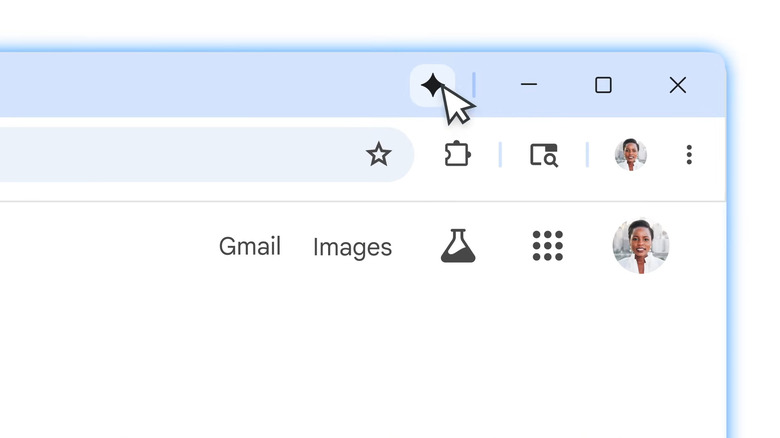
When you are using gemini in chrome to summarize long web pages, the sidebar remains persistent, allowing you to ask follow-up questions about specific data points on the page. This is a game-changer for content creators who need to verify facts against multiple sources simultaneously.
2. Native Split View: Single-Tab Multitasking
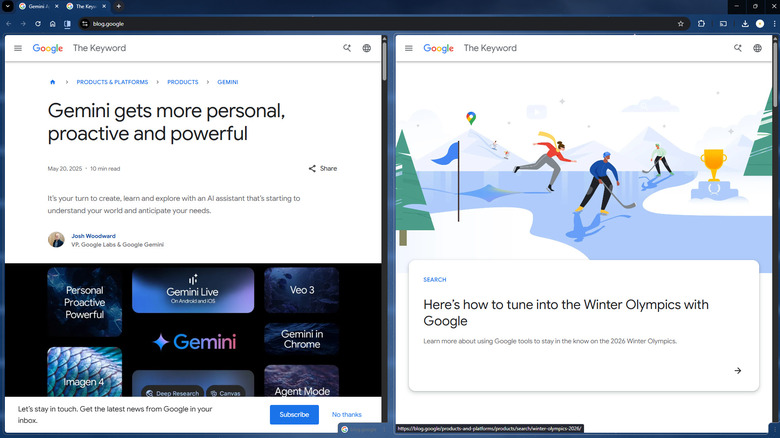
For years, we relied on OS-level window snapping or third-party extensions to view two pages at once. In 2026, Chrome Split View multitasking has become a native standard that respects your laptop’s screen real estate better than any external tool. This feature allows you to display two web pages simultaneously in one window by selecting the split view icon or right-clicking links to "Open in Split View."
This is especially helpful for those following a chrome split view multitasking guide for windows and mac, as the experience is now identical across platforms. From a hardware perspective, this implementation is much more efficient. By managing two views within a single tab process, Chrome optimizes Tab management and reduces the CPU overhead associated with maintaining two entirely separate browser windows.
- Best for Researchers: Keep your source material on the left and your CMS or document editor on the right.
- Best for Developers: View documentation on one side while testing a local environment on the other.
- Best for Shoppers: Compare product specs side-by-side without the "tab-switching fatigue."
The primary goal here is Workflow optimization. By keeping related tasks within a single visual frame, you significantly reduce context switching. When your eyes don't have to jump across the entire desktop to find a hidden window, your cognitive load drops, and your output increases.
3. Chrome Actions: Master the Address Bar
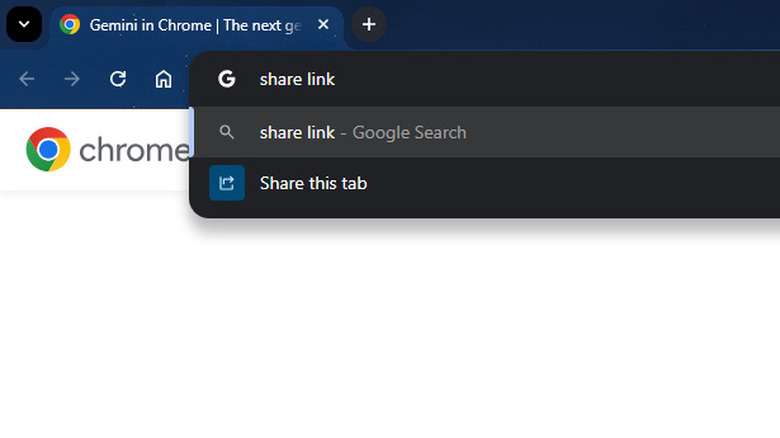
The Omnibox is no longer just for URLs and Google searches. In 2026, Chrome Actions have turned the address bar into a powerful command-line interface for the modern professional. By using Chrome address bar shortcuts, you can bypass multiple menu layers to execute complex tasks. If you hit Ctrl + L (or Cmd + L on Mac) and type a command, you can manage your entire digital workspace in seconds.
Professional users find that using chrome actions to create google workspace files is the fastest way to start a new project. Instead of navigating to Drive, clicking "New," and selecting "Sheet," you simply type "new sheet" or "new doc" into the address bar. This is one of the best chrome address bar shortcuts for work efficiency because it keeps your hands on the keyboard and your mind on the task.
Common Omnibox commands include:
edit passwords: Jumps directly to the credential manager.clear cache: Wipes browsing data without digging through settings.manage tabs: Opens a visual overview of all active windows.translate page: Instantly toggles the translation engine for foreign language research.
This Web automation through text-based commands is a major part of why Chrome remains the dominant force in productivity. It treats the browser like an operating system, providing a direct bridge to Google Workspace integration.
4. Reading Mode & Tab Groups: Clutter-Free Focus
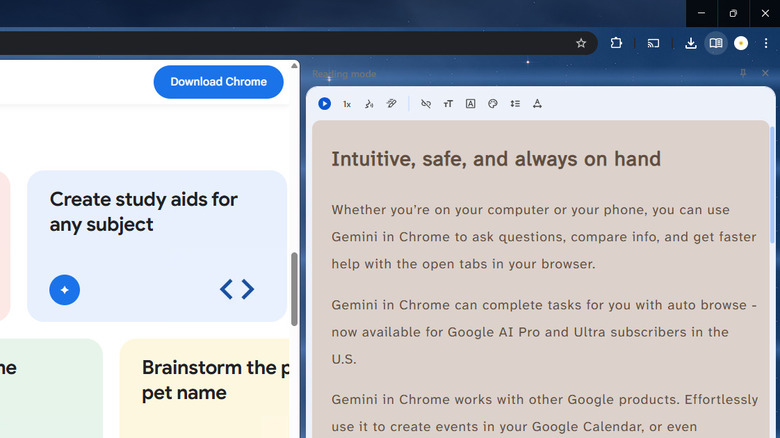
Distraction is the enemy of high-level output. While the modern web is full of pop-ups and auto-playing videos, enabling chrome reading mode for focused study allows you to strip away the noise. This feature, accessible via the side panel, extracts the core text and images from an article and presents them in a customizable minimalist layout.
Reading Mode in 2026 also includes advanced text-to-speech capabilities. You can have a technical article read back to you with natural-sounding AI voices while you are busy with another task, effectively turning any web page into a podcast. This Clutter-free browsing experience is essential for deep work sessions where you need to absorb large amounts of information without the visual "pollution" of modern web design.
Complementing this is the evolved Tab management system. With the average user maintaining 11.4 open tabs per session, organization is mandatory. Tab Groups now feature "Automatic Categorization," where Chrome uses on-device AI to group related tabs based on the project you are working on. This prevents the dreaded "tab-overload" and ensures that your research sessions remain organized and recoverable across devices.
5. Memory Saver & Security: Professional Performance Management
As a computing editor, I often see users blame their hardware for slow performance when the culprit is actually browser bloat. Chrome's Memory Saver feature is a critical tool for anyone running a machine with 16GB of RAM or less. By 2026, this mode has been refined to be even more aggressive yet intelligent. It reduces the memory consumption of inactive tabs by up to 80%, ensuring that your active work—whether it’s a heavy WebGL application or a massive spreadsheet—has all the resources it needs.
From a security standpoint, the professional landscape in 2026 requires more than just a password manager. Integrated security features now audit your extensions for SOC 2 Type II compliance and alert you if an extension has been abandoned by its developer, which is a common vector for malware.
| Feature | Productivity Impact | System Benefit |
|---|---|---|
| Memory Saver | High | 80% RAM reduction for idle tabs |
| Tab Discarding | Medium | Lowers CPU heat and battery drain |
| Extension Auditor | Critical | Prevents data leaks from legacy code |
| Browser synchronization | High | Seamless transition between desktop and mobile |
To maintain professional performance, I recommend limiting your active AI extensions to 2 or 3 high-quality tools that offer deep integration, rather than dozens of single-use add-ons. The built-in features we have discussed today often replace the need for five or six separate extensions, further aiding in Workflow optimization and system stability.
FAQ
How do I organize tabs in Chrome for better productivity?
The best way to organize tabs is by using the native Tab Groups feature. Right-click any tab and select Add tab to new group. You can name these groups and color-code them based on specific projects. In 2026, you can also use AI to automatically group tabs by right-clicking the tab bar and selecting Organize Tabs, which clusters related content for you.
What are the best built-in productivity features in Chrome?
The top built-in features are Gemini AI for real-time summarization, Native Split View for side-by-side work, Chrome Actions for address bar commands, Reading Mode for distraction-free study, and Memory Saver for maintaining high system performance. These tools reduce the need for third-party extensions that can slow down your browser.
How do I use the Chrome side panel?
You can access the side panel by clicking the panel icon located next to your profile picture in the top-right corner of the browser. From there, you can toggle between Gemini AI, Reading Mode, Bookmarks, and History. This allows you to interact with these tools without losing sight of the main web page you are viewing.
What keyboard shortcuts should I use to work faster in Chrome?
Mastering Ctrl + L (or Cmd + L) to jump to the address bar for Chrome Actions is essential. Other vital shortcuts include Ctrl + Shift + T to reopen the last closed tab, Ctrl + Tab to cycle through open tabs, and Ctrl + F to quickly find specific text. For Split View, you can often use Alt + [ or Alt + ] to snap windows if you are using a ChromeOS device or a integrated Windows environment.
How does Chrome's memory saver mode work?
Memory Saver identifies tabs that you haven't looked at in a while and puts them into a "sleep" state, freeing up RAM for your active tabs and other applications on your computer. When you click back onto a sleeping tab, it instantly reloads. This can reduce memory usage of background tabs by up to 80%, which is a massive win for performance on laptops.
Final recommendation: Take ten minutes today to audit your current extensions. If a native feature like the Gemini Side Panel or Split View can replace a third-party add-on, make the switch. Your CPU—and your focus—will thank you.